How To: Keep Law Enforcement Out of Your Android Device

How To: Keep Law Enforcement Out of Your Android Device
While we hope you never experience this, there may come a time when law enforcement compels you to hand over your phone and any self-incriminating data it may contain. Before this happens, you should know there are tools at your disposal to protect your data in such situations.These tips mostly involve tightening up settings within Android, but there's also a third-party app that can help. Once you've implemented these tips, you can derail law enforcement's effort by keeping your phone locked even while it's in their possession. But we're not lawyers, so use these tips at your own discretion, as each circumstance is different.
Tip 1: Disable Biometrics in a Few SecondsWhile biometrics do provide a great balance of security and convenience, they can be used against you when dealing with law enforcement. While a recent ruling in the District Court for the Northern District of California deemed that police forcing you to unlock your phone with your fingerprint was a violation of the Fourth and Fifth Amendments, whether it stands in future court hearing remains to be seen.However, the refusal to give up your passcode has been upheld in both a Pennsylvania and a Colorado ruling. While a Florida judge has challenged its Fifth Amendment protection, it is still the safer option.In Android 9 Pie, Google introduced a feature known as Lockdown Mode. It isn't enabled by default, so you will need to turn it on first. Once activated, you can quickly lock your phone and disable biometrics with one button, leaving your PIN, pattern, or password as the only way to unlock your phone. Best of all, it only disables your fingerprint scanner (or secure facial recognition) once, so you don't have to remember to turn off the feature after your encounter.If your phone is running an older Android version, there's another workaround: Just restart it. When you reboot the phone, it will require that your password, PIN, or pattern is entered on the next unlock. In other words, biometrics will be temporarily disabled.
Tip 2: Use a Strong PasswordPiggybacking off Tip 1, the safest authentication method offered by your phone is the alphanumeric password. With a secure password (which can be up to 16 characters long), you can rest assured your phone won't be unlocked without your consent, as there are simply too many possible combinations for law enforcement to guess.An 8-character password with no consecutive letters (or the use of common words or names) would take a computer over five months to crack. Increase this to 16 characters and it would take several millennia. Until Google implements the ability to require both the password and biometrics to unlock, this is the safest option to keep anyone (including law enforcement) out of your phone. And with Lockdown Mode, you will hardly ever have to use it.
Tip 3: Disable Smart LockIf you're using Android's Smart Lock feature to make it easier to unlock your device, know that it's a double-edged sword: It also makes it easier for law enforcement to get into your phone.Particularly the "On-Body Detection" setting, which keeps your phone unlocked when its motion sensors detect that it has been continuously moving (in a manner consistent with a person walking) since the last time it was unlocked with a PIN, pattern, or password. Thing is, if you get stopped while the phone's in this unlocked state, the officer could take possession of your phone and keep the on-body detection active by placing it on his or her person. They would then be able to unlock your phone with a simple swipe.There's also a slight risk with Smart Lock's "Trusted Places" setting. This keeps your phone unlocked in specific locations such as your home. If you're detained at one of these locations, officers could unlock your phone without your PIN, pattern, or password.To disable all Smart Lock options, go to Settings –> Security –> Smart Lock, then choose each item individually and disable the toggle switch on the subsequent screen. With Trusted Places, tap any locations, then choose "Delete."
Tip 4: Hide NotificationsWhile the lock screen does prevent law enforcement agents from accessing the contents of your phone, it can potentially be a source of information even without access to the rest of the phone. That is because, by default, our notifications (particularly messages) can be read — sometimes in their entirety — on the lock screen.To change this behavior, open Settings and select "Security & location" (this may be labeled differently on your phone; if so, look for an option with "Security" in the name). Choose "Lock screen preferences" and "On lock screen." From the pop-up, choose either "Hide sensitive content" or "Don't show notifications at all."If your phone comes equipped with a notification LED, we would recommend choosing the latter, as it offers the best protection. You'll know about new notifications thanks to the blinking LED, but they will never appear on your lock screen. But without a notification LED, if your phone is on silent, you wouldn't know you got a new message until the next time you unlocked it. In this case, we recommend choosing "Hide sensitive content."Alternatively, if your phone is on Android 9 or higher, you can use the Lockdown Mode option as a way of temporarily disabling all lock screen notifications in the event you get pulled over or detained by law enforcement. Once Lockdown Mode is triggered, notifications won't appear on your lock screen until the next time you unlock the device with your pattern, PIN, or password.
Tip 5: Keep Your Bootloader LockedAndroid has a system of checks and balances to ensure that when it boots up, every piece of the operating system is still secured. But it's also an open operating system, and Google has gone to great lengths to preserve this aspect.To keep the door open for users who want to root while simultaneously hardening boot-up security, Google came up with a system that locks the boot chain by default, but lets you use a two-part setting to unlock it if you want. One of these settings is inside the Android OS, the other resides outside of it in a pre-boot menu called the bootloader.The setting inside Android is called OEM Unlocking. The thinking here is you can only enable this option if you've entered your pattern, PIN, or password to get into the Android OS. Therefore, if it's been enabled, it was enabled by you.Once that setting is turned on from within Android, you can then boot into bootloader mode and send Fastboot commands to unlock the bootloader. This will allow you to install unofficial software on the device, such as custom recovery or a custom ROM. In turn, these can help you gain root access to the phone.To make things even safer, the actual act of unlocking your bootloader automatically wipes all data on the device.But here's the thing: If your bootloader is currently unlocked, law enforcement can easily install unofficial firmware on the device to bypass your lock screen and access your data.The OEM Unlocking setting isn't really worth worrying about since that only allows the bootloader to be unlocked. If officers did unlock your bootloader, any data stored on your device would be deleted automatically.But if you unlocked your bootloader after enabling OEM Unlocking — for instance, if you rooted your phone with Magisk — it's a good practice to go back and re-lock the bootloader once you're done. Additionally, if you installed a custom recovery like TWRP, you should make sure to password-protect the recovery menu.
Tip 6: Use CerberusCerberus is a third-party app on the Play Store that offers all the features of Google's Find My Device and much more. While it does have a monthly subscription, it is a much more complete security software than Find My Device. One significant addition is the ability to send commands to your phone to remotely control it.Play Store Link: Cerberus Phone Security (free) In the case the police take your phone, Cerberus lets you send SMS messages or use a browser to send commands to your phone. One command enables you to lock your phone with a code of your choosing that is separate from your lock screen code.Additionally, you can always remote wipe your phone using SMS commands (or through a browser) if you don't expect to get your phone back. This way, even if they circumvent the other methods, there will be nothing on the phone for them to retrieve. However, be sure to delete the backups as well if they contain any incriminating evidence, as prior to Android Pie, these files are unencrypted and can be accessed by anyone logged into your Google account.Don't Miss: How To Keep Law Enforcement Out of Your Face ID & Touch ID DevicesFollow Gadget Hacks on Pinterest, Reddit, Twitter, YouTube, and Flipboard Sign up for Gadget Hacks' daily newsletter or weekly Android and iOS updates Follow WonderHowTo on Facebook, Twitter, Pinterest, and Flipboard
Cover image and screenshots by Jon Knight/Gadget Hacks


How to Hide "Active Now" on Facebook Messenger. This wikiHow teaches you how to hide the fact that you are online in Facebook Messenger, as well as how to hide the list of your contacts that are currently online.


From any screen, you can now simply expand your notification tray to get quick access to media volume controls. There are buttons for lowering and raising the volume as well as muting it altogether, so you should never be caught off guard by blaring video volumes again.
Get Spotify, Pandora & Other App Controls in Waze to Stop


Play the Dinosaur Game Hidden inside your Google Chrome Written by Amit Agarwal on Oct 26, 2015 Google Chrome users are probably familiar with the T-Rex dinosaur that shows up when your computer is not connected to the Internet.
There's a Cute Cat Game Hidden in Android Nougat's Quick


Is it possible to connect BOTH a set of bluetooth headphones and regular headphones (via the headphone jack) at the same time so that 2 people can listen? Currently, when I connect the bluetooth headphones and listen to music and then plug a regular headphone into the jack, the music stops playing in the bluetooth headphones.
How to Connect your iPad to your Ford car using the Sync


Although you're given multiple sharing options, like Facebook Messenger, the only stable format to share to is Hangouts, which is one of few problems with the app. Hopefully there is an update scheduled in the near future because it force-closes on occasion and takes a little too long, in my opinion, to generate GIFs.
3 easy ways to resell your old iPad - mashable.com


You'd be hard-pressed to find a working Super Nintendo in someone's house nowadays, but back in my adolescence it was gaming heaven. But now there's no reason to have an SNES console at home, because there are so many ways to play those retro games without one.


In fact, one of KitKat's best lock screen features was removed altogether—the ability to add custom widgets. We've since seen a mod that will allow you to add this functionality back, but this method was rather clunky and would overtake the Phone shortcut on your lock screen.
How to Enable Hidden Menus On an Android Phone


Here in this article, we will talk about some methods and applications that can help you to take a screenshot of Snapchat snaps without notifying the sender. Therefore, you can easily hold on to all the funny and embarrassing snaps without being caught. Snapchat has become one of the most famous photos and videos messaging app.
How to take a Screenshot of SnapChat on Your Android Phone


With Unlock iphone 3G solutions, you will be able to unlock any iphone 3G, 3GS, 3.0, 3.0.1, and 3.1 iphone firmware versions. The solution is very easy to use and complete instructions are provided along with it. Any user can unlock his device following the instructions.
How to Unlock & Jailbreak iPhone 3G, 3Gs, iPhone 4 4,1

Google Maps Timeline - Android - Google Maps Help


Learn how to unlock your iPhone or iPhone 3GS on firmware version 3.0.1 using Ultrasn0w by watching this video. Unlocking your iPhone has many perks, allowing you to break free from many of the iPhone's restrictions. Add this source to Cydia and install Ultrasn0w: repo666.ultrasn0w.com Jailbreak
How To Unlock iPhone 3GS For Free - Unlock Phone Tool

How To: Make a simple constant current source

How To: Make a simple constant current source
In this clip, you will learn how to create a simple constant current source so that all of your appliances are always running on the same current. This clip will explain exactly what this means and why you need to use it as well as how to set it up. Using the LM317LZ 100ma adjustible voltage regulator and one resistor, you can make a constant current source. With the LM317 1.5 amp version, you can make one with higher currents. Please enable JavaScript to watch this video.


SSH stands for Secure SHell. It is just a protocol that allows you to access your iPhone or iPod Touch from your desktop PC or MAC and execute commands on it (thus allowing you to copy any kind of data to and from the iPhone or iPod Touch without iTunes). It's also used for a lot of
How To SSH Into Your iPod Touch 1G, 2G, iPhone 3G, 3GS Via

How to Make Trippy EL Wire Headphones That Dance to the Beat


News: Gear 360 VR Camera Set to Accompany Galaxy S7; Announcement Date Set How To: Download Additional Camera Modes on a Samsung Galaxy S6 News: Why the Galaxy S9's Dual Aperture Camera Is a Milestone for Mobile Photography How To: 7 Must-Know Tricks to Master Your Samsung Galaxy S7
Report: Samsung Gear 360 VR camera to accompany Galaxy S7

How to Prepare a USB flash drive to work with an Apple iPad

How to Improve Sound Quality of Audio In YouTube Videos. Having good quality audio for your YouTube videos is extremely important
How to Boost Your HTC One's Audio Quality with SnapDragon


You may be a person who really sees a need to understand how to hack someone's phone pictures.Whether it is because of infidelity or concerns that you have for other reasons, you may be aware that having the ability to look at images on someone's phone is a benefit to you.
How to Hack Someone's Cell Phone to Steal Their Pictures
naradanews.com/2016/07/how-to-hack-someones-cell-phone-to-steal-their-pictures/
With access to the numbers a cell phone has contacted and access to the text messages that have been sent from it, it's not too hard to spoof someone's number. Instead of trying to steal the photos off the phone, you can trick them into sending them directly to you.
Hack Someones Android Cellphone To Steal Their Pictures

Google Photos 101: How to Use Google Lens to Identify


To create a battery from a lemon, roll the lemon on a hard surface to get the juices flowing. Next, cut a small slit through the rind in the middle that's big enough to insert a copper penny about halfway. Insert the penny, then insert a nail about 2 centimeters away.
4 Ways to Make a Homemade Battery - wikiHow


Last year, it was bendgate with the iPhone 6 models. This year, it's chipgate with the iPhone 6 S models, which affects something important to all on us—battery life. Don't Miss: Coolest New iOS 9 Features You Didn't Know About; What You Need to Know. Essentially, not every iPhone 6 S is created equal.
Chipgate: How to tell if your iPhone 6s has a crappy A9 chip


Or Instastories! =) I've also found some new ways to gain a larger following on Instagram by using the story feature!! Let me know if you would like to see mini social media tips videos in the future!
Stories | Instagram Help Center


Although the Motorola Droid isn't the newest Android cell phone from Verizon Wireless (e.g. Droid X, Droid Incredible), a lot of mobile phone users are reluctant to switch because of its reliability and QWERTY keyboard. If you're one of those users, but haven't quite fully realized the potential of
How to Root Your Verizon Motorola Droid X2 - Android Authority

How To: Change YouTube's Default Quality to Get High-Resolution Videos Every Time

How To: Change YouTube's Default Quality to Get High-Resolution Videos Every Time
The YouTube app will default to 480p playback when you first open a video. It's supposed to switch to your screen resolution a few seconds in, but this isn't always the case. The regular YouTube app doesn't let you change this behavior, but like most things with Android, there is still a way.There's a modified version of YouTube, known as YouTube Vanced, that packs a number of features not found in the version available on the Play Store. One of those features includes changing the default video quality for when you are on cellular data and Wi-Fi, removing the need to wait for the app to switch over. While there is a method for rooted users, the process we will discuss below does not require root.

Step 1: Download YouTube VancedYouTube Vanced will need to be sideloaded, so make sure "Unknown Sources" or the "Install Unknown Apps" permission is enabled on your phone. If you want to log into the app with your regular YouTube account to see your subscriptions and watch history, you'll also need to download an add-on called MicroG. MicroG is an open source replacement for Google Play Services, and while that may sound complicated, installing it is as easy as sideloading any other app.To start, tap the link below from your phone and select "MicroG Vanced (New)" to download the add-on, then press "Install" when prompted. Next, head back to the same page and select the first entry on the list to download YouTube Vanced. Again, tap "Install" when prompted.APK Link: YouTube Vanced and MicroG Vanced (free) Once you install the app, you will have two YouTube apps on your phone, the default YouTube app and YouTube Vanced. You can easily hide the second app using custom launcher such as Nova.Don't Miss: How to Hide Apps Icons with Nova Launcher Be warned that because you are sideloading this app, there is a chance that the APK file can contain malware. Unlike the Play Store where apps are reviewed by Google, you are trusting the modders to deliver what they promise. This is a very popular app with a large community of users, so you should be fine, but please, download at your own risk.

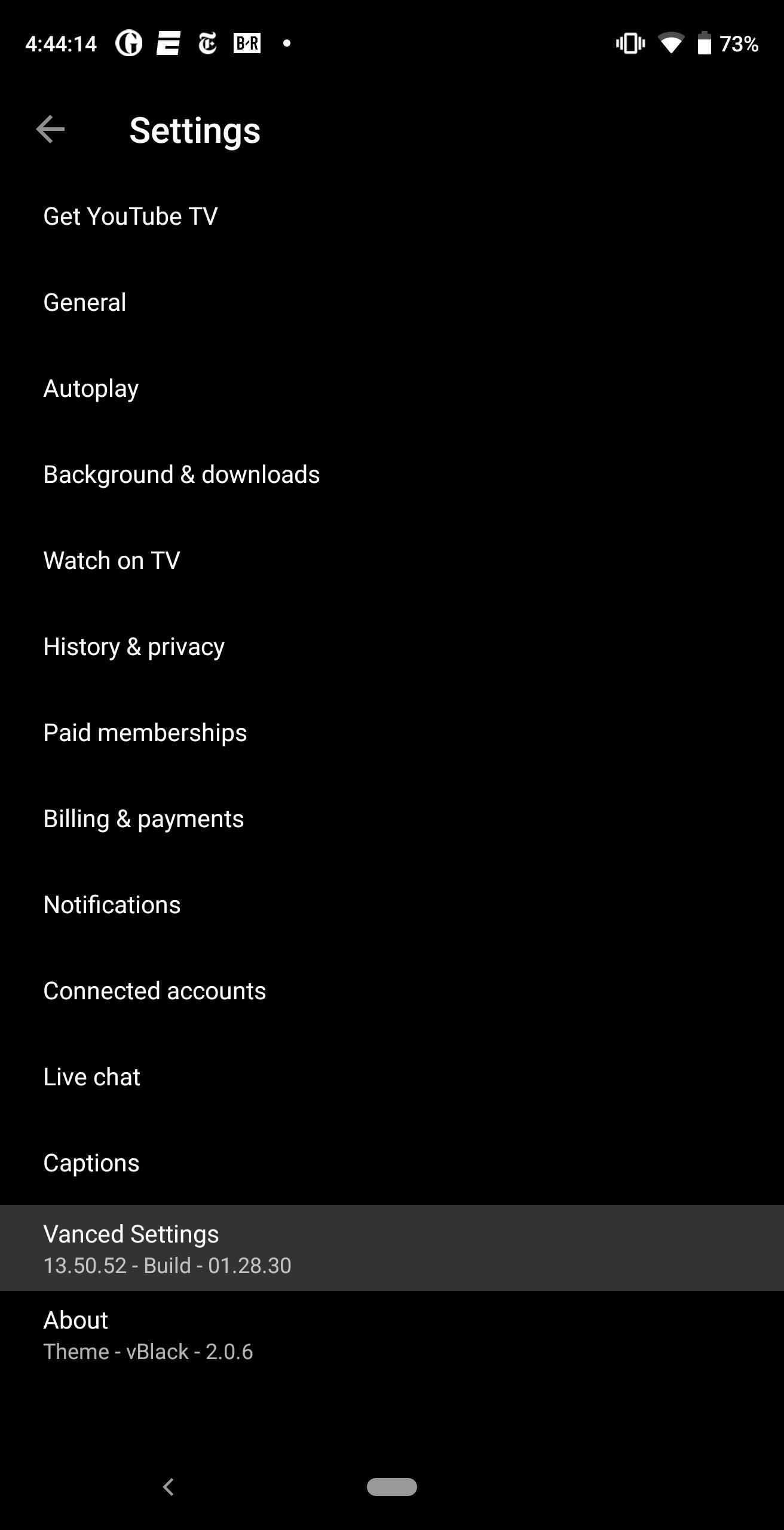
Step 2: Change Default Playback QualityNow, open YouTube Vanced, and in the upper-right corner, select your profile picture (or the silhouette icon), then choose "Settings." Select "Vanced Settings," then choose "Video Settings." Select "Preferred video quality Mobile" and choose your desired screen resolution for videos that you watch while you're connected to cellular data. After that, select "Preferred video quality Wi-Fi" if you'd like to change the default resolution when using a Wi-Fi connection, then choose a resolution. Besides changing the default playback resolution, you can also let your device play videos of higher resolution than your screen. With this extra resolution, the video will be reduced to your screen's resolution, resulting in a sharper image thanks to the additional data. However, be aware that using a higher resolution will consume more data. Therefore, unless you have an unlimited data plan, only default to the higher image (such as 2160p or 4K) on Wi-Fi connection.

Step 3: Enjoy High-Resolution Videos Every TimeOnce selected, tap your back button until you return to the main page, then open a video. As long as the video creator uploaded the video at your desired resolution (or higher), it should start at that resolution instead of 480p. If you selected a different resolution for Wi-Fi, join a Wi-Fi network and watch another video. Once again, the resolution should default to your choice. Don't Miss: How To Watch YouTube Red Content for FreeFollow Gadget Hacks on Pinterest, Reddit, Twitter, YouTube, and Flipboard Sign up for Gadget Hacks' daily newsletter or weekly Android and iOS updates Follow WonderHowTo on Facebook, Twitter, Pinterest, and Flipboard
Cover image and screenshots by Jon Knight/Gadget Hacks


In this video, I show you how to use the copy and paste feature on the iPhone and iPad. Copying and pasting can be useful for when you are trying to share a sentence or two from an article you've
How To Use Cut, Copy And Paste Feature On Apple iPhone 8 And


Need a primer on how to use zoom lenses with your Canon DSLR camera (a 7D, 5D, or Rebel T2i, for example)? This brief video tutorial from the folks at Butterscotch will teach you everything you need to know.
How to Set up a DSLR camera for the best possible looking


Other players >>> Playing music from your PC at home will work, however, if you want to stream music from your collection while on the road using a phone, it no longer works because of the Sonos app(s) requiring a Groove Music Pass subscription to access/connect to your cloud library on Onedrive.
12 Awesome Android Apps for Plugging in to the Cloud


Friends vs Acquaintances. That being said (and it felt pretty good to say it), I needed a way to minimize all of the political crap that was showing up in my News Feed. The most drastic solution was to quit Facebook altogether. I seriously considered it but decided against it since Facebook is how I keep in touch with friends that I don't see
How To Remove Friend List? - Facebook


The settings menu for the plugin is a lengthy one with toggles for every bit of metadata that can be pulled from the Open Movie Database. It is at your discretion whether you want to pull down general data (like release dates, plot summaries, etc.) in addition to the IMDB or Rotten Tomatoes ratings.
Help Desk - Rotten Tomatoes


Bored in your cubicle all day? It's time for helicopter wars! This video shows you how to make a fun and simple helicopter out of some basic office supplies. The materials you will need are: a big paper clip, a smaller paper clip, a large aluminum can (such as from Rockstar or Monster energy drinks), a ruler, Scotch tape, a rubber band, a pair of pliers (if you have a Leatherman multitool
Chopper Brothers Build Haiti's First DIY Helicopter


We changed carriers from Verizon to T-Mobile. Video covers how to swap the sim cards on an iPhone 6.
Remove or switch the SIM card in your iPhone or iPad


Prior to this year's WWDC, there were lots of rumors that Apple might finally be making a version of iMessage for Android. While that never came to fruition, a few big updates to a very useful app have now ensured that we can seamlessly send and receive Android texts in Apple Messages on our Macs.
How to Draw & Send Messages to Your Friend's Lock - Nexus


You can swipe left or right to skip tracks, up or down to change the volume, and you can pause or play by simply tapping the screen. Pretty intuitive stuff, right? But once you've got the gist of things, tap anywhere on your screen to dismiss this overlay.
Control Your Android's Volume by Swiping the Edge of Your

How to Keep Your Smartphone Charged During a Power Outage


why did someone disappear off my friends list? Why do my friends disappear from my list? why does the friends chat list disappear daily; Related Help Center FAQs; How do I add friends to my Close Friends list? How do I create a list to organize my friends on Facebook? Why can't I see some of my Facebook friends in an app?
How To Disappear Completely - The Great Vanishing Act

How to Use the Siri app in iOS 5 on an iPhone - Gadget Hacks

How To: Navigate your Nook e-reader

How To: Navigate your Nook e-reader
In this tutorial, learn all about how to use a Barnes and Noble Nook e-reader from top to bottom. This helpful clip will walk you through every single feature so that you will be reading wirelessly in no time. Not only is the Nook easy to use and carry around, it is also inexpensive (as of June 2010), why not give it a try? Please enable JavaScript to watch this video.


It's never been easier to play classic games, with an influx of revamped retro consoles and ports for 80s and 90s titles on iOS and Android. If you're looking to get a fix of video-game nostalgia,
Free Space Invaders


If your Windows XP system is running slowly or you're having problems surfing the Internet, clear out some of Windows' system caches. It's easy to clean out the temporary Internet files cache, delete all Windows temporary files and clear the computer's DNS cache to try to resolve system problems.
[Tip] How to Clear Cache and Cookies in Your Web Browser


Doing either of the above steps will only remove the app from the Apple Watch and not the iPhone. To remove an app from both devices, simply uninstall the app from your iPhone like normal. There is no way to keep the app on the Apple Watch if you want to remove it from the iPhone. If it's not on the iPhone, then it can't run on the watch.
Remove built-in Apple apps from the Home - Apple Support

CES 2015: These Headbands Are Really Comfortable Headphones


How To: Get "Anywhere" Gesture Support, Themes, Call Counts, & More with Blinq for Android How To: Enable Google Now Integration in Action Launcher How To: Get the Nextbit Robin's Launcher on Any Android
How to Revert Back to the Default Sense Launcher or Switch to


The beta video feature is available in U.S. and Canada to Android and iOS users. U.S. and Canadian BBM users now enjoy cross-platform video calling with each other. Latin America. On June 1st, (beta) video calling arrived to iOS and Android users in 26 countries in Latin America.
WhatsApp group video call feature rolled out to Android and


Google's Pixel 3 Lite has leaked again, this time in an extensive hands-on video. Andro News claims the phone offers "the same quality photos as the Pixel 3."
The latest Google Pixel 2 leak shows off its big camera


News: 11 Hidden Features You Need to Know on Your HTC One M8 How To: Automatically Mute Media Playback When You Put Your Android in Priority Mode How To: Turn Off Your iPhone's Timer and Alarm Just by Waving Your Hand
Android's Confusing "Do Not Disturb" Settings, Explained


Are you formatting the disk that came built into your Mac? If the built-in disk came APFS-formatted, don't change it to Mac OS Extended. Are you about to install macOS High Sierra or later on the disk? If you need to erase your disk before installing High Sierra or later for the first time on that disk, choose Mac OS Extended (Journaled).
How to reinstall MacOS if recovery won't work or you don't


best tips and tricks for emails. How to Use GoDaddy Email Forwarding Option; How to Remove Avast Email Signature


If you just can't wait to see the Pixel and Pixel XL, the new Google-branded smartphones expected to be announced tomorrow, you're in luck. After weeks of rumors and blurry images, a smartphone sales company called Carphone Warehouse just accidentally dropped the entire ball.
Google Goes iPhone XR With The Pixel 3a - forbes.com


Before we get too deep into connecting to the Internet, we need to take a detour. Don't worry, we'll get back on the right track. But it's important that you know how connected you can be with the Android phone: All that connectedness can work together to give you a richer Internet experience. Connection Is More Than Just the Internet
HTC One :: Gadget Hacks » Unchain your HTC One to get


Adobe Flash Player was removed from Android in favor of HTML5. If you'd like to install Adobe Flash Player back on Android your device, we've got you covered!
How to run or install Adobe Flash Player for Android phones

How to Play Your Favorite N64 - Samsung Galaxy Note 2


How To Make GIF Images Into Live Wallpapers On Your Nexus 4 or Android Device September 27, 2013 By thegift73 4 Comments There are tons of great animated GIF images around the web these days, but being able to set them as a wallpaper on your Android device isn't something you can currently do using the stock Android OS, although this may
How to Create Your Own Wallpaper Android - YouTube

How To: Use a proxy to get on Facebook at school

How To: Use a proxy to get on Facebook at school
Are you trying to access Facebook when you shouldn't? This video will help. Watch and learn how to use a proxy to get to blocked websites, like Facebook. Now you can go on Facebook and other websites anywhere, even at school. Please enable JavaScript to watch this video.


How To: Disable Those Annoying Looping Videos When Playing Songs on Spotify News: Create a Fire Mixtape with Your Friends Using Spotify's Group Playlists How To: Use Spotify's New Free Mobile Streaming on Your Nexus 7 Tablet or Other Android Device
Spotify 101: How to Use Voice Commands to Play Artists

Netflix to Block VPN & Proxy Users from Streaming Content in


But it turns out there are plenty of hidden secret features in Windows that you almost never hear about. This video goes over the 10 best Windows features and programs that you might not know
8 Cool Windows 10 Tricks and Hidden Features You Should Know


Phones iOS 13: Every new feature iPhone you need to know about now. Learn about the new software Apple will deliver to your iPhone this fall.
Mindfulness App Aura for Sale on Android « Gadget Hacks

3 Ways to Close Apps on a Samsung Galaxy - wikiHow


Jun 03, 2019 · There was a ton of news out of today's WWDC for anyone who enjoys beta-testing Apple software. First off, iOS 13 is nearly here! iOS 13 will be released to the general public iPhone, and
News: Apple Releases iOS 12.3 Public Beta 4 for iPhone to


Read reviews and buy the best camera remote control for you. Free Shipping remotes, and camera remote triggers at Best Buy.
Galaxy S9 Plus Camera Guide: Our Top Tips and Tricks


30 Android apps with dark themes that are easy on the eyes. you can install custom themes like you can on the desktop version, so you can get a night mode of your own going. as well as a
Best Android themes: make your smartphone look incredible


News: OnePlus 3T Isn't Much of an Upgrade, OnePlus 5T Comes with Bezel-Less Display, Face Unlock, Upgraded Install ColorOS's Camera on Your OnePlus One for
OnePlus 5T top features you should know: Face Unlock, Gaming


That is until Android themer Mohit Arora ported the video boot animation functionality from Motorola's latest devices to many other Android gadgets. Rather than using a series of PNG image files to animate your boot sequence, these video boot animations utilize MP4 video files with much higher frame rates.
How to Set a Video as Your Boot Animation - xda-developers


The Ultimate Facebook Prank : How To "Kill" Your Friends on Facebook by Faking Their Deaths It only takes a minute for something well intentioned to turn into something sinister. Facebook created 'memorial pages' as way for friends and family to share their thoughts and feelings for those that are no longer with us.
How to Fake your death online « Practical Jokes & Pranks

Spotify 101: How to Easily Share Music to Friends from Android & iPhone

Spotify 101: How to Easily Share Music to Friends from Android & iPhone
If you're anything like me, when you first find a good song, album, or playlist on Spotify, your initial reaction may be to share it with your family and friends. While there are the usual share methods available in Spotify that are available in other streaming music services such as Apple Music and Google Play Music, Spotify goes one step further with QR-like codes users can easily scan.No matter which method you prefer when it comes to sharing music on Spotify, they're both really easy to use whether you're in the iOS or Android app. There are a few ways that the Android version makes sharing even easier than on iPhone, but they more or less work the same on both platforms.

Method 1: Share Music the Regular WayFirst, open the content (artist, album, playlist, song, video, etc.) you want to share, then tap the vertical or horizontal ellipsis (•••) next to it or in the top right, depending on the content you are trying to share. A list of options will then pop up. Alternatively, on Android, you can also long-press on most content to bring up the list of options — even from search. Once the list of options pops up, tap "Share." Afterward, you'll be given a variety of different ways you can share the content, for example, SMS or Messages, Facebook, Twitter, and/or Messenger, depending on what you have installed on your device. You can also tap "Copy Link" so you can paste it wherever you want. If you tap "More" instead, you'll be shown your phone's traditional share menu with more options. Keep in mind that whoever you share it with also needs to have Spotify installed in order to listen in. If they don't, they can still preview a song in most cases, but won't be able to listen to anything completely without having a Spotify account and the app installed on their device.
Method 2: Share Music with Spotify CodesSpotify Codes are customized codes not unlike Snapcodes (in Snapchat) that you can send to your friends (or have them scan) to open up the content. Right now, Spotify Codes only work with artists and bands, playlists, albums, and songs, while you can share anything using the regular share options mentioned above.

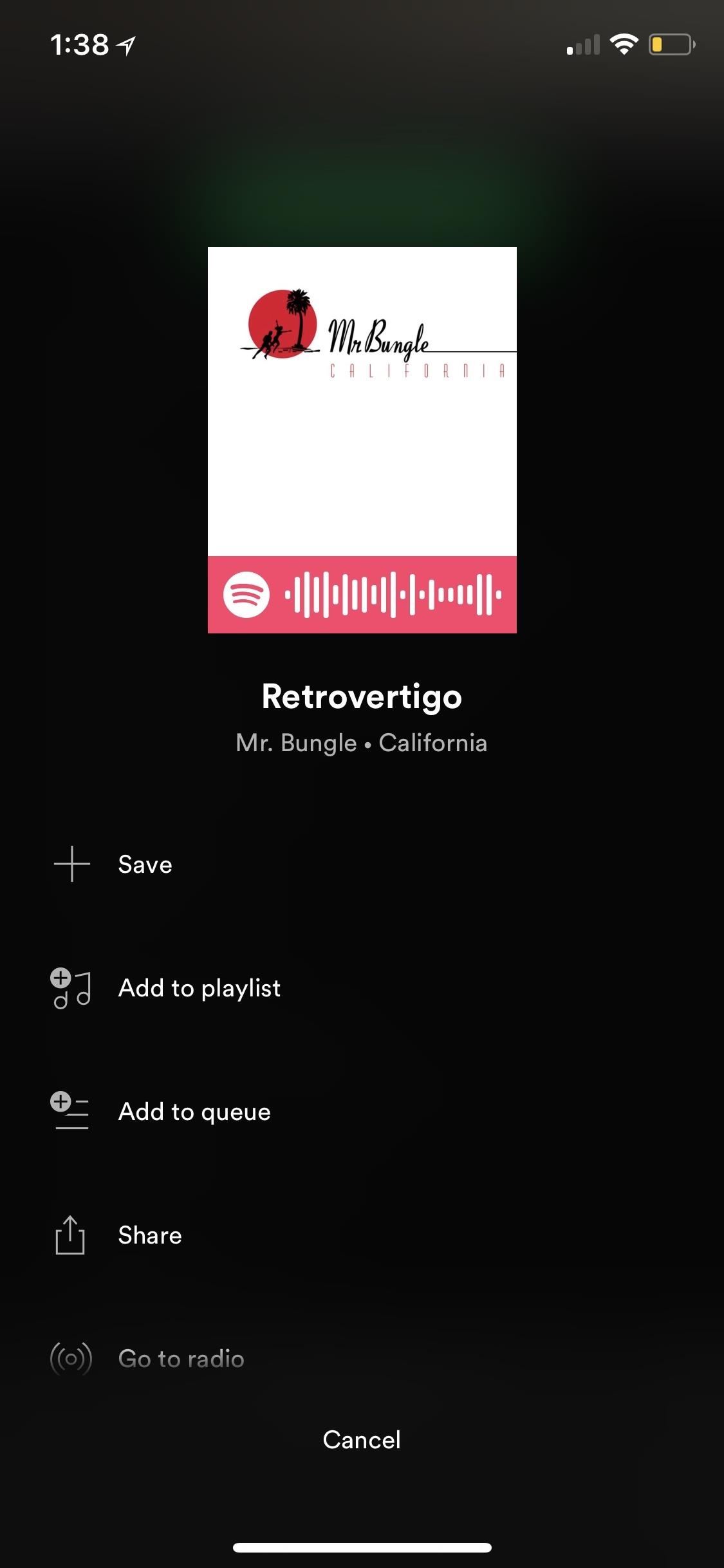
Finding & Sharing Spotify CodesJust like in Method 1, tap the vertical or horizontal ellipsis (•••) next to it or in the top right, depending on the content you are trying to share. Right at the top of the list of options that appears will be the cover art with a unique Spotify Code barcode and Spotify logo underneath it.If you're on iOS, you can tap it for a better view. When someone you're trying to share with is right beside you, they can simply scan the Spotify Code from their Spotify app (see section below). If they aren't, tap "Save to Photos" to add it to your Photos app, then share the picture like you would any other image in your Photos app. You can also just take a screenshot, then long-press on the thumbnail to bring up the share sheet right away or tap on it to edit it first before hitting the share icon. On Android, you can't tap the Spotify Code to get a closer view of it, so you can just let a friend scan the code if they're right next to you. Otherwise, you'll just have to take a screenshot of the whole screen how you would normally take a screenshot. You can then edit the screenshot if necessary and send it on its way to someone else how you would normally share images.

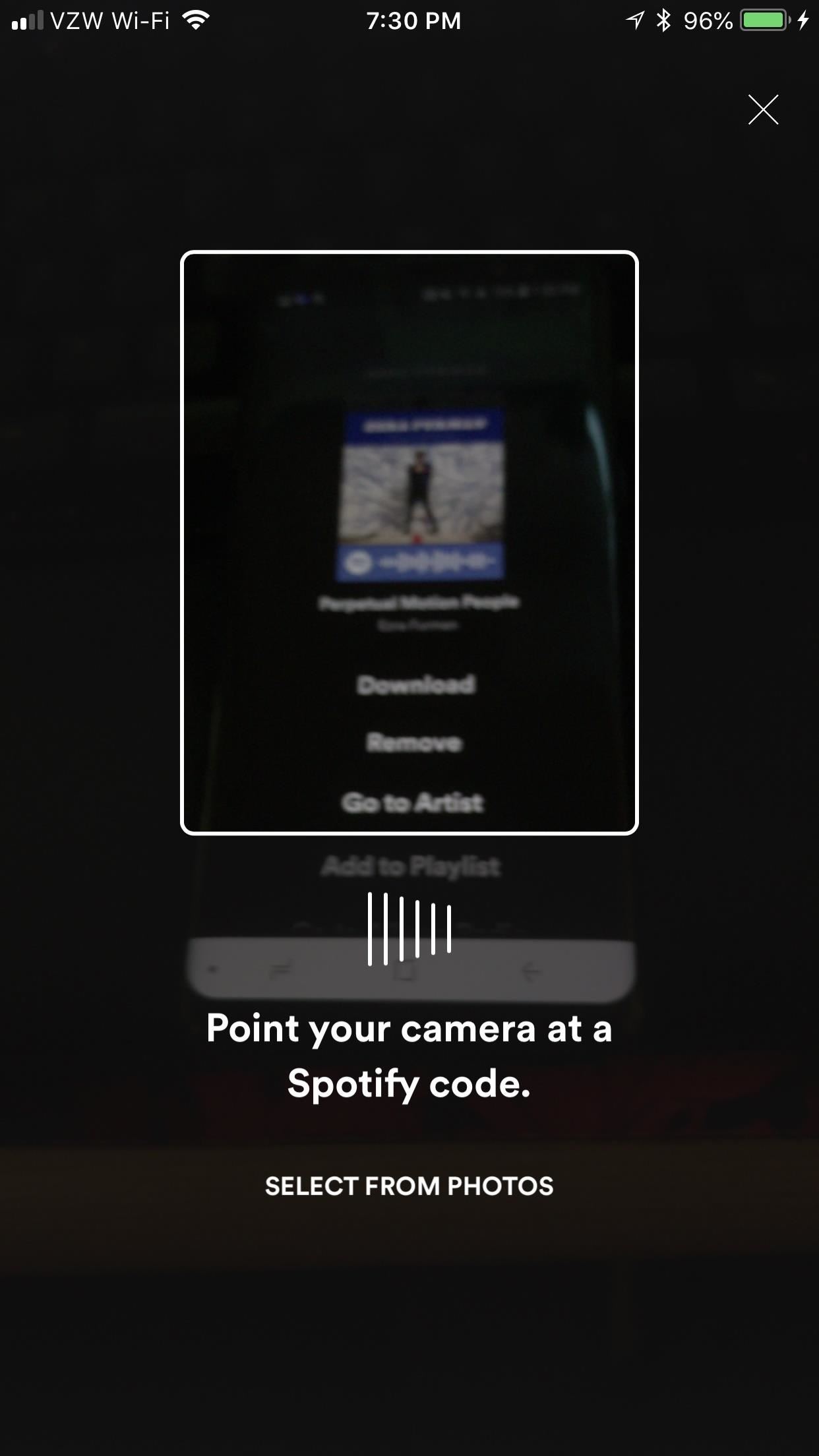
Scanning Spotify CodesIf you're on the receiving end of a Spotify Code, there are two ways you can scan it. In the Spotify app, tap the "Search" tab icon (the magnifying glass) at the bottom of the screen, then tap the camera icon in the top right. If this is your first time scanning codes with Spotify, you will have to tap "Scan" and give Spotify permission to use your camera.The camera viewfinder should open up on your device, and you're ready to start scanning a Spotify Code from your nearby friend's device or from promotional material you find in magazines, in stores, etc. Just line up the Spotify Code in the white square on the screen, and Spotify should automatically open the content and start playing it.To scan images that a friend sent to you on Facebook, in an email, or however, you'll have to save it to your device first, then tap "Select from Photos" instead after tapping the camera icon in Spotify. Choose the image from your default photos app, then tap "Choose" to open it up. Scanning with the camera (left) vs. importing from your photos (right). Now you're all set to share music with your family and friends. The traditional method is still probably king, but I really like the versatility of Spotify Codes for when you're right next to your friends or when you want to share something on Instagram or another photo-focused social media platform.Don't Miss: How to Make Spotify Music Sound Better by Using an EqualizerFollow Gadget Hacks on Facebook, Twitter, YouTube, and Flipboard Follow WonderHowTo on Facebook, Twitter, Pinterest, and Flipboard
Cover image and screenshots by Brian Lang/Gadget Hacks


How to Save Snapchat Pictures Without Notifying Others. Snapchats are supposed to be quick, fleeting photos. The idea behind the app is that the picture disappears after 10 seconds or less.
3 Tricks To Take Screenshot on Snapchat Without Getting Caught

See and edit your Google+ profile - Computer - Google+ Help


Best VPN for Netflix & Hulu 2018-2019 | Unblock Streaming Services Video streaming sites like Netflix, Hulu and Prime Video restrict their content based on your geographical location
How to Watch free Netflix, Hulu and amazon prime shows in 2019


How To Create A Facebook Landing Page In 3 Easy Steps Here's how to create a Facebook landing page and quickly boost your fan base in three easy steps.


Science — Colorado dad gives sons smartphones, regrets it, now wants to ban preteen use He started nonprofit, wrote ballot measure to prevent use by kids under 13.
Colorado Group Wants to Ban Smartphones for Your Kids

How to Get on a site that's been blocked by your employer


How to Install Transparent S4 Widget. Here are the simple steps that you have to follow to install the transparent AccuWeather Widget on your Galaxy S4: Download the CWM flashable zip from the link above and copy the zip file to your phone's internal or external SD card storage. Turn off your Galaxy S4 and boot it into recovery mode.
How to Make the Stock Weather Widget Transparent on Your


This video shows how to hack google, learn and hack.. Subscribe Now..!! This video shows how to hack google, learn and hack.. Subscribe Now..!! Skip navigation Sign in. Search.
Google hacking - Wikipedia


To enable SMS services in your Gmail, go to your Gmail Labs settings page and enable the Text Messaging (SMS) in Chat feature.. To send an SMS from Gmail, first enter a contact's name in the search box of the Gmail chat window and select Send SMS.
How to Send an SMS to Gmail | Chron.com


How to use split-screen mode in Android Nougat Split-screen mode is pretty easy to navigate once you learn what to do. Touch the home button and you'll be taken to your home screen.
This Easy Android Trick Will Keep Your Home Screen Clean | Time
time.com/3667118/android-clean-home-screen/
Android home screens can get pretty messy if you download lots of different apps. Here's how to fix that. This Easy Android Trick Will Keep Your Home Screen Clutter-Free
How to reset your Android home screen back to the default


How to boost or increase earphone speaker volume on Samsung Galaxy S II I9100 8:07 AM Wilma 33 comments If you are not satisfied and having problem on Samsung Galaxy S II speaker volume like its very low even you've already set to its maximum volume.
Increase the Maximum Headphones Volume Level on Your OnePlus


Finally, type in your message in the message field and hit "Send". Replying To and Forwarding Messages. If you get a text message from someone else, you can easily send them a reply by opening the
4 Ways to Send Text Messages - wikiHow


Watch 2 Videos Simultaneously on Your Galaxy Note 9 Gadget HacksHow to Splitscreen on Your Samsung Galaxy LifehackerSamsung throws Galaxy Note9 owners a bone with
Easy methods to Watch 2 Movies Concurrently on Your Galaxy


This is a massive improvement to Google Maps, as it lets you issue simple voice commands to get around. Google Maps will need to access your device's location for navigation purposes, so you'll need to enable this permission if you haven't already done so.
Use Voice Commands on Google Maps to Start Navigation or Add

How To: Clear Your Cache on Any Web Browser

How To: Clear Your Cache on Any Web Browser

Need to clear you cache? This guide details how on any web browser (Chrome, Internet Explorer, Firefox, Opera, Safari, Internet, and Dolphin) for any platform (Windows, Mac OS X, iOS, and Android).
What Is the Cache Exactly?The web cache stores certain information (HTML pages, images, etc.) for webpages you visit on your computer or mobile device so the next time you visit the site will load faster. Sometimes these snapshots take up more space than you'd want and keep old unnecessary information that can cause lag in your browser.You can resolve many browser issues simply by clearing your cache.
The Easy Quick Steps to Clearing Your CacheFor all the pros who just need reminding, here's a quick reference guide to clearing the web cache in the easiest manner possible on the latest versions of your browser (on its latest platforms).For step-by-step details, including screenshot walkthroughs and alternative methods, jump down to below the quick reference guide and find your particular browser and OS.
#1. ChromeMac OS X - Command+Shift+Delete -> Empty Cache + Clear Browsing Data Windows - Control+Shift+Delete -> Empty Cache + Clear Browsing Data
#2. Internet ExplorerWindows - Control+Shift+Delete -> Select top three items -> Delete
#3. FirefoxMac OS X - Command+Shift+Delete -> Cache + Clear Now Windows - Ctrl+Shift+Delete -> Cache + Clear Now
#4. OperaMac OS X - Opera -> Delete Private Data -> Empty Cache + Clear Browsing Data Windows - Alt+P -> Clear Browsing Data -> Empty Cache + Clear Browsing Data
#5. SafariMac OS X - Command+Comma -> Privacy -> Remove All Website Data -> Remove Now Windows - CTRL+Comma -> Privacy -> Remove All Website Data or Safari -> Reset Safari ->Remove all website data -> Reset iOS - Settings -> Safari -> Clear Cookies and Data -> Clear
#6. Internet (Android)Android - Settings -> Privacy and security -> Clear Cache -> OK
#7. DolphinAndroid - Settings -> Privacy and Personal Data -> Clear Data -> Clear Cache -> Clear Selected Data iOS - Settings -> Clear Data -> Clear Cache
What Browser Are You Running?If you have no clue what web browser version you are using, the easiest way to check is by visiting whatbrowser.org, which will tell you immediately what version you are using.

#1. ChromeThis section will detail all of the possible ways you can clear your cache in Google Chrome on Mac OS X, Windows, iOS, and Android devices.
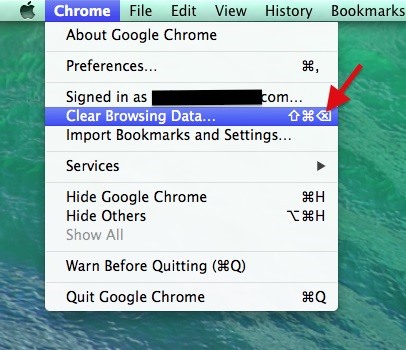
Chrome for Mac OS XOpen up the Chrome menu, located right next to the Apple icon, and click on Clear Browsing Data... (keyboard shortcut Shift+Command+Delete). Make sure that the Empty the Cache option is selected and hit Clear Browsing Data. You can also get to this menu by clicking on Preferences in the Chrome menu (keyboard shortcut Command+Comma). Select Show Advanced Settings..., then hit Clear Browsing Data. Make sure that the Empty the Cache option is selected and hit Clear Browsing Data. Note that In the drop-down menu, you can select how far back you want the data to be cleared. We suggest the beginning of time.
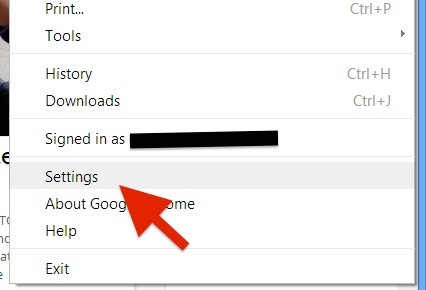
Chrome for WindowsHit the Menu button in Chrome. Go down to Settings and select Show advanced settings... With the Privacy section revealed, select Clear Browsing Data..., followed by checking Clear the cache and hitting Clear browsing data. Alternatively you can hit Control+H to bring up History menu, where can then select Clear browsing data.
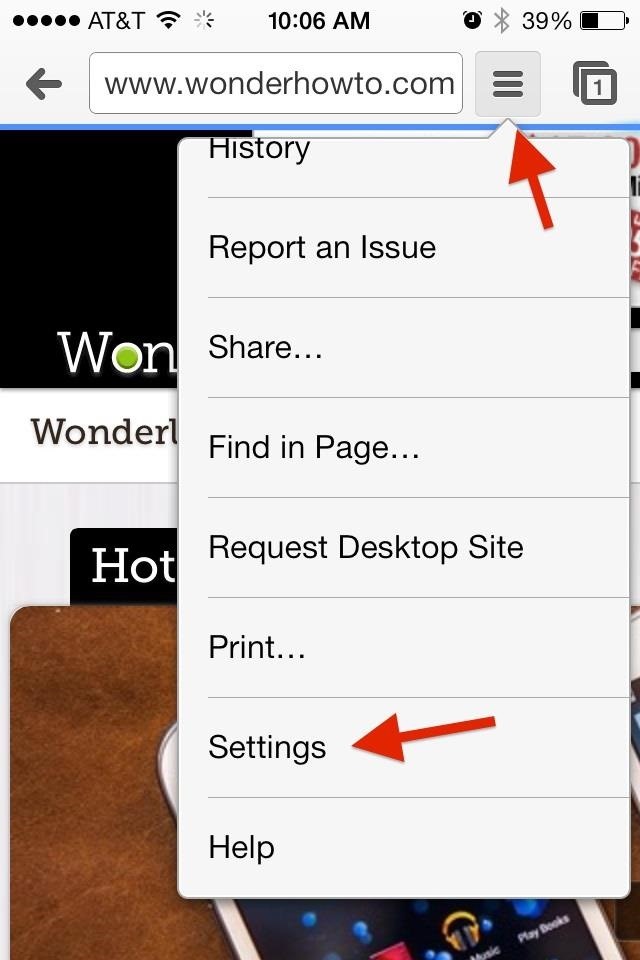
Chrome for iOSOpen up the browser and hit the menu button. Go to Settings and select the Privacy section. Under Clear Browsing Data, select Clear Cache and then hit the Clear Cache confirmation button.
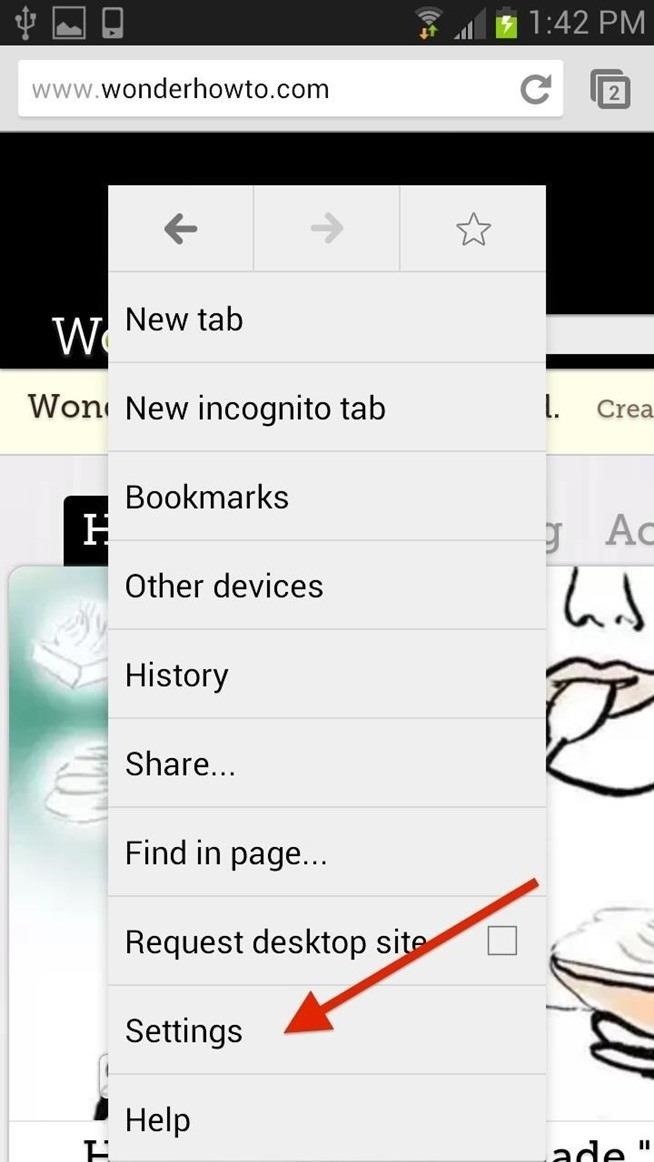
Chrome for AndroidWith Chrome open, hit the Menu button on your phone. Go to Settings and select the Privacy section. Once in the Privacy section, select Clear Browsing Data located near the bottom of the page. In the following menu, check Clear the cache and then hit Clear.

#2. Internet ExplorerThis section will detail all of the possible ways you can clear your cache on the latest version of Internet Explorer for Windows.
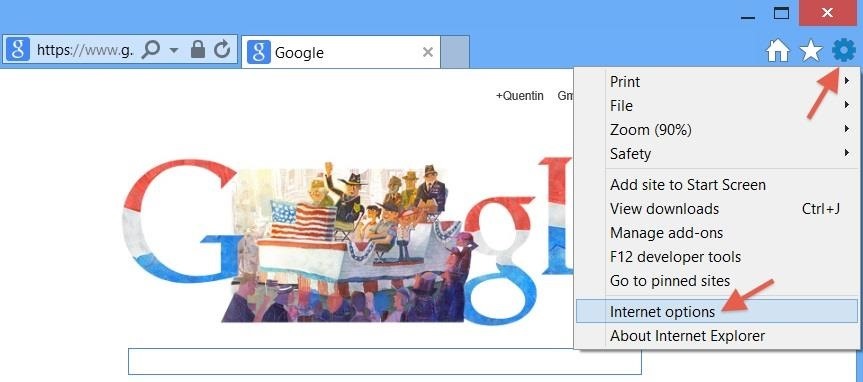
Internet Explorer 10 for WindowsYou will see a cog in the top right of the browser. Select the cog and go down to Internet Options. Select Delete (located under Browsing History) to bring up the Delete Browsing History window. Make sure the first three items are checked:Preserve Favorites website data Temporary Internet files and website files Cookies and website Data Then hit Delete.

#3. FirefoxThis section will detail all of the possible ways you can clear your cache in Firefox on Mac OS X, Windows, and Android devices.
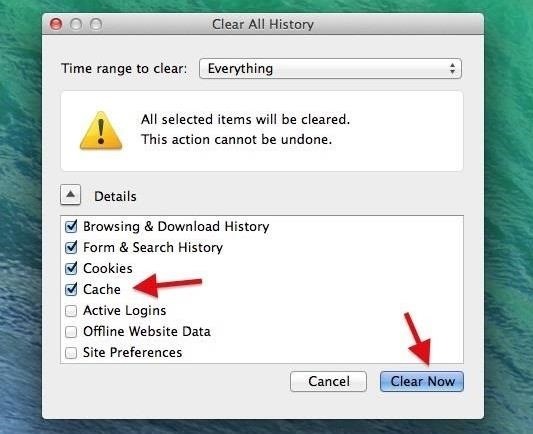
Firefox for Mac OS XUse the keyboard shortcut Command-Shift-Delete with Firefox open, which will bring up the Clear All History menu. Make sure the Cache option is selected and hit Clear Now. Alternatively, you can get there by opening up the Firefox menu, located right next to the Apple icon, and clicking on Preferences (keyboard shortcut Command+Comma). Select the Privacy tab and go to Clear Recent History. Make sure the Cache option is selected and hit Clear Now. Note that you can also change the the time range of your clearing in the drop-down menu at the top. We suggest Everything.
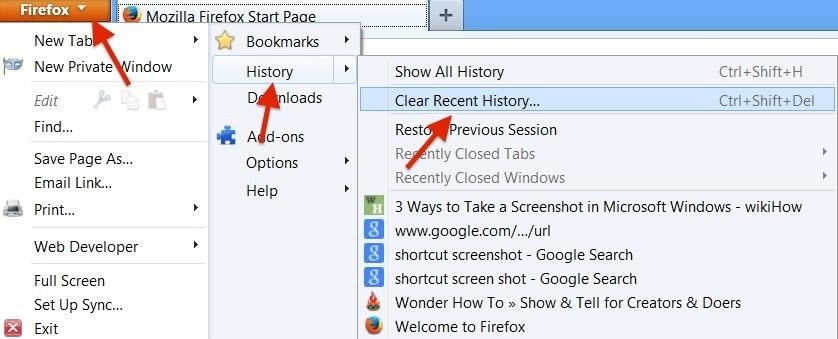
Firefox for WindowsOpen up the Firefox menu, click on History, then Clear Recent History (keyboard shortcut Control-Shift-Delete). Make sure that Cache option is selected and hit Clear Now. Note that you can also change the the time range of your clearing in the drop-down menu at the top. We suggest Everything.
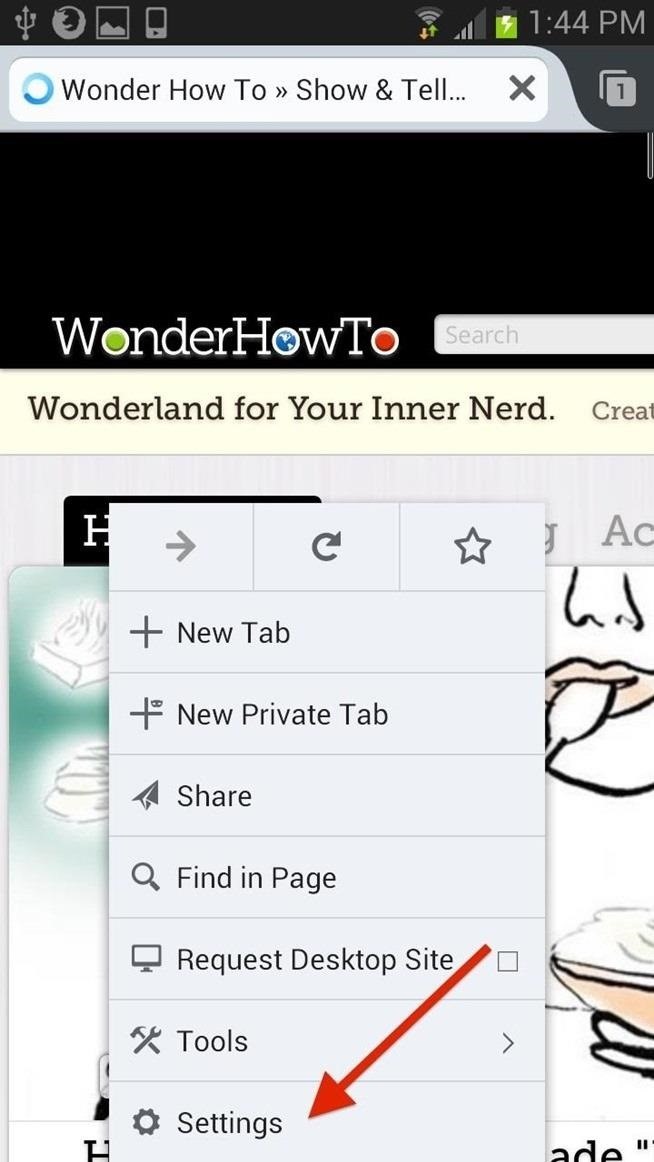
Firefox for AndroidOpen up Firefox and hit the Menu button on your phone. Then scroll down to Settings to Privacy, then Clear Private Data. Ensure that Cache is checked and hit Clear Data.

#4. OperaThis section will detail all of the possible ways you can clear your cache in Opera on Mac OS X, Windows, iOS, and Android devices.
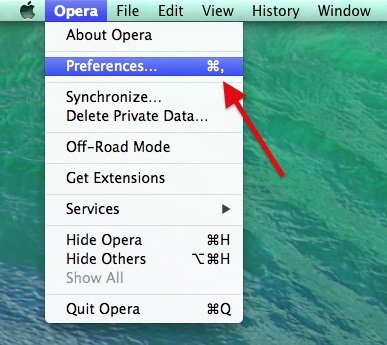
Opera for Mac OS XSelect the Opera menu next the the Apple icon, and go to Preferences (keyboard shortcut Command+Comma). In the next menu, select Privacy & Security and then Clear Browsing Data. On the Clear Browsing Data menu (which can also be reached by going to Opera Menu -> Delete Private Data), select Empty the Cache and then Clear Browsing Data.
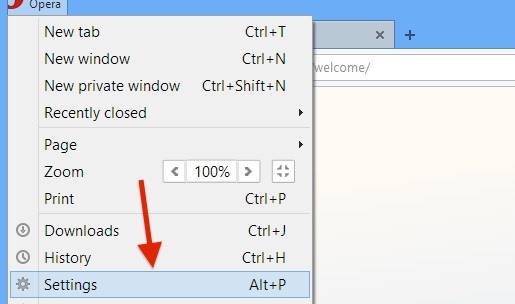
Opera for WindowsSelect the Opera menu and go to Settings (keyboard shortcut Alt+P). Select Privacy & Security followed by Clear Browsing Data, then check Empty the cache and Clear browsing data.
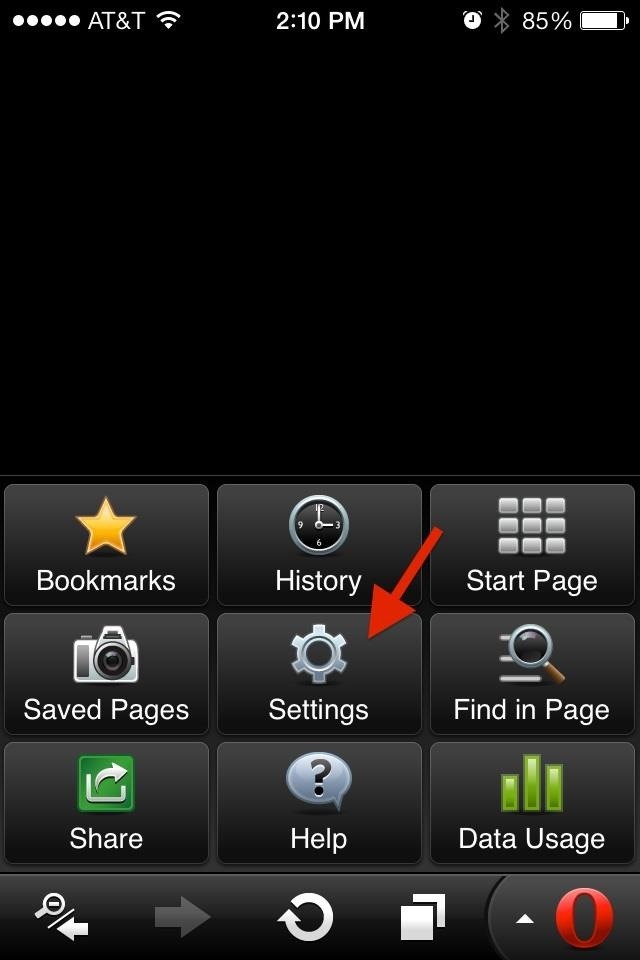
Opera for iOSIn Opera, hit the small arrow next to the Opera icon to open the menus. Now select Settings followed Privacy and then Clear History and Clear Cookies.
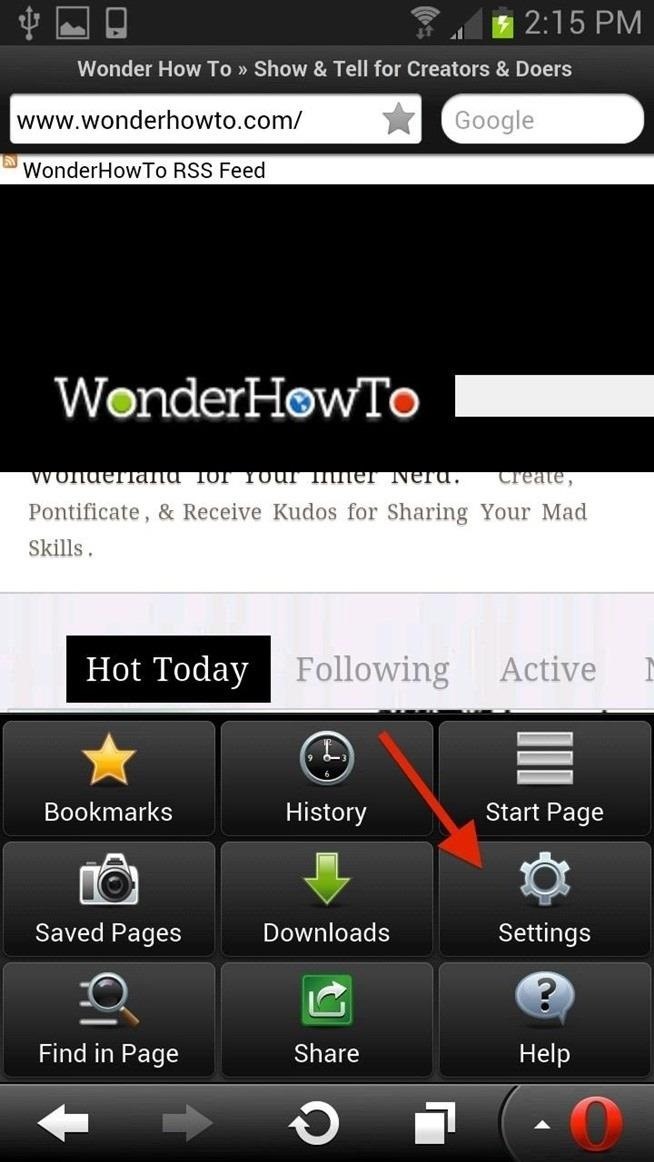
Opera for AndroidOpen Opera and hit the small arrow next to the Opera icon to open the menus. Now select Settings, then Privacy, then Clear History, and Clear Cookies.

#5. SafariThis section will detail all of the possible ways you can clear your cache in Safari on Mac OS X, Windows, and iOS devices.
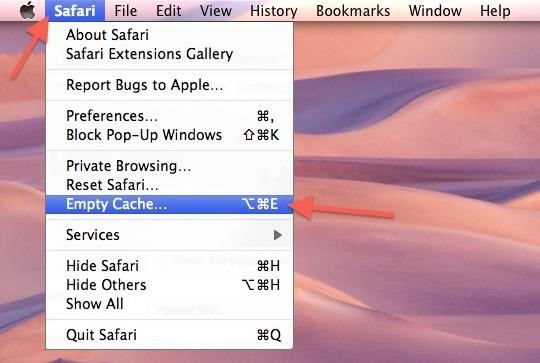
Safari Versions 2 - 5 for Mac OS XWorks in Mac OS X 10.4 (Tiger) through 10.6 (Lion).Open the Safari menu, located right next to the Apple icon, and click on Empty Cache (keyboard shortcut Command+Option+E). On the warning screen, hit the Empty button to confirm. You can also go to Safari menu and click on Preferences (keyboard shortcut Command+Comma). On the next screen, select Privacy then Remove All Website Data and Remove Now.
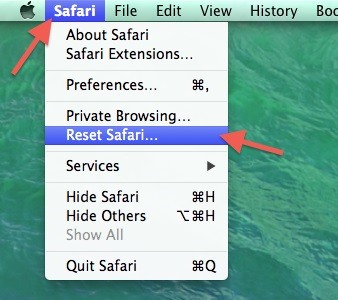
Safari Version 6 - 7 for Mac OS XWorks in Mac OS X 10.7 (Mountain Lion) thru 10.9 (Mavericks).Open up the Safari menu, located right next to the Apple icon, and click on Reset Safari. To clear your cache, make sure Clear history and Remove all website data are selected, then click on the Reset button. You can also go to the Safari menu and click on Preferences (keyboard shortcut Command+Comma). Select the Privacy tab, click on Remove All Website Data, and hit Remove Now.
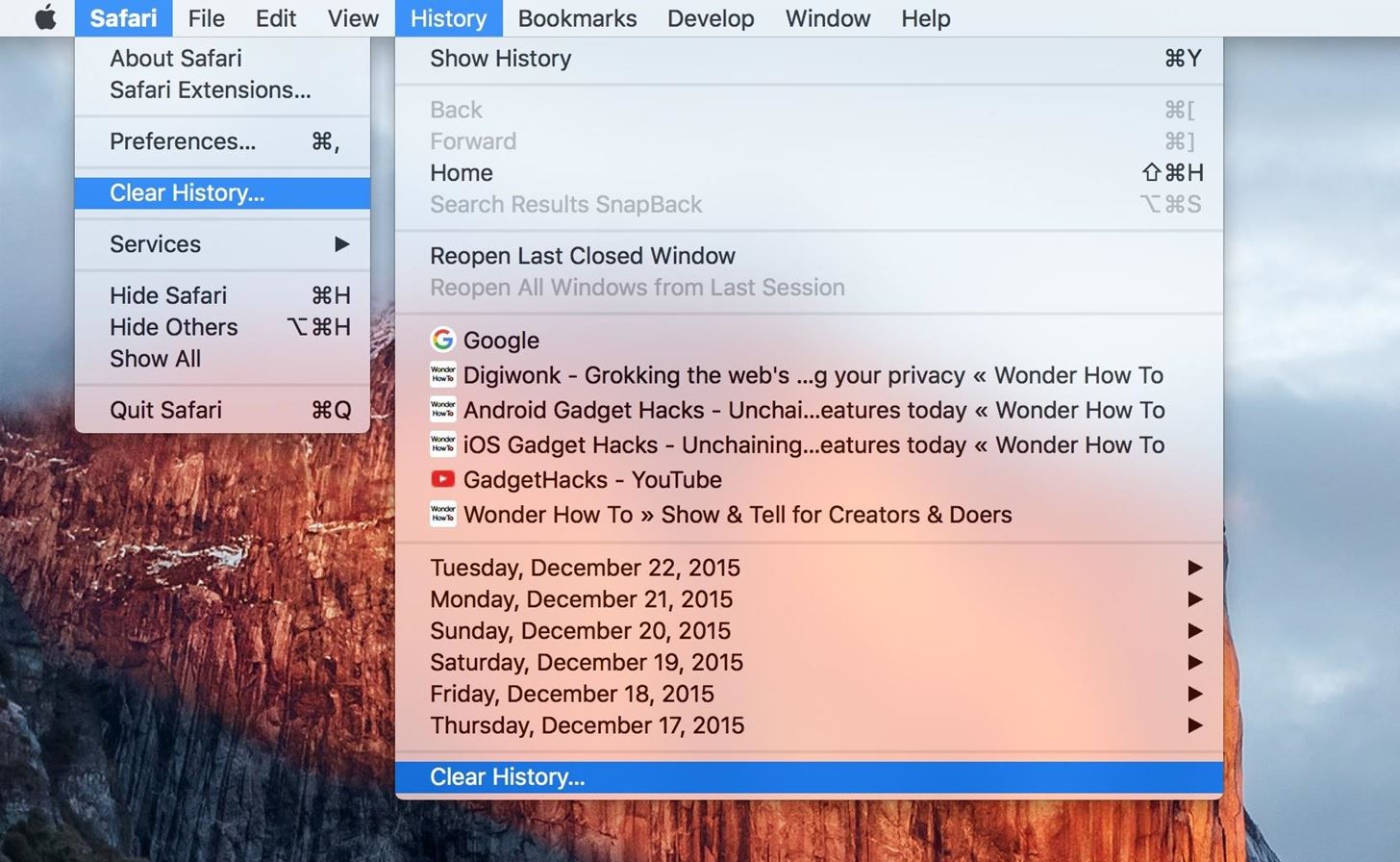
Safari Version 8 - 9 for Mac OS XWorks in Mac OS X 10.10 (Yosemite) thru 10.11 (El Capitan).Open up the Safari or History menu, then select Clear History and choose the timeframe. Choose Clear History to finalize it. This will clear you cache, cookies, and search history. To delete other website data, select Safari, then Preferences, then Privacy (or use the keyboard shortcut Command+Comma), then choose Remove All Website Data and confirm.
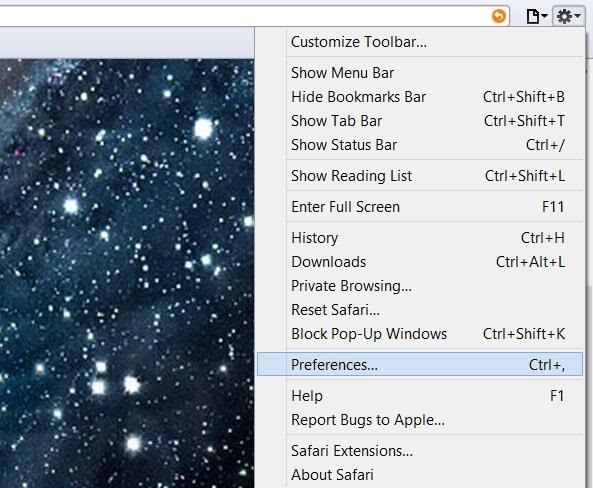
Safari for WindowsOpen up the Safari menu by clicking the small gear icon located below the close (x) window icon. Then go to Preferences (keyboard shortcut Ctrl+Comma), Privacy, and Remove All Website Data. Alternatively, you can go to the Safari menu and click on Reset Safari. In the following pop-up menu, check Remove all website data and hit Reset.
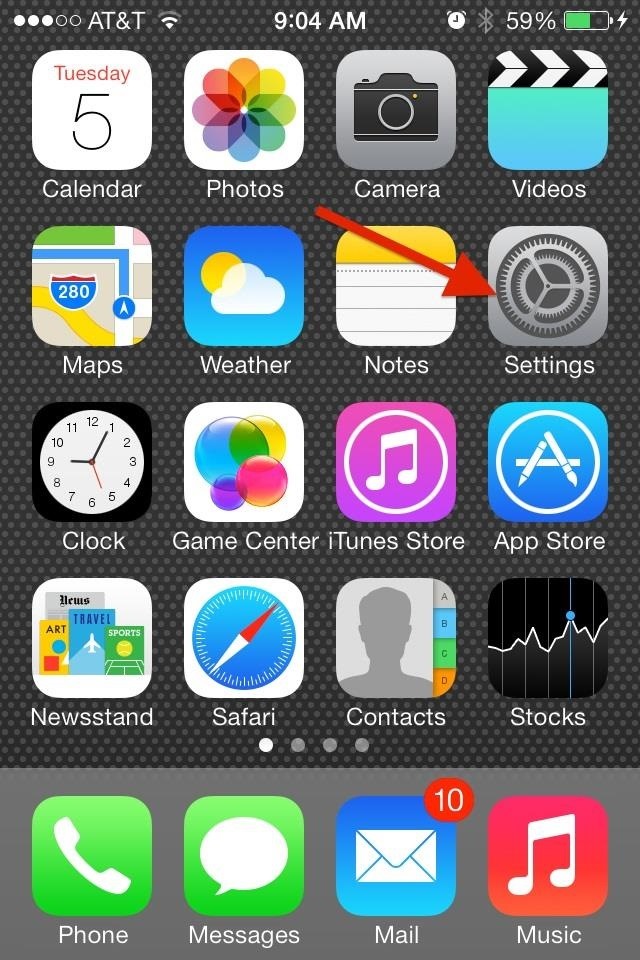
Safari for iOS (6 - 7)The default browser for your iPhone has its own built in settings, which can be accessed in the main Settings hub. Go to Settings -> Safari -> Clear Cookies and Data. Read the message and then hit Clear Cookies and Data.

#6. Android InternetThis section will detail all of the possible ways you can clear your cache in Internet on Android devices. Open Internet and hit the Menu button on your phone. Then scroll down to Settings and select the Privacy and Security section. You will see Clear Cache at the top of the screen. Tap this and hit OK to clear the cache.

#7. Dolphin BrowserThis section will detail all of the possible ways you can clear your cache in Dolphin for Android and iOS devices.

Dolphin for AndroidDolphin is another option for your Android phone, most noted for its ability to use Adobe Flash.Open Dolphin, go to Settings, then Privacy and Personal Data. Next, select Clear Data, then check Clear Cache followed by Clear Selected Data. Note that you can access the Dolphin menu by selecting the menu button or dragging the small gray dolphin icon to the settings option.
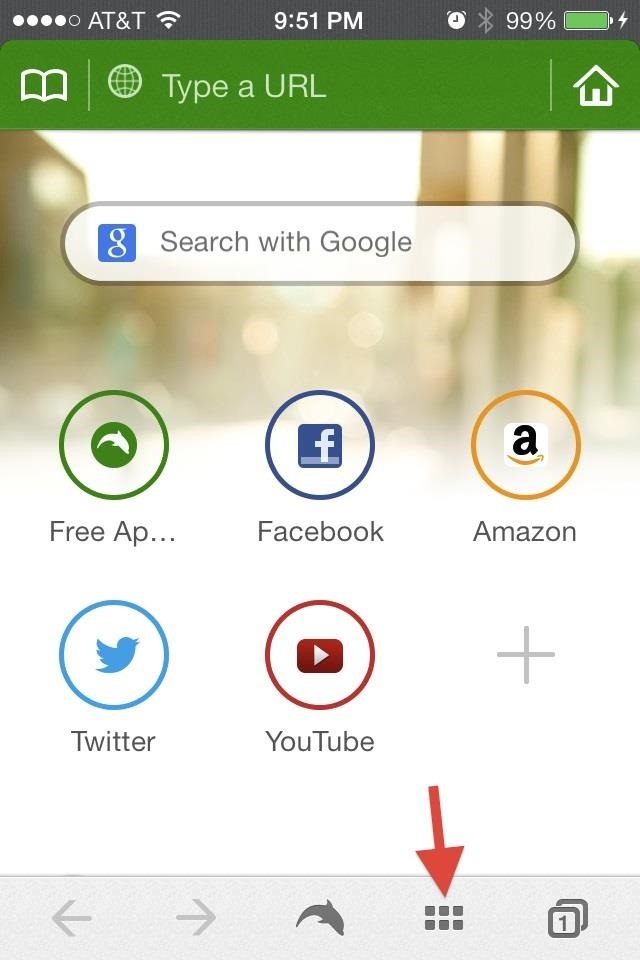
Dolphin for iOS 6 - 7For the iOS version of Dolphin, open the Dolphin menu and go to Settings, then select Clear Data. In the following pop-menu, tap Clear Cache. Deleting your browser's cache is just one step to clearing some of the information that is stored when you browse the internet. It's always good to clear your cookies and your history every few days. But if you really want to leave no trace behind, then use private or incognito browsing and you wont have to worry about the cache or cookies.


When visiting a webpage your browser checks if a copy of the files on the page is in its cache already. If so, it will save the visitor some downloading and make webpages load faster. Some browsers refer to it's cach as Temporary Internet Files. Cache refresh. There are some situtations when bypassing your browser's cache is prefered.
How to Clear the Cache and Cookies in Your Web Browser


The browser cache is a temporary storage area on your computer or laptop for the files downloaded by your web browser to display sites. The file that goes under browser cache storage includes any document that makes up a website like JavaScript scripts, HTML files, CSS style sheets, graphics images accompanied by multimedia content and even more.
How do I clear my Internet browser history? - Computer Hope


While you should clear your web browser's cache, cookies, and history periodically in order to prevent or resolve performance problems, you may wish to record some of your saved information first. If you are unable to do so, see Troubleshooting alternatives below. For details about browser cache, cookies, and history, see: Web cache; HTTP cookie
The Guide to Clear your Browser Cache! - refreshyourcache.com


A browser can and will hold your history indefinitely. The goal is to help you find your way back to a perhaps-forgotten corner of the internet you visited once upon a time.
How to Clear Your Cache on Any Web Browser « Digiwonk


When clearing any form of data from your browser, it's best to close and re-open the browser after the clearing is complete in order to finalize the process. Deleting your browser's cache is not the same thing as deleting cookies.
How to Clear Internet Cache in Every Major Browser


While that hotkey combo works in most non-mobile browsers, the exact steps involved in clearing your browser's cache depend entirely on what web browser you're using. Below you'll find some browser and device-specific instructions, as well as links to more expansive tutorials if you need them.
Clear your web browser's cache, cookies, and history


Why Clear Cache and Cookies? Clearing Cache and Cookies is an important first step for almost any troubleshooting for internet browsing. The 'cache' is a tool used by your internet browser to speed up the page loading process.
How to Clear Browser Cache (All Modern Browser 2019)


"Clear your browser cache" is the first response tech people give when you encounter webpage problems. We'll look at why that is and how to clear the cache. The browser cache appears in more answers than questions, but often causes even more questions. Even while following instructions to empty the


Information on how to clear your Internet browser history. View your browsing history in Firefox. If you do not have a custom homepage set, you can click the view history, saved bookmarks, and more button in any browsing window.
What's a Browser Cache? How Do I Clear It? Why Would I Want


Need to clear you cache? This guide details how on any web browser (Chrome, Internet Explorer, Firefox, Opera, Safari, Internet, and Dolphin) for any platform (Windows, Mac OS X, iOS, and Android).
8 Ways to Clear Your Browser's Cache - wikiHow

How to Clear Your Cache on Any Browser | PCMag.com