News: 91 Cool New iOS 11 Features You Didn't Know About
Apple's iOS 11 is finally here, and while they showed off several of the new features it brings to your iPhone, iPad, and iPod touch back at WWDC 2017, they've only just touched the surface of what iOS 11 has to offer. There are a lot of cool new (and sometimes secret) features to explore, so we've collected them all here for you.From a new screen recorder to persistent notifications, a dark mode, and fun new annotation tools, the list goes on. Some of the stuff we wanted actually showed up, and we've attempted to find everything new that's cool about iOS 11 right here.Before diving into the full list of features, if you want to get some hands-on experience with them, make sure you have installed the new iOS 11 on your iPhone.Don't Miss: 18 Things That Suck About iOS 11 for iPhone

1. There's a New Hidden Dark Mode OptionWhile it's not the Dark Mode we wanted it to be, it's the next best thing. Just head to your "Display Accommodations" and turn on "Smart Invert." More info on this trick is available at the following link.More Info: How to Unlock the New 'Dark Mode' in iOS 11 for iPhone
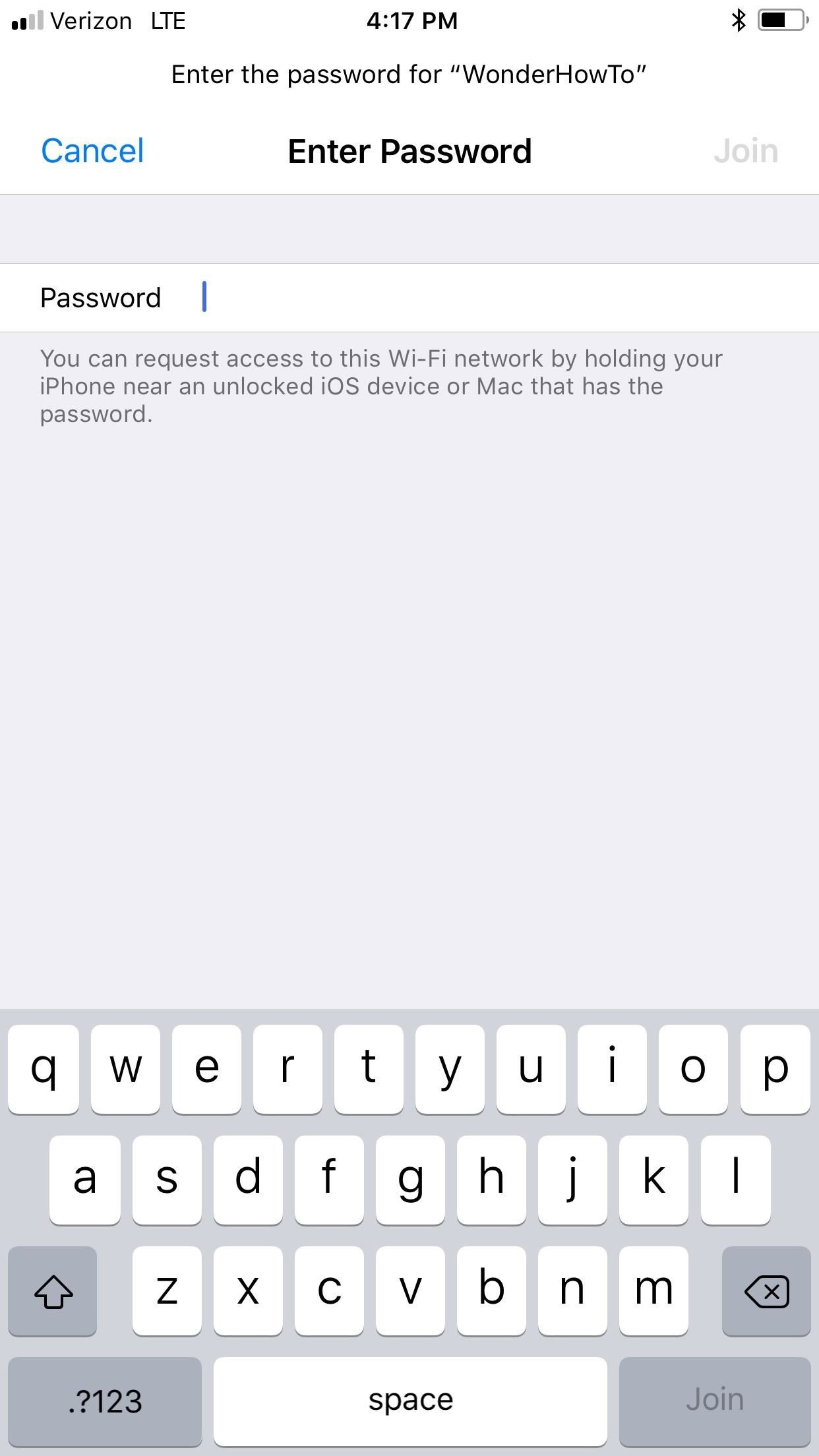
2. You Can Share Wi-Fi Passwords with Nearby DevicesNo more do you have to try and type out long, complicated passwords on your iPhone. Now you can just ask someone already connected to the network to share their password with you over the air — no typing involved. As long as both devices are running iOS 11, it'll work (and macOS High Sierra is even supported).More Info: How to Instantly Share Wi-Fi Passwords from Your iPhone to Other iOS 11 Devices Nearby

3. You Can Draw on Your ScreenshotsApple assumes most people who take screenshots will want to edit them right away, so they added a quick markup feature for screenshots. Just take a screenshot, then tap on the thumbnail in the bottom left, which brings up the edit page where you can draw using any number of tools. The thumbnail is invisible in other screenshots, so you can still rapid fire screenshot like you normally would. (You can swipe the thumbnail to the left to get rid of it faster if it annoys you.)Don't Miss: 18 Tips for iOS 11's New Screenshot Tool on Your iPhone

4. The Control Center Is One Page NowJust like we hoped, Apple made the Control Center a single page again, instead of the clunky two-page version in iOS 10. Everything gets its own little section, and you can use 3D Touch to expand and interact with most of these options.

5. And It's CustomizableThis was another big item from our wish list, and it's a good start to customizing the Control Center. In the settings, you can add, remove, and rearrange options in the pull-up menu, but you're limited to Apple apps and services, which means no third-party app integration. Hopefully, this will come in the future, but we're not betting on it.Airplane Mode, Cellular Data, Wi-Fi, Bluetooth, AirDrop, Personal Hotspot, Rotation Lock, Do Not Disturb, AirPlay, and the Music controls are all non-customizable, meaning they you can't remove any of them.

6. The Flashlight Has Another Intensity OptionIf you 3D Touch (or long-press) on the flashlight icon in the Control Center, you'll notice that instead of three intensity options (low, medium, high), there's a fourth one. The names have been removed, so you'll just have to guess at what the fourth one is called.Don't Miss: How to Turn On Night Shift Mode in iOS 11 on Your iPhone

7. You Can Screen Record Without Your MacHidden in the Control Center's customizable settings, there's a new Screen Recording option. That means you no longer need QuickTime on your computer or some shitty third-party app that doesn't work well (or at all).Just add the option to your Control Center, then tap on the icon to start recording. If you long-press or 3D Touch on it, you can enable the microphone, too. You can turn it off the same way, or via the red status bar indicator. Then all you have to do is tap on the notification that it was recorded and begin editing out the stuff you don't want.More Info: How to Record Your iPhone's Screen with Audio in iOS 11 — No Jailbreak or Computer Needed
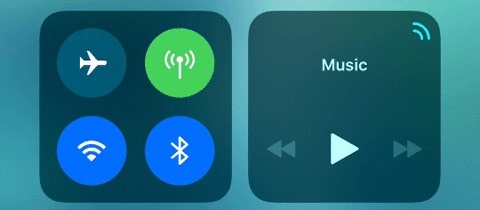
8. Airplane Mode RemembersPreviously, when you toggled Airplane Mode on, off, and then on again from the Control Center, it wouldn't remember if you had enabled Bluetooth or Wi-Fi while Airplane Mode was on. Now, in iOS 11, Airplane Mode will remember your settings so you don't have to re-enable Bluetooth and/or Wi-Fi when turning Airplane Mode off and back on again.

9. The Music Player Square Has a Source IconThere's a two-arced icon (like a Wi-Fi icon without the pie slice) in the top right of the music player in the Control Center. Tapping on this icon will shoot you quickly to the list of output sources available. When you're connected to an output source like an Apple TV, speakers, or even QuickTime on your Mac, it will change to an animated blue icon.
10. And More from the Control CenterAside from the default iOS 10 options in the Control Center, there's also Cellular Data, Personal Hotspot, Screen Recording, Alarm, Do Not Disturb While Driving, Notes, Accessibility Shortcuts, Apple TV Remote, Guided Access, Low Power Mode, Magnifier, Stopwatch, Text Size, and Voice Memos. There's also the Wallet shortcut, which may or may not work better for you than the double-click option for passes.More Info: iOS 11 Got an Awesome New Control Center — Here's How to Use & Customize It on Your iPhone
11. You Don't Need 3D Touch for Control Center Quick ActionsIf you have an iPhone that doesn't come with 3D Touch, you're not left out in the cold again when it comes to quick actions. You can now long press on almost any icon in the Control Center to bring up the same quick actions that 3D Touch users get. This means you can now adjust flashlight intensity, among other things. Unfortunately, this long-press feature for older iPhones is only available in this menu, not on the home screen or elsewhere.More Info: You Can Finally Access Extra Control Center Features Without 3D Touch in iOS 11

12. There's a One-Handed KeyboardRealizing that many iPhone users (like myself) have flocked over to third-party keyboards, Apple finally added a significant improvement to bring everyone back — a one-handed typing mode. This simply squishes the stock keyboard over the left or right side so you can type without stretching your thumb out too far. Now they just need to add swipe typing.More Info: How to Enable One-Handed Typing on Your iPhone's Stock Keyboard in iOS 11

13. You Can Send/Receive Apple Pay Cash (Coming in iOS 11.2)There's a new feature called Apple Pay Cash that lets you easily send money via your debit or credit card (or Apple Pay Cash balance) to friends and family via the Messages app. When they receive it, they can make Apply Pay purchases or transfer to their bank. People can also send you money so you can do the same, and you can even request them to send you money in Messages. This feature is currently in the iOS 11.2 beta 2, and should be released in the iOS 11.2 final version.More Info: How to Send & Receive Apple Pay Cash via Messages in iOS 11

14. There's ARKit for Augmented RealityOne of the most exciting things that iOS 11 is bringing to the iPhone is ARKit, a new framework for developers to build augmented reality experiences in apps and games. This framework lets developers use motion tracking, surface detection, and ambient light detection capabilities on the iPhone without any additional hardware, as long the device has an A9 processor or higher. All of this means more augmented reality madness for your iPhone in iOS 11, so you're not just stuck playing Pokémon GO forever.Don't Miss: 11 iPhone AR Demos That Will Change How We Use Our Phones Images by Made With ARKit/YouTube, Gian Piero Gigli/YouTube
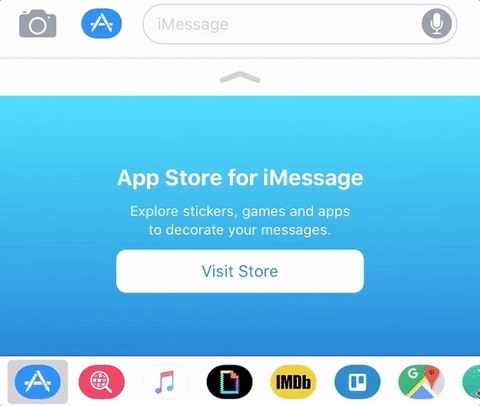
15. The iMessage App Drawer Looks BetterWhile we're in the Messages app, let's talk about the App Store for iMessage. It looks way cleaner, slimmed down to a tiny row at the bottom which is expandable when you need it.

16. There's New Screen Effects for iMessagesIf you love Balloons and Confetti in your iMessages, you're going to love the new Echo and Spotlight screen effects that the Messages app has in iOS 11. Not much more to say here. Just seem them in action below.More Info: iOS 11 Gets New Echo & Spotlight Screen Effects for iMessages Images by Jake Peterson/Gadget Hacks
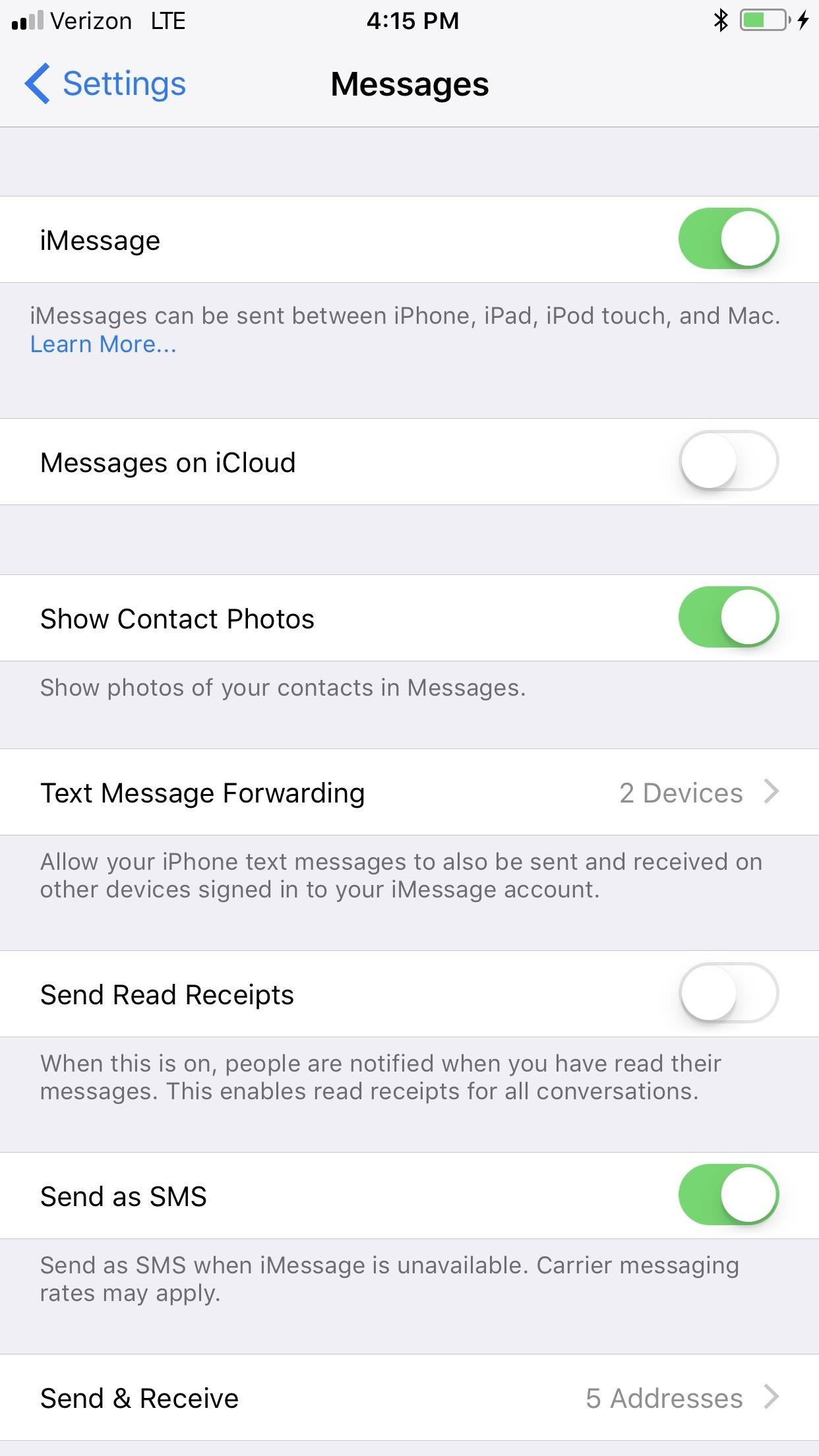
17. Messages Can Be Stored in iCloud (Coming Soon)Yep, this means that all of your messages on your iPhone can finally really be synced with your messages on your Mac. Previously, it was a big mess, and messages you deleted on your iPhone would not delete on your Mac as well. This is a huge privacy concern, obviously, so this is a nice addition. However, it probably won't appear until at least macOS High Sierra is released, since you can't enable the option in macOS Sierra.Don't Miss: The Long Complicated Way to Delete a Message Across All Your Devices Before iOS 11
18. The App Store Got a Huge UpdateThe iOS App Store is taking a queue from the Apple Music look with its new redesign. It's got a "Today" view jam-packed with information on new apps and in-app purchases, stories, and even how-tos. Apps and games also get their own tabs, and ratings and reviews gained new precedence. Developers can even respond to reviews now, which may or may not be a good thing, depending on how you look at it. You can see all of the new iOS App Store features in the link below.More Info: The 6 Best Features in the New iOS 11 App Store for iPhones

19. You Can Disable In-App Prompts for Ratings & ReviewsWhile Apple was already readying this new ratings and review system back in iOS 10.3, the system-wide toggle to disable feedback requests inside apps only appears in a few betas here and there. Now, it's back in iOS 11 (hopefully for good).More Info: How to Disable Annoying Rating & Review Popups for Apps in iOS 11 on Your iPhone Image by Justin Meyers/Gadget Hacks
20. You Can Disable Auto-Playing Videos in the App StoreWhen you open an app or game's App Store page, if it has a trailer it will automatically start playing the video, but you can easily prevent that from happening by turning it off or changing it to "Wi-Fi Only."More Info: How to Disable Auto-Playing Videos in the iOS 11 App Store

21. There's a File Manager AppTouted as an iPad feature during WWDC, Files, Apple's new file manager app, is also on the iPhone. If you can't find your iCloud Drive app, it's because it's now a part of Files. If you have Google Drive, Dropbox, and Box installed, you'll be able to see those in the Files app as well, and more third-party cloud storage services will be supported in the future.More Info: How to Use iOS 11's New File Manager on Your iPhone

22. You Can Scan QR Codes in the Camera AppSay goodbye to all of your QR code apps, because you don't need them anymore. Apple built a QR code scanner right into the Camera app, so all you have to do is point your camera at a QR code and it will prompt you with what to do next, whether it's opening up a link in Safari, adding a number to your contacts, or joining a Wi-Fi network.

23. There's a Hidden Camera LevelWhile it's not on by default, the Camera app does have a new superpower that helps you take better overhead-view photos and even skyward pics. Crosshairs will appear to help you properly level the iPhone so you get perfect pics either straight down or straight up. To see how to unlock this feature, check out the following guide.More Info: How to Unlock Your iPhone's Secret Camera Level in iOS 11
24. Portrait Mode Works with OIS, HDR & FlashFor some reason, Apple omitted these options with Portrait mode on the iPhone 7 Plus, but iOS 11 adds support for them. Optical image stabilization is always on now, and you can use either the high dynamic range option or flash when taking "Depth Effect" portraits.More Info: iOS 11 Adds OIS, Flash & HDR Support to Portrait Mode on the iPhone 7 Plus

25. And Portrait Mode Hides the Normal PhotoWhen you take a photo using Portrait Mode's depth effect in iOS 10, the normal photo is saved as a separate file in your Photos app (unless you toggle that option off). Now, in iOS 11, it hides the normal photo behind the depth effect so there's only one image showing in your Photos app. It's very similar to how disabling the Live Photo effect works.More Info: How to Find the Normal Photos for Your Portrait Mode Images in iOS 11

26. There Are New Formats for Pics & VideosPreviously, the Camera app would shoot pictures in JPEG and videos in H.264. Well, in iOS 11, Apple has bumped that up to compression formats that can save you twice as much space (up to two times better compression). The new HEIF (High Efficiency Image Format) will take the place of the old JPEG files, while videos will be using the H.265 video coding format. Of course, you can disable this in the Camera settings if you want.

27. GIFs Are Finally Supported in PhotosPreviously, any GIFs you saved to your iPhone would show up as still images in the Photos app, but not anymore. They will animate now and will appear in an automatic "Animated" album.More Info: The 7 Best New Features in iOS 11's Photos App for iPhone
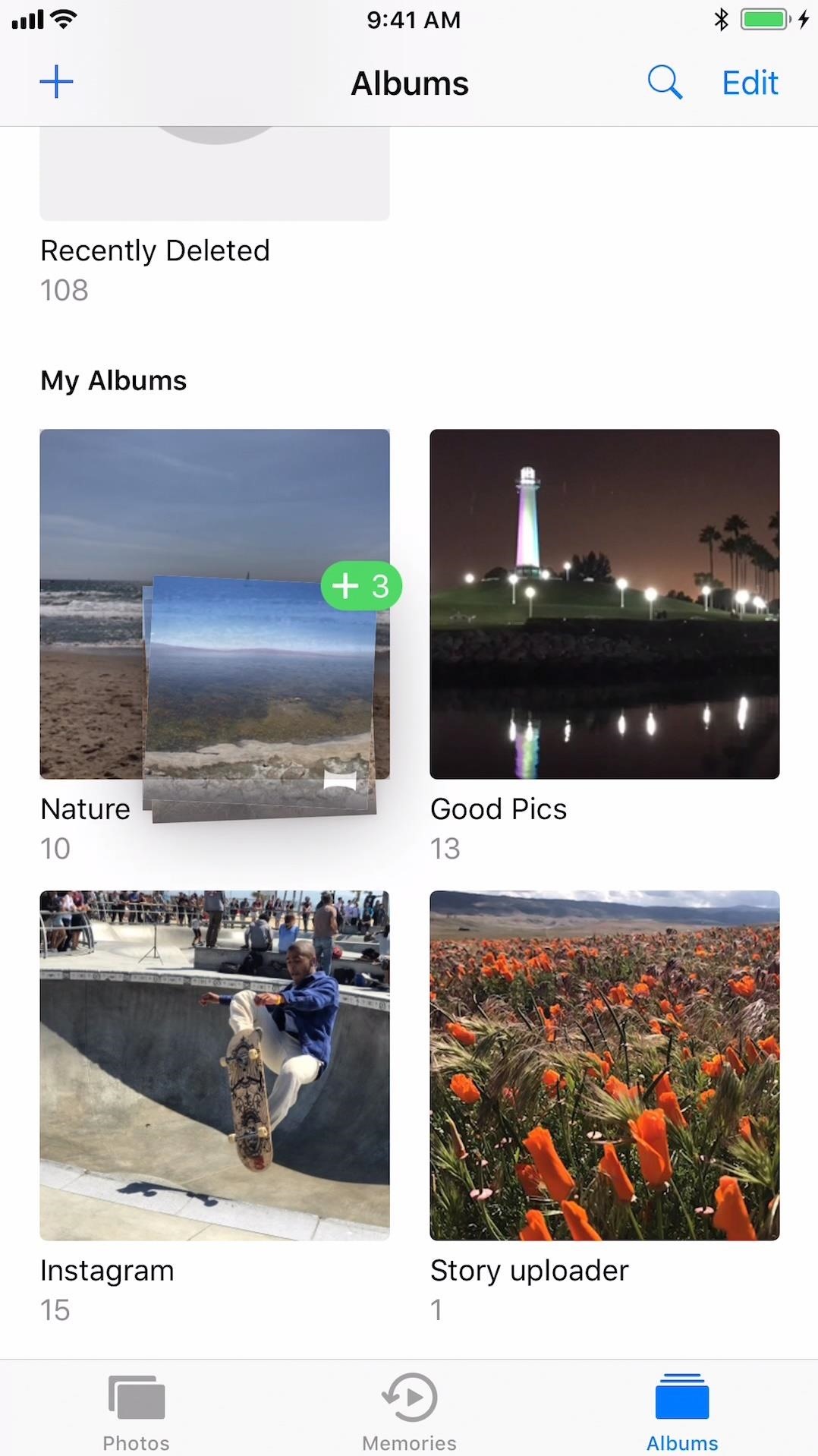
28. You Can Drag & Drop Images into New AlbumsThe iPad doesn't get all of the fun. There are a few drag-and-drop features available for iPhones in iOS 11, and one of them adds the ability to move a photo or group of photos from one album to another in the Photos app.More Info: How to Drag & Drop Photos on Your iPhone in iOS 11
29. The People Album Syncs Across DevicesIf you only have one device connected to iCloud, this isn't such a big deal. However, if you do, you'll be glad to know that the automated "People" album that Apple creates for you will sync across all devices now.

30. You Can Select a Still Image for Live PhotosPreviously, the only way to select the still image you wanted to use for Live Photos was to use a third-party app like Google's Motion Stills app. It was a big deal, since sending a Live Photo to a friend on Android wouldn't show what you actually wanted to show. Now, Apple has fixed this. Just tap on the Edit icon at the bottom, then drag the cover photo frame on the slider to wherever you want. Tap on "Make Key Photo" to set it, then "Done" to finalize.More Info: The 7 Best New Features for Live Photos in iOS 11 for iPhones

31. You Can Also Trim Live PhotosFrom the same edit menu just mentioned above, you can also trim Live Photos. Just press and hold on one of the ends of the slider, trim to your liking, and hit "Done" to finalize. You can always revert the changes later by entering the edit menu again.

32. There Are New Loop & Bounce Live Photo EffectsIf the previous two Live Photos features weren't enough, Apple also added a couple cool motion effects for Live Photos — Loop and Bounce. The former loops it like a normal GIF would, and the latter just bounces the video back and forth endlessly.

33. There Are Long Exposures!Okay, so it's not a long exposure feature in the Camera app, but it's still cool. Just set up the scene you'd like to take a long exposure for, snap the pic with Live Photo enabled, then edit it just like you would for the Loop and Bounce effects, only this time select the Long Exposure option. Pretty sweet, right?More Info: How to Take Long Exposure Photos on Your iPhone in iOS 11 Image by Jake Peterson/Gadget Hacks
34. You Can Send Android Users Some Live PhotosWhile sending a regular Live Photo from an iPhone via MMS will still result in a still image for Android users, the Live Photos with Loop or Bounce effects will be sent as MP4 files. Right now, this is pretty buggy, and we had a small success rate, but it's the start of something good.More Info: How Texting Live Photo Effects Works in iOS 11
35. And Turn Them into GIFs via MailJust like the above tip, if you send a Live Photo with a Loop or Bounce effect via the Mail app, it will automatically be converted to a GIF file that any recipient can see. Now we'd just love the ability to turn regular Live Photos as GIFs, since Live Photos sent via Mail will still only be a still JPEG image.More Info: How to Send Live Photos as GIFs in Emails (iOS 11)

36. GIFs & Live Photo Effects Get Thier Own AlbumLike mentioned above in the section on newly added GIF support, there is a new album that's automatically created in the Photos app called "Animated." If you have any GIFs, loops, or bounces, they will all show up here.
37. Memories Videos Get Optimized Portrait ViewYou could always rotate your iPhone's screen and watch a Memories video in either landscape or portrait mode, but the video would not be optimized for the new orientation. Now, in iOS 11, the video looks good no matter what orientation you're watching it in.

38. And There Are More MemoriesApple uses machine learning to help create even more memories for you to enjoy in the Photos app. New additions include weddings, birthdays, pets, babies, outdoor activities, performances, and sporting events.

39. You Can Take Live Photos in FaceTimeJust like you can take pictures while shooting video in the Camera app, you can snap screenshots of video calls in the FaceTime app. Not only that, they aren't normal screenshots — they're Live Photos. Both users on the FaceTime video call need to be running iOS 11 for this to work.More Info: How to Take Live Photos of FaceTime Video Calls in iOS 11 (& Protect Yourself from Getting Recorded) Images by Kevin M./Gadget Hacks
40. FaceTime Has a New Outgoing RingtoneThe default ringtone that you would hear when calling someone on FaceTime was fairly high-pitched (and annoying) before. Now it's more subtle and deep.

41. It's Easier to Save & Mark Up PDFs NowYou could previously save webpages, notes, photos, and other files as PDF files and mark them up afterward, but it was kind of a pain in the ass — especially for adding markup. iOS 11 has simplified this with a "Markup as PDF" button in the share sheet, which is much faster all around.More Info: How to Quickly Save & Markup PDFs of Notes, Webpages & More in iOS 11 Images by Dallas Thomas/Gadget Hacks

42. You Can Make Notifications PersistentWhile I'm not sure who exactly would want to enable this feature, I'm sure there are a few good use-cases for needing to have those banner notifications you get stay there until you dismiss them. If that sounds like something you want, it's pretty easy to set up in your Notification settings for apps that support banners.More Info: How to Set Persistent Notifications for Apps in iOS 11 on Your iPhone Image by Dallas Thomas/Gadget Hacks

43. And Disable Notification Previews for All AppsPreviously, you could only disable notification previews on your lock screen or Cover Sheet (aka Notifications Center) for select Apple apps, but iOS 11 just opened it up to every app on your device. When enabled, you'll still get the notification, only the body of it will simply say "Notification" and that's it.More Info: How to Disable Notification Previews for All Apps in iOS 11
44. You Can Block Apps from Your Notifications HistoryAnother cool change to the notifications system is that you can block individual apps from showing up in the "Recent Notifications" that appear on the Cover Sheet from a locked or unlocked state. You will still get notifications on your lock screen, but they won't make it into the "Earlier Today," "Yesterday," etc. sections.More Info: How to Block Certain Apps from Appearing in Your Notifications History in iOS 11
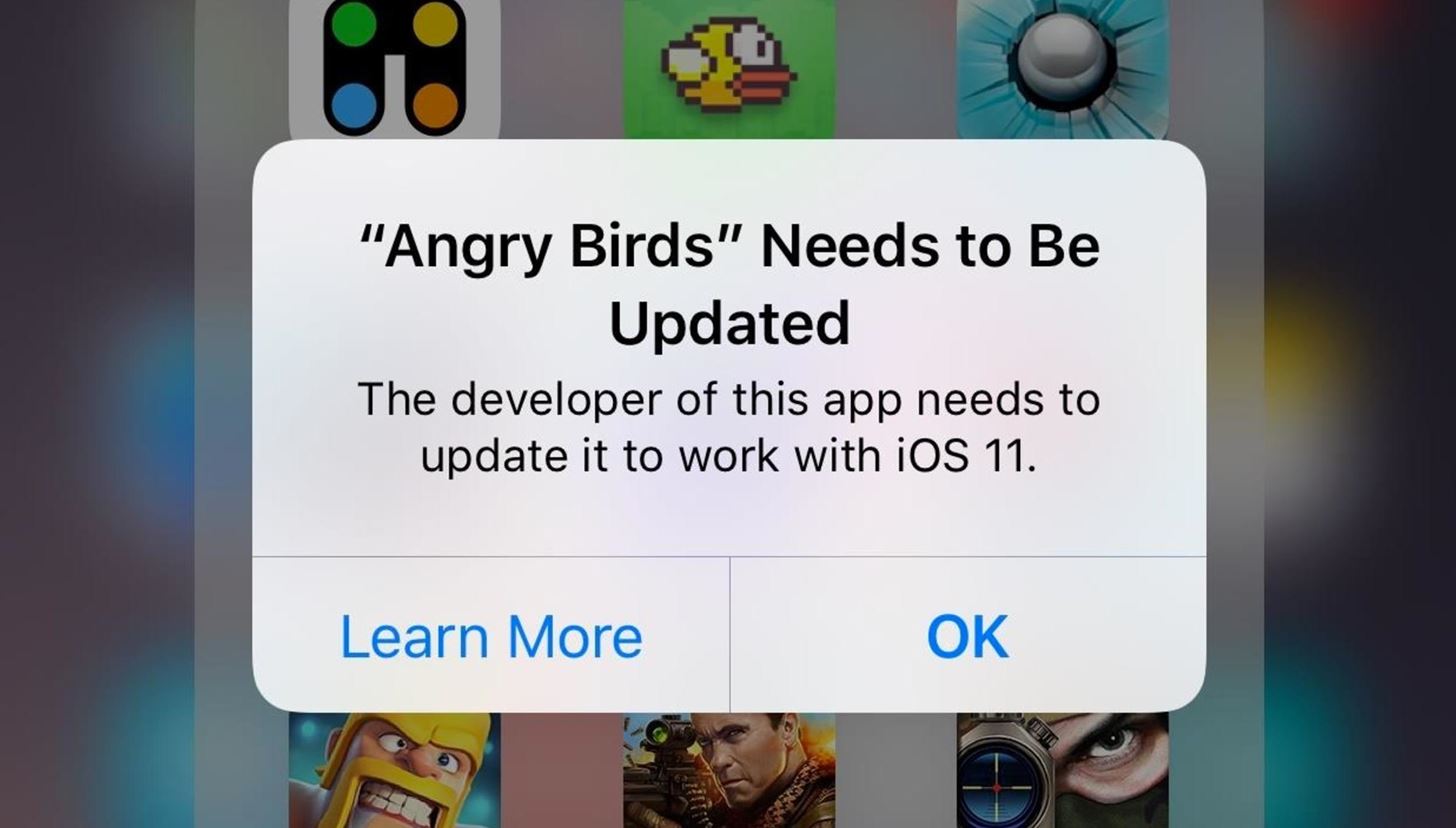
45. 32-Bit Apps No Longer WorkOkay, this may sound like a negative thing to you, but to me, it gives me a reason to finally get rid of all the apps that are no longer working anyway. Most of the apps that haven't been updated to 64-bit apps just don't function like they used to, and I never use them anyway.More Info: How to Check Your iPhone for 32-Bit Apps That Won't Work in iOS 11

46. There's Indoor Maps for Malls & AirportsIf you've ever had a hard time finding a public restroom in a shopping mall or airport, you'll appreciate this. Apple Maps now has indoor maps for the floor plans of malls and airports — they even work on different levels. We haven't seen any locations around us supported yet, but hopefully soon!More Info: How to Navigate Indoor Mall & Airport Floorplans in Apple Maps for iOS 11 Images by Amboy Manalo/Gadget Hacks

47. Navigation in Maps Now Has Lane Guidance & Speed IndicatorApple wants to make sure you don't miss your exit next time, or get pulled over for a speeding ticket when you missed that tricky speed limit sign way back there. Speed limit indicators are only available for certain roads, but it's a decent start. Images via Apple (1, 2)

48. And There's Do Not Disturb While DrivingPerhaps the biggest Maps addition in iOS 11 is the "Do Not Disturb While Driving" mode. It will automatically kick in when it senses that you're driving or when you're connected to your car's Bluetooth. You can even toggle it on or off via the new Control Center icon. Anyone in your favorites list will get a message that lets them know you're driving, and they can break through that barrier by following up with "urgent" as a text.More Info: How to Use 'Do Not Disturb While Driving' on Your iPhone in iOS 11 (Or Turn It Off if You Don't Like It)

49. You Can Zoom Maps with Only Your ThumbZooming in was always pretty easy to do with one thumb only since you can just double-tap on the Maps screen to do so. But zooming out was the tricky part. There was no way to do this using only one finger, but iOS 11 has fixed that. Just double-tap and hold, then move your finger up on the screen to zoom in and down to zoom out.More Info: How to Zoom In & Out One-Handed in Maps on Your iPhone in iOS 11

50. And Get Light Guidance During NavigationIf you've ever found Maps almost nagging navigational directions annoying, you can now slim up those baby steps and "tap for light guidance," which gives you an overview of your drive instead of the step-by-step view. You could always zoom out before, but when a new turn came up, you'd get kicked back into step-by-step mode. This new one keeps you zoomed out no matter what.Don't Miss: The Best New Features for Maps in iOS 11 for iPhone

51. There Are Virtual Reality 'Flyover' CitiesApple has included a "Flyover" feature in Maps ever since iOS 6, and a "City Tours" feature since iOS 8. But now, in iOS 11, you get the best of both worlds in virtual reality. With the help of ARKit, you can spin your iPhone around to navigate a city in VR, and it gets even more impressive if you have a VR headset.More Info: How to Unlock Virtual Reality 'Flyover' Cities in Apple Maps on Your iPhone in iOS 11

52. Emergency SOS Is Now Finally on iPhonesWhile the Apple Watch got some Emergency SOS love already, as well as some iOS 10 betas, the iPhone feature has only been live in India so far. Now, it looks like iOS 11 is making it available to everyone in the US. This feature lets you click the sleep/wake (aka power) button 5 times fast to start a call to 911, and you have the option to set up emergency contacts that will get constant text updates as to your location.More Info: How to Use the Emergency SOS Shortcut on Your iPhone in iOS 11

53. And It Doubles as a 'Cop Button'If you're scared of ever having to use your fingerprint to unlock your iPhone because of warrant that law enforcement could present to you, Apple has you covered. Whether intentional or not, when you initiate Emergency SOS, iOS 11 automatically disables your Touch ID, and the only way you can get it back up again is to input your passcode.More Info: How to Quickly Disable Touch ID on Your iPhone in iOS 11 for Extra Security

54. iPhone-to-Computer Security Is BetterWhen you connect an iPhone to a new computer, iTunes will ask you to click on "Continue" to allow the computer to access information on the iPhone. Once done, a prompt on your iPhone will ask you to either "Trust" or "Don't Trust" the computer. This is how it works on iOS 11 and previous versions of iOS. However, iOS 11 added a new security feature that also requests that you input your passcode on your iPhone before continuing — even if your iPhone is already unlocked.

55. The Passcode Screen Is Slightly DifferentNot a huge change, but the passcode screen on the lock screen looks a little different with buttons that stand out a little more than before. iOS 10 (left) vs. iOS 11 (right). Not a huge difference, but the buttons look a little different.

56. The Calculator Got a New LookAnother minor visual change, but the Calculator got a new home screen icon and the app itself is now based on circular buttons rather than squares. The colors are still the same, only black covers more of the background.

57. And So Did a Bunch of App IconsAside from the new Calculator app icon, a few other stock Apple apps got refreshed, including Contacts, App Store, Camera, Maps, Notes, Reminders, iTunes Store, and iCloud Drive (now Files). Other stock apps got either minimal icon updates or none at all.More Info: Every App Icon Change Apple Made on Your Home Screen in iOS 11
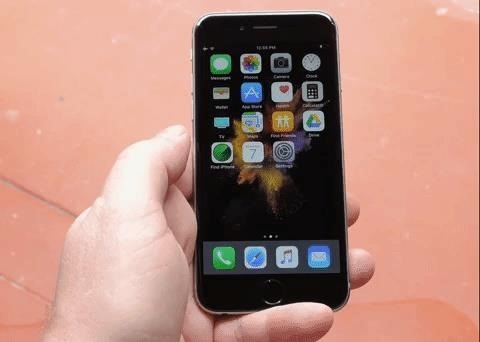
58. You Can Move Multiple Items at OnceIt's now easier than ever to organize your home screen. When you go into edit mode on the home screen, you can hold one app or folder, then tap others to join it in a group move. Then you just move the group to a folder, the dock, or another home screen page and let go. Pretty awesome. If you have an iPad Pro with the new drag and drop feature, you can select multiple things to drag and drop at the same time, just like with home screen icons.More Info: How to Move Multiple Home Screen Apps at Once in iOS 11 Image by Dallas Thomas/Gadget Hacks
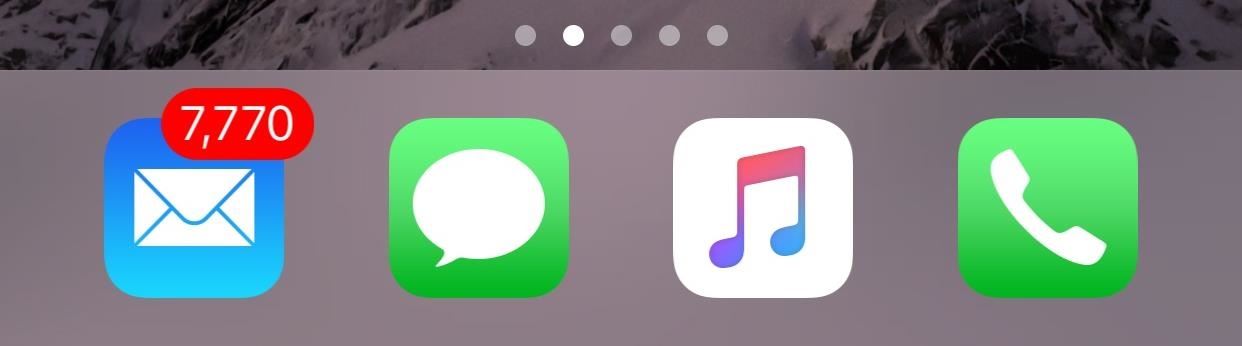
59. The Apps in the Dock Have No TextSome of the best "glitches" in older iOS versions were the ones that let you remove app and folder labels on the home screen. If the icon itself cannot visually explain what the app is, then the developer should get a better designer. That's how I always thought of it. Even with folders, you can tell what folders there are by the apps in them. It's just a much cleaner look overall.So, while iOS 11 hasn't enabled this as an actual option yet, Apple has started the process by removing the text for apps and folders in the Dock.
60. There's No More Home Screen in the App SwitcherWhy did we ever need a page for the home screen in the App Switcher anyway? Thankfully, iOS 11 removed it, so to get back to your home screen, just press the home button or tap on the background in the App Switcher.

61. The Battery Icon Looks Slightly BetterI guess this is up for debate, but the battery icon in the status bar looks a tad bit better.
62. There's Another Way to Power DownWhile you could power down your iPhone with AssistiveTouch previously, it's not that great of an option if you don't have another use for the Accessibility setting. Now, iOS 11 has fixed that issue, giving us a third way to power down when we need it, and it's right in the Settings menu.More Info: How to Turn Off Your iPhone in iOS 11 When You Have a Broken Power Button
63. There's Also Another Way to RestartSpeaking of AssistiveTouch, Apple has added a quick way to restart your iPhone using the AssistiveTouch menu. So if you need to restart your iPhone and don't want to power it down then manually turn it back on, or worse yet — use the "Bold Text" trick and be stuck with bold text everywhere — then you can do so right on your screen.More Info: How to Restart Your iPhone in iOS 11 Without Using the Power Button

64. There Are More New AssistiveTouch OptionsIn the new AssistiveTouch menu, you can not only restart your iPhone now, but you can access the app switcher, enable Emergency SOS, use Apple Pay, or even start Reachability mode. iOS 10 (left) vs. iOS 11 (right).

65. Your iPhone Can Automatically Answer CallsThe next time you're cooking food and have dirty hands, you won't need to quickly rinse them off to accept a new phone call — your iPhone can automatically answer it for you and put it on speakerphone. There are just a few Accessibility settings to tweak to get this up and running.More Info: How to Automatically Answer Phone Calls on Your iPhone in iOS 11 Images by Amboy Manalo/Gadget Hacks

66. You Can Finally Type to SiriWe're not sure why this feature wasn't built in sooner, but after changing one simple Accessibility setting, you can turn the home screen shortcut for Siri from talking to typing only. If you still want to talk to Siri, you can just use the "Hey, Siri" command, so you've got the best of both worlds.More Info: How to Type to Siri in iOS 11 When You Don't Want to Talk

67. Siri Can Translate English to Other LanguagesSiri can now translate English to Chinese, German, Italian, French, and Spanish, so if you ever need to ask someone something while you're traveling abroad, you can just have Siri ask them. You can't have another language translated into English just yet, but hopefully that's coming.More Info: How to Get Siri to Automatically Translate Languages for You in iOS 11 Images by Amboy Manalo/Gadget Hacks

68. There Are Siri SuggestionsSiri can offer up personalized recommendations to you in Safari, Maps, Messages, and News, based off your usage in other apps. If someone asks you how far away you are in Messages, Siri might suggest the exact answer in miles or minutes based on your current location. To read more about how this works, check out our Siri roundup:Don't Miss: The 5 Best New Siri Features in iOS 11 for iPhone
69. Siri Sounds More NaturalIt doesn't sound like much, but if you've ever used Siri before, you'll know just how much better she (or he) sounds now in iOS 11. Siri's new male and female voices are more natural and expressive, adjusting intonation, pitch, emphasis, and tempo as they speak.

70. Third-Party Apps Get Siri IntegrationWe haven't seen this one in the works just yet, but Siri will be able to help you out in apps such as OmniFocus 2, Evernote, Citi Mobile, Things 3, and WeChat. More apps will surely be added to this list in the coming months. Image via Apple

71. There Are Recommendations for Saving Storage SpaceIn the updated storage management system, Apple now gives you recommendations on ways to free up space on your iPhone, like auto-deleting old conversations in Messages, emptying your "Recently Deleted" album in Photos, or storing your messages in iCloud.More Info: iOS 11 Just Upgraded the iPhone's Storage Management System with More Features

72. You Can 'Offload' Apps to Save Storage SpaceOne of the recommendations above, as you could probably tell, is to "Offload Unused Apps." This setting lets you delete apps that you're not using off your iPhone while retaining the documents and data for them so you can download the apps again later when you need them — without having to start from scratch. Then, when you start running out of space, your iPhone will ditch unused apps to free up space. You can also set this for apps individually if you want.More Info: How to Offload Unused Apps in iOS 11 to Free Up Storage Space on Your iPhone Images by Amboy Manalo/Gadget Hacks
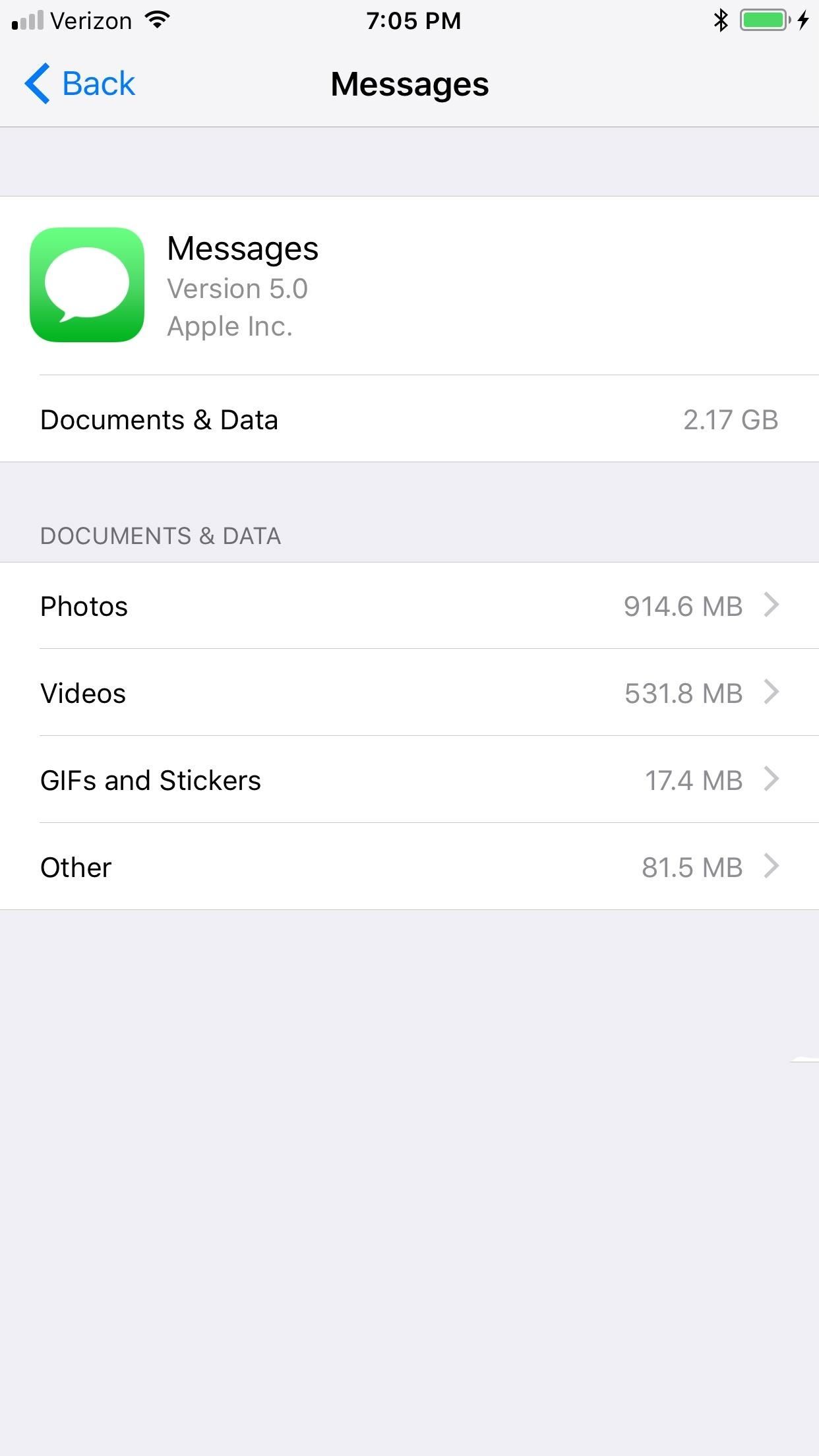
73. You Can Delete Message Attachments EasierAlso in the new storage management system is the ability to review and delete all of the attachments in your Messages app. You can sort by photos, videos, GIFs and stickers, and everything remaining. Then just delete away as necessary.More Info: How to Delete Message Attachments on Your iPhone in iOS 11

74. The Special Facebook & Twitter Integration Are GoneThat might sound like a bad thing, but it's actually for the best. Facebook, Twitter, Flickr, and Vimeo no longer get special treatment in the Settings app. After all, how many of you actually found this useful? Instead of the deafult login options for these four apps, they will now work just like any other third-party app in iOS — by utilizing the share sheet menu. iOS 10 (left) vs. iOS 11 (right).

75. You Can Track Flights in SafariIf you need to keep track of a friend or family member's flight, you can do so now right from Safari without a ton of work. Just type in the airline and flight number and Safari will give you some details about it right away. Tap on the details card to see more info about the flight, like its current route. Images by Dallas Thomas/Gadget Hacks
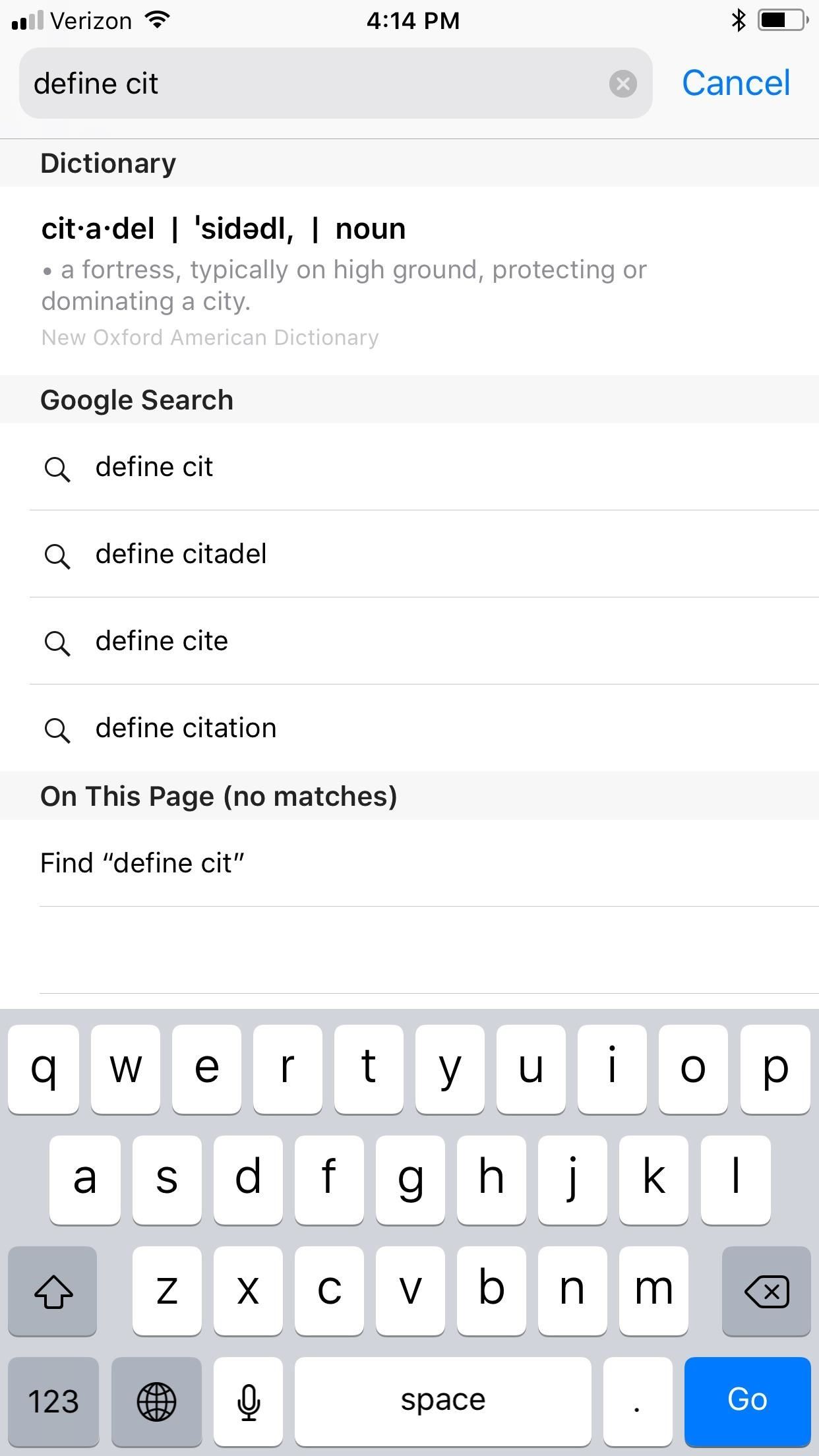
76. And Even Define WordsSome web searches in Safari will bring up Wikipedia cards or suggest websites with need-to-know info displayed right away — before you even hit the "Go" button. But if it's just a definition you're looking for, iOS 11's Safari added a dictionary card if you add the word "define" to your search. It uses the New Oxford American Dictionary, so words like zyzzyva won't show up, but the suggested website given can usually fill in those gaps. Plus, it does a decent job at predicting what you want!
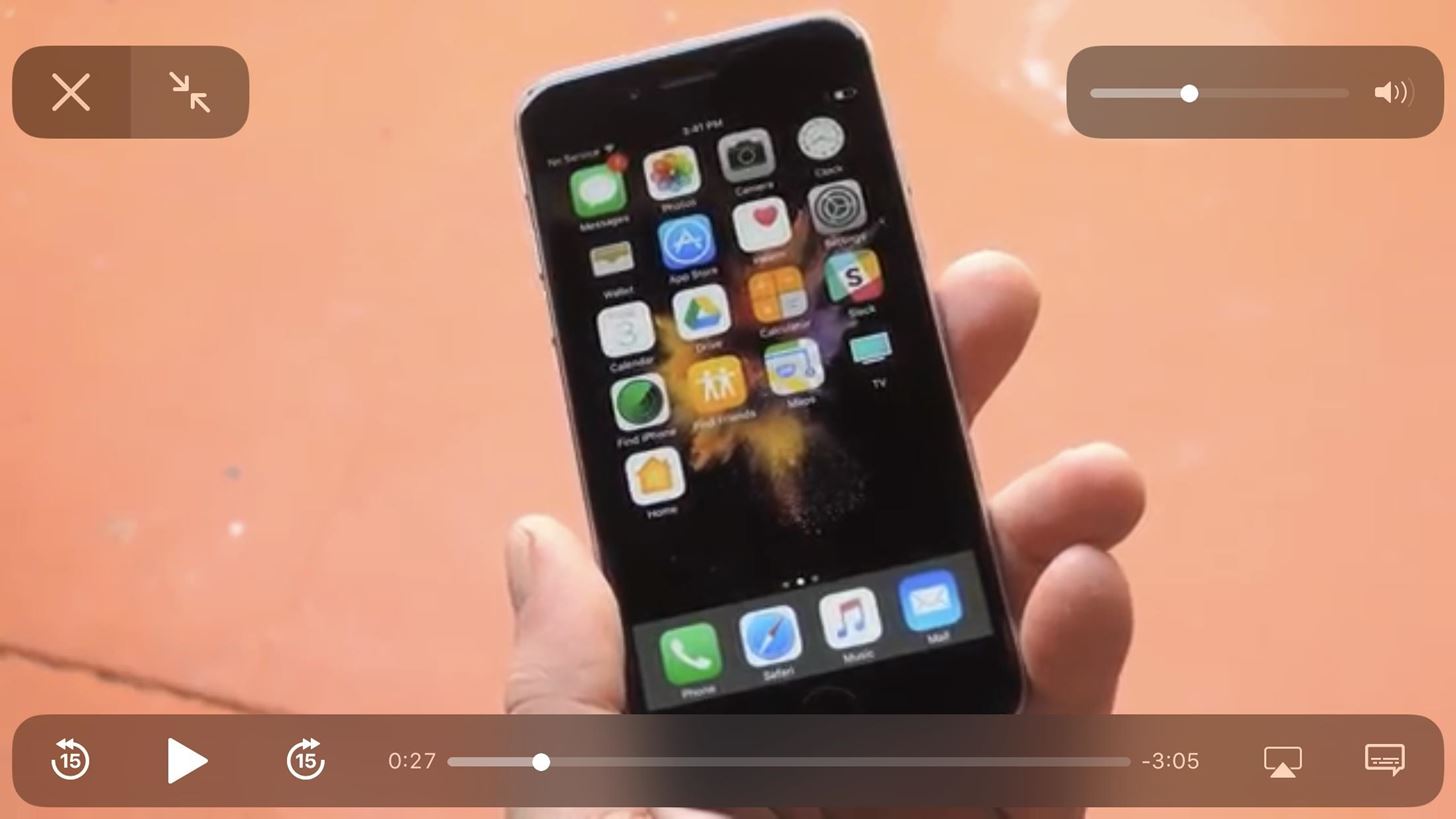
77. Safari's Video Player Looks BetterWhile the video controls in iOS 10's Safari weren't horrible, they look much better now, taking up less space over the video. The new volume slider for full-screen videos is a big plus, which shows only as a speaker icon until you use the hardware volume buttons or long-press on the icon, which brings up the slider.More Info: The Video Player in Safari Gets a Much-Needed Makeover in iOS 11 Image by Dallas Thomas/Gadget Hacks

78. Safari Prevents Cross-Site TrackingIf you're worried about advertisers tracking you in Safari, iOS 11 has you covered. With Apple's machine learning, Safari can intelligently prevent websites from tracking you using data gathered from other sites. This feature is enabled by default in Safari's settings.
79. Safari Simplifies Cookie BlockingAs you can also see in the screenshot above, there's a new option for "Block New Cookies and Data" in Safari. In previous iOS versions, it was labeled as a menu for "Block Cookies" which included options like Always Block, Allow from Current Websites Only,Allow from Websites I Visit, and Always Allow. If you never knew which option to choose, well, now you only have one.

80. Scrolling Works Better in SafariFor some reason, unlike in other stock apps, when you swiped to scroll on a webpage in previous versions of Safari, one swipe or flick wouldn't get you very far. Now, in iOS 11, that swipe or flick has actual inertia, so you can control how fast or slow you scroll on a page. iOS 10 would take a few flicks (left) vs just one in iOS 11 (right) to reach the end of the webpage.

81. You Can Add Tables in NotesOne cool new addition to the Notes app is tables, something that wasn't possible before. The tables themselves are pretty simple looking, but that's all they need to be. Plus, there's lots you can do in them, like edit entire rows and columns at the same time, format text, delete info, etc.More Info: How to Add & Edit Tables in iOS 11's Notes App Images by Amboy Manalo/Gadget Hacks

82. Locking Notes Is EasierWhen you swipe left on a note in your folder of notes, there's an extra option to "Lock Note." Previously, you would have to lock the note via the share sheet icon, but now it's as easy as swiping and tapping.More Info: How to Lock Notes Faster in iOS 11 Image by Amboy Manalo/Gadget Hacks

83. You Can Pin Notes to the TopWhile on the subject of swiping notes, if you swipe right there is an option to pin a note to the top of your folder. This is great for something you're always accessing, like a grocery shopping list or a weekly/monthly budget.More Info: How to Pin Notes to the Top in iOS 11 Image by Amboy Manalo/Gadget Hacks

84. You Can Add Inline Drawings in NotesYou could always jot down little drawings in a note, but now you can do it without opening a new sketch window. That means you can make your sketches right inside the note while being able to look at the rest of your note in the process.More Info: How to Use Inline Drawings for Notes in iOS 11 Images by Amboy Manalo/Gadget Hacks

85. And Scan Documents into Notes Using Your CameraAnother big Notes feature is the ability to scan documents directly into notes using the camera. It even helps you make sure the document is straight so you get a clean scan every time.More Info: How to Scan Documents into Notes in iOS 11 Images by Amboy Manalo/Gadget Hacks

86. There Are Also More Formatting Options in NotesiOS 11 makes it easier to access the formatting tools inside notes with a cleaner, more intuitive interface. There are even a few new options available such as strikethrough and monospaced text.More Info: The Formatting Options Available for Notes in iOS 11 Images by Amboy Manalo/Gadget Hacks
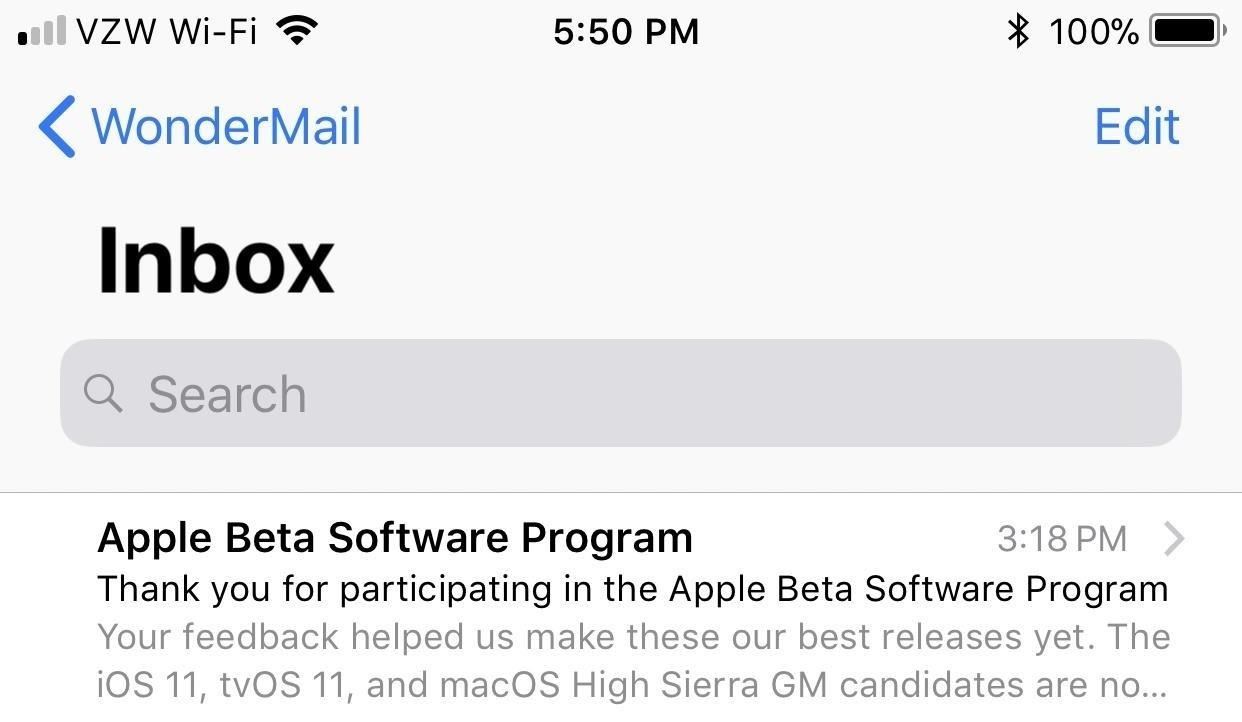
87. The Mail App Has a New LookOkay, it's not that huge of a difference, but the new Search bar definitely looks better. From the people I've talked to, there seems to be varying opinions on the new mailbox label being larger when you tap through from the main Mailboxes homepage. But at least we can all agree the Search bar looks better, right?

88. You Can Add Drawings to EmailsWhile it's not like Notes' inline drawings, it's the next best thing. Just select "Insert Drawing" from the contextual menu and you'll see the sketch screen pop up.More Info: How to Insert Drawings into Emails in iOS 11

89. Read Threads Auto-Collapse NowPreviously, all the emails in a thread would be open, which made it easy to get lost in all the messages. Now, in iOS 11, the read ones auto-collapse, so you can pay attention to what's most important right off the bat. You can, of course, un-collapse the other messages by tapping on them.More Info: How to Turn Off/On Auto-Collapse for Mail in iOS 11
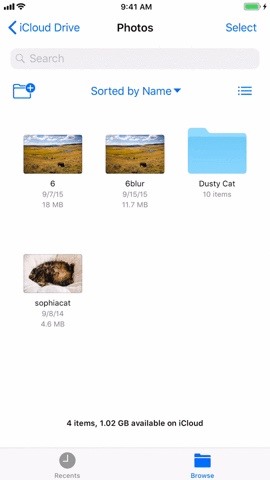
90. You Can Drag & Drop Lots of ThingsAside from the drag and drop capabilities in the Photos app and home screen mentioned above, you can also drag and drop lots of other things inside the new Screenshots tool, as well as in Notes, Reminders, Mail, and the new Files app.More Info: How to Drag & Drop on Your iPhone in iOS 11

91. There Are New WallpapersSince the start of the iOS 11 beta, there was only one new wallpaper available for iOS 11. Now there's over 20 total, and you can download them for any smartphone or tablet — not just an iOS 11 device.More Info: How to Get iOS 11's New Wallpapers on Any Phone All of these changes are great and make iOS even better than before. However, some tweaks are odd, even downright frustrating, like Auto-Brightness moving out of the "Display & Brightness" setting. We're not sure what Apple was thinking here, but we are sure this change will bring a lot of confusion.Miss anything big? Let us know in the comments below. We'll continue updating this post until we've found all of the great iOS 11 goodies for you to play around with on your iPad, iPhone, or iPod touch.Don't Miss: 100+ Cool New Features in iOS 12Follow Gadget Hacks on Facebook, Twitter, Google+, YouTube, and Instagram Follow WonderHowTo on Facebook, Twitter, Pinterest, and Google+
Cover photo, screenshots, and GIFs by Justin Meyers/Gadget Hacks (unless otherwise indicated)
Apple recently released their iOS 12.3 beta 3 to developers and now they have also released the software to their public beta testers. In order to try out the latest beta of iOS 12.3 you will
Apple Releases iOS 12.1.3 Beta 4 to Developers and Public Testers
shows how to change Google Sites colors: header, background, text, content, sidebar, etc. as well as using html to change a color Changing colors - Google Sites Help & Designs Search
How to Change the background color of Google « Internet
One of the most popular things to do on Snapchat is to earn a Snapstreak. This occurs when you and one other friend have sent snaps (not chatted) to each other within 24 hours for at least three consecutive days. One you've passed the three-day mark, then you and your friend will receive a fire
Apple has not included configuration profiles for the developer beta yet, and many developers are having issues installing iOS 13 even with macOS 10.15 Catalina installed. Plus, since this is the first beta, there are a lot of problems with old and new features to work the kinks out of.
News: iOS 13 Developer Beta 1 Available for iPhone with a Lot
Samsung just announced that the Galaxy S8 is getting a fresh coat of paint, launching a burgundy red color of the flagship in their home market of Korea. There is currently little information about whether this color will come to the US for the S8, but this could be a preview of things to come.
Samsung Galaxy S9 duo arrives in Sunrise Gold and Burgundy
Apple just announced the release date for its upcoming iOS 12 update. iOS 12 is coming on September 17th, but here's how to install it today The golden master build of iOS 12 — very
How to Prep a thermocouple for a printed circuit board
The New Stagefright Exploit called METAPHOR and it is created by ISRAEL security researchers. The researchers have also provided a proof-of-concept video demonstration that shows how they successfully hacked an Android Nexus 5, samsung galaxy S5, LG G3 & HTC ONE device using their Metaphor exploit in just 10 seconds.
New Exploit to 'Hack Android Phones Remotely' threatens
With too many installed apps, your tablet's performance can suffer, so get rid of all the ones you no longer use. Removing apps frees up storage space and - importantly - cache memory, helping your tablet to run faster. To uninstall an app in Android 6 Marshmallow, tap Apps on your Home screen to see all your apps.
How to speed up the Galaxy S5 for faster performance | AndroidPIT
You've decided to use your iPad for word processing. Not just for brief notes or email, but for tasks that require extended typing. collection of text/word processing apps. Here are the
The 5 Best Free Word Processors - mashable.com
It is recommend that you solder this project, but initially, it's easier to make it and test it out using alligator clip leads. Remove the batteries from the laser. Connect the external battery pack to the laser's power contacts with 2 alligator clips. Usually you'll connect one lead to the battery case and the other to the spring inside.
How to Make a Simple Laser Communicator Circuit | Homemade
How to Turn a Picture into a Wallpaper on Android (And Make It Fit) By Robert Zak - Posted on Aug 26, 2018 Aug 26, 2018 in Android We all have memories or just pretty images that we'd quite happily be reminded about every single day.
How to Make a 3D Parallax Wallpaper from Your Own Single