How To: Get Back the Camera's Missing HDR Button on Your iPhone 8 or 8 Plus

How To: Get Back the Camera's Missing HDR Button on Your iPhone 8 or 8 Plus

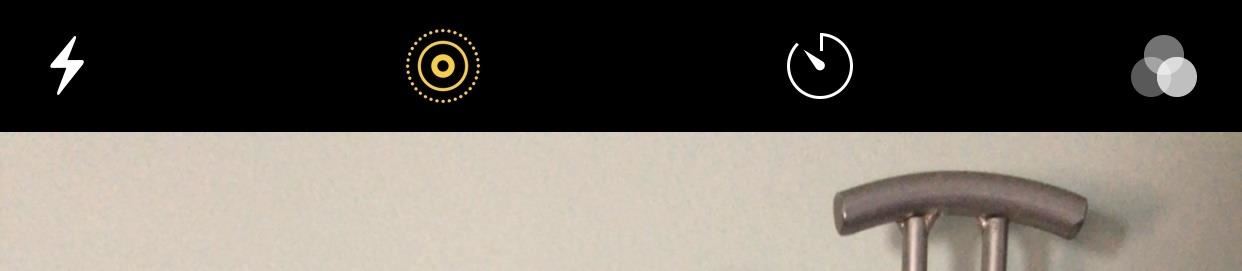
Out of the box, when you shoot a photo on your iPhone using the stock Camera app, it will either shoot a normal or HDR photo. That's because Apple's high-dynamic-range setting is set to automatic by default. However, there's a button in the app so you can turn HDR on or off manually. While this HDR toggle persists in iOS 11 on the iPhone 7 models and older, it's not visible on the iPhone 8 or 8 Plus.Apple removed the HDR option in the Camera app on the iPhone 8 and 8 Plus because, frankly, the software does a pretty good job at determining when to use HDR and when not to, so you come out with the best photo you can possibly have. One day, I bet we'll even see the button disappear in older iPhone models with Apple's confidence in its abilities to choose when it's most effective.Don't Miss: How to Find the Normal Photos for Your Portrait Mode Images in iOS 11 As good as your new iPhone 8 or 8 Plus is at choosing between a normal photo and an HDR one, there will still be times where you'll want to manually make the call yourself. And there's good news — you can get that HDR button back in the Camera app for both the rear camera and the front-facing FaceTime camera. Just open up the Settings app, tap "Camera," then toggle off "Auto HDR." When you jump back to the Camera app, you'll see the HDR button there, just like on other iPhone models. Tap on "HDR" to see the "On" and "Off" options.Don't Miss: The 7 Best New Camera Features in iOS 11 for iPhone Now, if you plan on shooting with HDR mode on manually quite frequently, I'd suggest making sure to toggle on the "Keep Normal Photo" option the Camera settings. That way, if the HDR version didn't turn out quite like you wanted it to, you've still got the normal image to fall back on. Now that you've got HDR manual settings back in your Camera app, make sure to check out all of the cool Camera features available, as well as its companion Photos app in iOS 11. There's long exposure photos, drag-and-drop capabilities, new Live Photos options, a hidden camera level, and more.Don't Miss: 90+ Cool New iOS 11 Features You Didn't Know AboutFollow Gadget Hacks on Facebook, Twitter, Google+, YouTube, and Instagram Follow WonderHowTo on Facebook, Twitter, Pinterest, and Google+
Cover photo and screenshots by Justin Meyers/Gadget Hacks


Apples nye iPhone XR, XS og XS Max er sikker på at være hits i år. Det betyder selvfølgelig, at mange sultne kunder søger at tilmelde sig en model, når forordninger begynder fredag den 14. september, for XS-modellerne og 19. oktober for XR.
How to Buy a Used or Refurbished iPhone X, XS, XS Max or XR


This video shows you how to change/customize the Quick Action/Toggle buttons in the Action Center of Windows 10 Mobile. The steps are quick and simple: 1. Go to Settings 2. Then System
Windows 10 How To: Customize your quick settings in the


You hand your iPhone to a friend to show them a picture. What happens? They swipe. Left, right, it doesn't matter. You don't remember what lies in either direction of the photo in question, and you don't want anything compromising exposed to the unassuming viewer. Luckily, Apple includes a safety
How to Show Someone a Photo on Your iPhone Without Them


This is an easy step by step tutorial how to lock your jewels in a hotel room or in a public safe. Be aware that in a public safe it is more secure to use the second method of locking by a magnetic card, not by a PIN code that can be easily seen by someone nearby.
The ultimate guide to customizing the ultimate Android home


How To: Brighten Up Your Breakfast with These Rainbow-Colored Pancake and Waffle Recipes How To: Make a Full Breakfast—Without a Skillet How To: Make Vegan Latkes Potato Pancakes How To: This Soft-Launched Game Lets You Create & Share Pac-Man Mazes on Your iPhone
Play Pac-Man Around the World in Google Maps « Digiwonk


News: Apple Releases 'Second' iOS 12.4 Public Beta for iPhone to Software Testers. gadgethacks.com - Jake Peterson. Public beta testers, you're in luck. Apple just released the second iOS 12.4 public beta today, May 20. The update comes five days after the release …
Samsung Updates AR Emoji with Better Tracking & Facial


How to Make a Good Tinder Profile. Whether you're looking for love or just a bit of fun, the Tinder app may be able to help. This free, widely popular app can be set up quickly and easily.
How to Factory Reset Your Android the Right Way - Gadget Hacks

A Return to Glory? HTC Releases the U12+ with 4 Cameras, Edge


How to Download Instagram Profile Picture in Full Size: Instagram is one of the famous social networking application which allows the user's to share their photos or videos with their followers. The craze of Instagram among youths is increasing day by day, and people love this cool social networking application.
How To View / Download Someone's Instagram Profile Picture


How to boost or increase earphone speaker volume on Samsung Galaxy S II I9100 8:07 AM Wilma 33 comments If you are not satisfied and having problem on Samsung Galaxy S II speaker volume like its very low even you've already set to its maximum volume.
Increase the Maximum Headphones Volume Level on Your OnePlus


If you exceed your monthly mobile data limit, your cell phone bill can skyrocket pretty quickly. This is why a lot of people vigilantly monitor internet usage and even uninstall apps that use too much background data. Don't Miss: 10 Tricks for Conserving Data on Android
How to Stop Apps From Using Cellular Data On Android Phone

Samsung Gear S: Smartwatch like Dick's (but not Android


More Proof Emerges: iPhone 7 Will Not Have a Headphone Jack News: Finally, Real Proof That the iPhone 7 Will Come with a Headphones Lightning Adapter Google vs. Samsung: How Does the Galaxy S9+ Stack Up Against the Pixel 2XL? News: Amazon's Best Black Friday Tech Deals 2016—TVs, Phones & Tablets
iPhone 7 Leaks « iOS & iPhone :: Gadget Hacks

How To: Enlarge Notifications on Android to Make Them Easier to Read

How To: Enlarge Notifications on Android to Make Them Easier to Read
Problems with eyesight affect people of all ages and walks of life. And while it is possible to increase font sizes on Android, even the "Huge" setting is neither big nor clear enough for a lot of folks.We've covered a set of tweaks that can make most of Android's interface a lot easier to set up, but notifications can still be a bit on the thin and small side visually. So the development team behind BIG Launcher—a maximized home screen replacement—created an app that will display notifications with big, bold, and easy-to-read text. It's a perfect compliment to our other readability tweaks, so folks with vision problems will love this one. Please enable JavaScript to watch this video.

Step 1: Install BIG NotificationsThe app behind it all is called BIG Notifications, and it's available for free on the Google Play Store. Search it by name to get it installed, or head directly to the install page at this link.

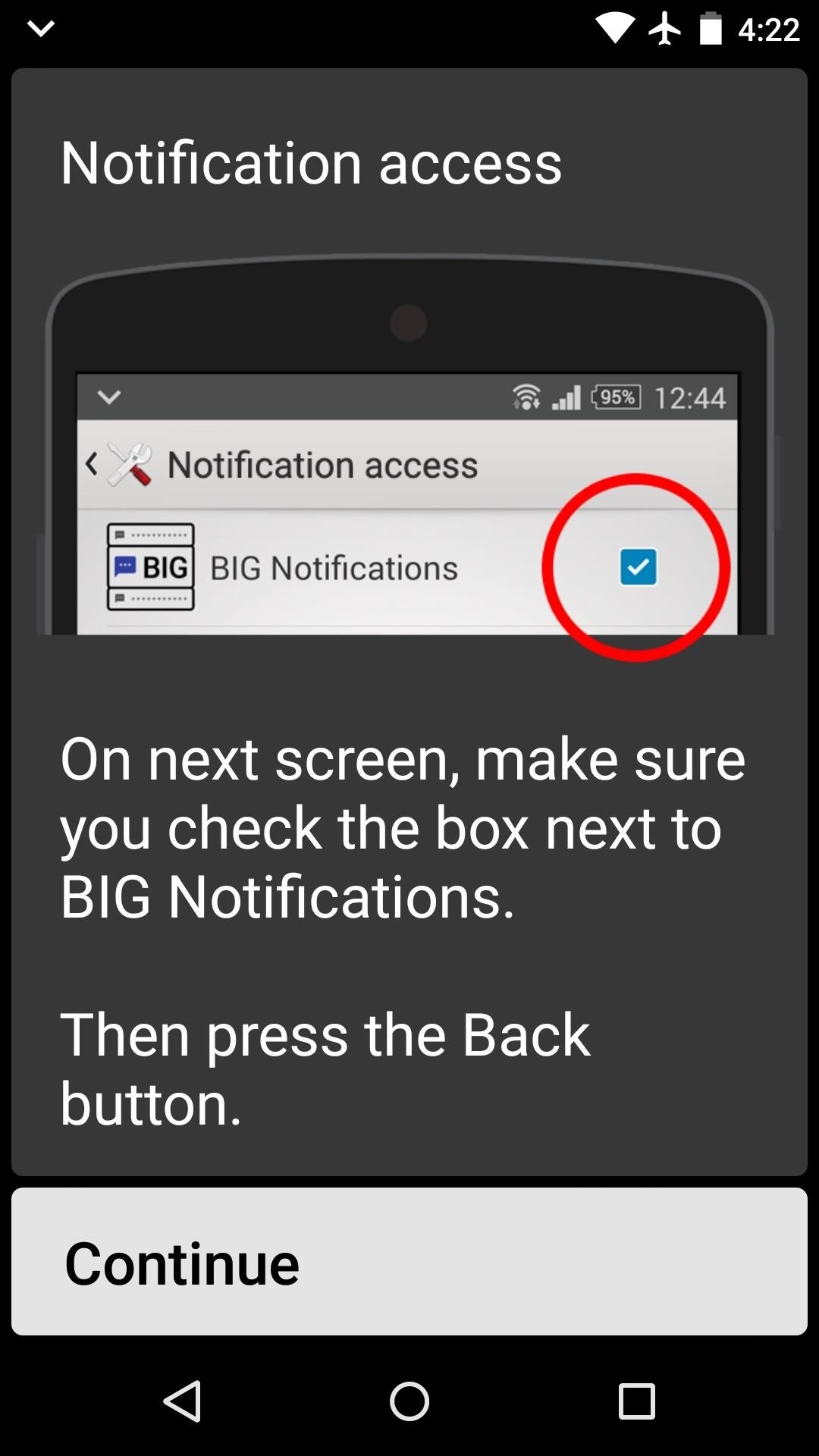
Step 2: Activate the Notification Listener ServiceWhen you first launch BIG Notifications, the app will ask you to activate a notification listener service. This is how it enlarges your notifications, so tap the "Continue" button. From here, tick the box next to the "BIG Notifications" entry, then press OK on the popup.

Step 3: Viewing Your Big NotificationsAt this point, you're all set up. BIG Notifications offers a few interface customization options, but these require an in-app purchase of $2. From now on, when you want to view your notifications at a much larger scale, just tap the "Enlarge Notifications" button in your notification tray. The notifications will be displayed in a bold, high-contrast format, and the size of the font is of course very big.Has this app helped make it easier to read your notifications? Let us know in the comment section below, or drop us a line on Facebook, Google+, or Twitter.


How To: Use custom fonts and provide font family resources in Microsoft Silverlight How To: Create your own fonts & types in Illustrator How To: Include images & custom fonts in your Gmail signature How To: Get iPhone Emojis on Your HTC or Samsung Device (No Root Needed)
How to Turn Your Personal Handwriting into a Custom Font for

How to Disable Notification Previews for All Apps with iOS 11


When you change your name, tagline, profile photo, or cover photo in Google+, it is reflected in your About Me information. See your Google+ profile. On your computer, open Google+. On the left, click Profile . Edit your Google+ profile. You can edit your Google+ profile to: Change what Communities show up on your Google+ profile; Add or change
How to Change Your Google+ Privacy Settings - dummies


In this guide, we'll show you everything you need to know to manage wireless network connections on Windows 10 using the Settings app.
How to find your internal and external Mac IP addresses


The problem is, how can the webmaster check out how his/her site look like on a mobile device, if he/she does not own a smartphone? Fret not, with a little trickery, you can easily use your desktop browser to access your site and make it think that you are using a mobile browser. Every browser comes with its own user-agent.
Firefox browser blocks sites and advertisers from tracking


You'd have to be a yo-yo not to take advantage of this promotional item from Quality Logo Products®. The Lighted YoYo will spin its way into the hearts of any user--and so will your brand! Every time this custom yo-yo spins, a bright red LED lightis activated that calls immediate attention to it.


By disabling countless background tasks anytime your display is off, the developer claims with his app, Power Nap, "you can expect to see as little as 0.2% battery drain per hour." Follow Gadget
How Sony Stamina Mode Can Improve Your Battery Life


How To: YouTube Finally Has a Dark Theme on Android — Here's How to Get It How To: Get a Dark Theme on Gboard for iPhone or Android How To: Get Custom Themes for YouTube on Android — Even a True Black OLED Theme How To: Enable Dark Mode in Google Maps on iPhone & Android
How to Change Facebook's Boring Blue Theme to Any Color You


Hack Like a Pro: Python Scripting for the Aspiring Hacker, Part 1 How to Train Your Python: Part 15, Script Structure and Execution How to Train Your Python: Part 1, Introduction How To: How One Man's Python Script Got Him Over 20,000 Karma on Reddit—Without Cheating
How to Kill Processes in Windows (Using Python - WonderHowTo


Instead of just archive and delete, you can move, archive, mark, or snooze your messages with simple gestures. Here's how to customize Gmail swipe actions on iPhone. Customize Gmail swipe actions. Open the Gmail app on your iPhone and then follow these steps to customize your swipe actions. 1) Tap the button on the top left to open the side menu.
Change Gmail Default Swipe Action From Archive To Delete


DO you have an iPod Touch, but not know how to use Bluetooth devices with it? This video is here to show you the way. It features a simple demonstration of how to connect a Bluetooth device to an iPod touch using it's internal menus. Wireless headphone, playing your music in your car, and all other
If you can't connect a Bluetooth accessory to your iPhone


You can't upload an animated GIF to Facebook. There are however some ways to outsmart the system. For example, the 3 ways mentioned in Guide to Animated Gifs for Facebook. It says: If you try to upload a GIF to Facebook, a still image of the first frame will appear. However, there are three ways to try and outsmart the system.
5 Tips for Charging Your iPhone Faster - Scrubly


Small Tactical Flashlights Military Grade with Holster Holder Waterproof IPX8 Outdoor Super Bright Led Flashlight High Lumens 18650 CR123A EDC Pocket Police Mini Torch Camping Lantern Tac Light Gear 4.3 out of 5 stars 9
Turn Your Phone's Flashlight on Instantly with One of These 6


Below we've put together a guide for how to downgrade your iPhone or iPad to the earlier iOS 11.4.1. How To Downgrade iOS 12 and Restore iOS 11.4.1 . Step 1: Be Prepared to Lose Some Data. iOS 12


It is one of a kind app Apps2SD Prerequisites Device needs to be rooted and root permission should be granted to Apps2SD 2 partitions on external SD card (use inbuilt partition tool to create 2nd partition) Apps2SD Features: Support for English, Chinese(Traditional), Chinese(Simplified), Español, Español(Latin America), French, Finnish

Google Photos 101: How to Use Google Lens to Save Contact Info from Business Cards

Google Photos 101: How to Use Google Lens to Save Contact Info from Business Cards
Business cards are a great way to keep tabs on the contacts we network with. So why shouldn't our smartphones make them even more useful? Enter Google Lens, which will help you save, search, and expand on the contact information found on all of the business cards you've collected.Originally an exclusive feature of the Pixel 2 and Pixel 2 XL, Google Lens now comes standard with the Google Photos app for Android devices (just make sure to download the latest update). That means no additional apps to download and sign in to — all you need to do to get started is to take a picture of a business card whose owner you'd like to save as a contact.Don't Miss: How to Add a Google Photos Shortcut to Your Android's Camera AppNote: Lens is rolling out on iOS starting today, Mar. 16. While it won't be available to all right away, make sure to check up on your iPhone's Google Photos app to see if you have access to this feature.

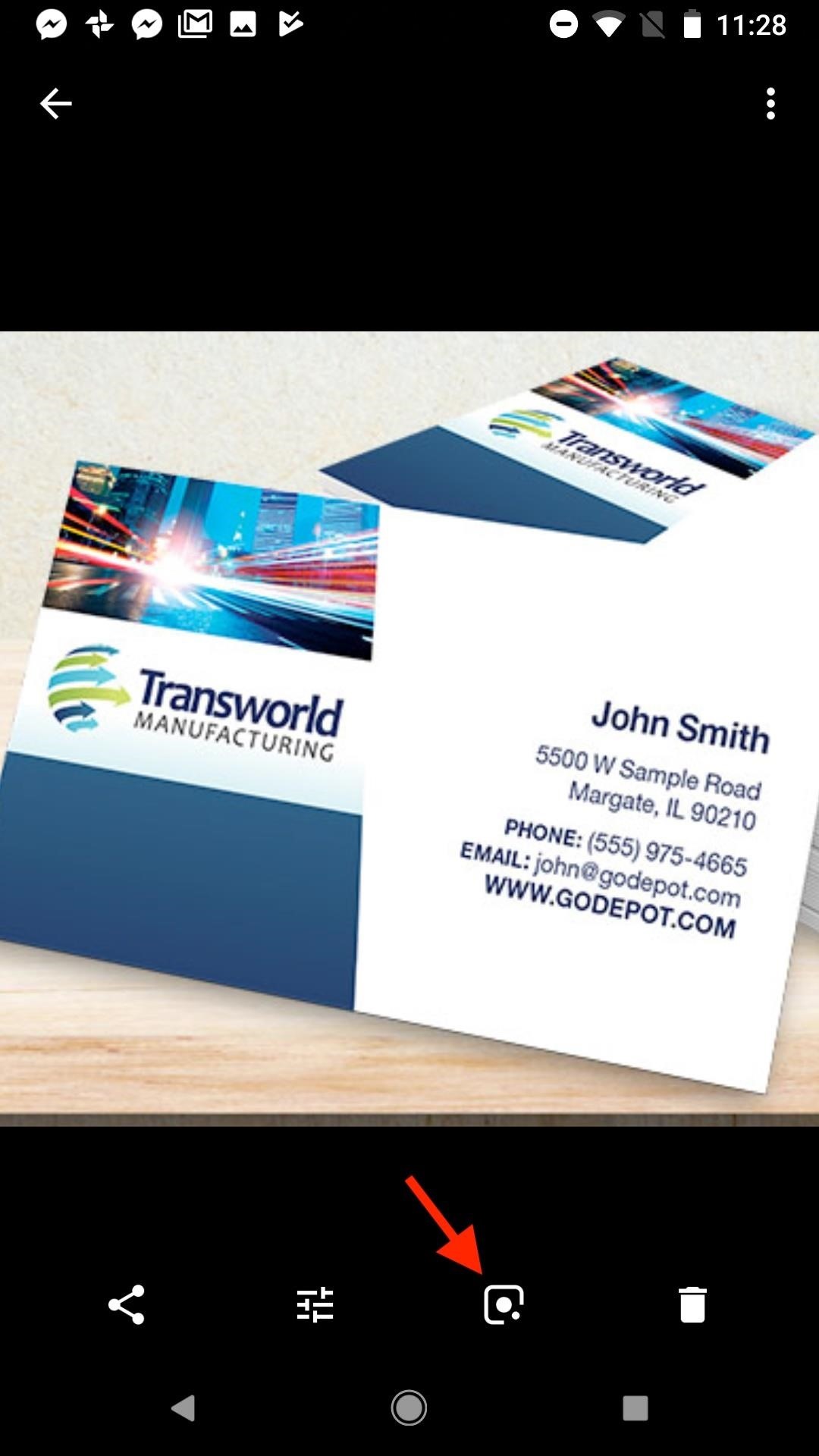
Step 1: Scan a Business Card with Google LensOnce you have a picture of the business card in question, open it in Photos. Tap the Google Lens button in the bottom row of the app (to the left of the "Delete" trashcan key). Google Lens will then scan your photo with a cool animation before loading up all the information it was able to obtain from the card.

Step 2: Add a New ContactBy default, Google Lens will key in on the contact information and lay out the person's name, email, address, and any other contact information it can process. You can quickly turn that information into a contact in your phone by tapping "Add contact" at the bottom of the display.From there, your Contacts app will pop up. The interface will vary depending on what type of phone you're using, but for most, just tap "Create contact" or "New contact" to load up the information Google Lens found into a new contact. From there, the pertinent fields should already be filled out, but you can tweak the info or add to it if you'd like. When you're satisfied, make sure to tap the "Save" button to finalize your work.

Step 3: Interact with the Card in Other Ways (Optional)That's not all you can do here, however. Google will break up the information it sees into different cards for a more focused look at each. The exact options you see will depend on the information Google Lens found on the business card you scanned.In most cases, you can tap the "Gmail" icon to view this person's email address, then you can tap "Send email" to send them an email, "Add contact" to turn the address into a contact, "Copy text" to copy the email address, or "Share" to share the email address to another app or service on your phone.Tap on the Google Maps card to view the address listed on the card. You can tap "Open" to launch the address in Google Maps, "Copy Text" to copy the address to the clipboard, or "Share" to share the address with others. You can tap the "Chrome" icon to view the website the contact has on their card. Tap "Open" to jump into the link in Chrome, "Copy Text" to copy the site's address, or "Share" to send the website to friends.Finally, "Text selection" takes all text it can detect in the photo and lays it out for you to read. It might not be useful in all situations, but in a busy image, having the important bits listed out in plain text can be a big help. From there, you can long-press words or phrases to copy them to your clipboard. Don't Miss: How to Use Google's Reverse Image Search on Your Android DeviceFollow Gadget Hacks on Facebook, Twitter, YouTube, and Flipboard Follow WonderHowTo on Facebook, Twitter, Pinterest, and Flipboard
Cover image and screenshots by Jake Peterson/Gadget Hacks

Latest Windows 10 Update Lets You Change Title Bar Colors


Why install CyanogenMod you ask? Custom ROMs can offer you new UI features, better speed and performance, and not to mention the support of developers with weekly updates. So, in this article, I'll be showing you exactly how to install CyanogenMod on your Nexus 7 tablet using a Mac computer. The following files are the ones you'll need for this.
How to Install CyanogenMod 10.2 on Your Nexus 7 for a More


A lot more people are about to be able to use Android Auto. Google announced at I/O 2016 that you'll soon be able to use the app with only your phone, so you won't need a compatible car or third-party display unit.
Google Rolls Out Wireless Android Auto, but Almost No One Can


How To: Build a perfect replica of a lightsaber for cheap or expensive How To: Hack together a Star Wars light saber How To: Build a double bladed Darth Maul lightsaber using hardware store parts for $15 How To: Make Healthy Homemade Kale Chips, Not Junk Food
How to Build a lightsaber prop for film making - WonderHowTo


News: The 10 Biggest AR Investments of 2018 News: The Latest Razer Phone 2 Leaks Suggest Project Linda Might Actually Happen News: Limited Edition Red-Colored Honor 7X Coming to the US Just Before Valentine's Day
Razer Nabu: The Pager of Smartbands (And That's a Good Thing


How to Set Contact Ringtones on Samsung Galaxy Devices On Samsung phones, you can use either the Phone or Contacts app to get the job done. Open the one of your choosing (I'm using Phone because that just makes sense) and navigate to your contact.
Setting an MP3 file as a ringtone on my HTC android smart
androidqueries.com/setting-mp3-file-ringtone-my-htc-android-smart-phone-3109.html
Re: Setting an MP3 file as a ringtone on my HTC android smart phone? For setting up an MP3 file as a ringtone on your HTC android smart phone, you need to check out the below steps- You need to first connect your Android phone with the computer using USB cable and it should be in storage mode.
Can You Set Ringtones for Individual Contacts? - Motorola


I am connected to the internet on my Palm Centro. How do I program my phone to sync e-mail from Gmail? - Answered by a verified Cell Phone Technician
How can I connect my Palm Treo to the Internet? - Ask Dave Taylor


Watch the best free movies online sorted by rating and genre. We've got a great selection for any age & taste, so you get right to watching movies online free.
Full Movies on YouTube: How to Find Them and 10 Classics to Watch


Well, Microsoft has revealed pretty much about the new upcoming lightweight browser that is officially named as Microsoft Edge Browser. Microsoft Edge Browser is bundled with Windows 10. So it cannot be downloaded separately. Microsoft Edge has been available for developers but as regular customers you have to wait until 29th July 2015.
Microsoft Edge Browser: Everything You Need To Know


If you're an iOS app developer, your Monday just got better; Apple just released iOS 12.2 developer beta 5 to your Software Updates today, March 11. This fifth beta includes a number of small UI changes and tweaks, and likely some degree of under-the-hood improvements and bug fixes.
iOS 13: Release Date, Beta, New Features and More


Your Mac uses its processor, graphics chip, and display when it shows a screen saver. To save energy, you can use Energy Saver preferences to choose how long your Mac needs to be inactive before the display turns off or goes to sleep.
How To Make A Clock Screensaver Mac - printscreenmac.com


Despite being the third most popular one-click file-hoster after Rapidshare and MediaFire Megaupload does not have many file-search engines meant to search files hosted on their network, compared to the vast amount of dedicated third-party Rapidshare Search Engines there exist only a few meant for Megaupload, most of these file search-engines work on similar scripts which
How To Search For Files On MegaUpload com & Other File


5 Tips to fix an unresponsive iPhone screen Cult of Mac I'm going to share with you 5 tips to fix a non-responsive screen. iPhone trick frees up iOS 11/12 - How to Hard Reset Your
How to Use Your iPhone With a Broken Home Button - YouTube


If you're interested in XLR-based microphones like the AT875R, but you're using a DSLR or a mirrorless camera that doesn't feature XLR inputs or phantom power, you're not out of luck. You can adapt any of the professional shotguns covered in this article to your mini-plug-based camera by using a product called a "Camcorder XLR Adapter
Xlr For Camcorder Sold Direct on eBay | Fantastic Prices on Xlr For Camcorder
AD


Best Answer: You need to pair the devices. You do this on your sprint phone by going to menu-settings-bluetooth. Enable bluetooth and make our phone discoverable. Then search for your phone using your palm device. When your palm finds the phone you attempt to pair with it. A prompt comes up asking for the PIN number.
PDF Palm Centro User Guide Sprint - WordPress.com

News: Sprint's New Deal Could Save You a Lot of Money

News: Sprint's New Deal Could Save You a Lot of Money

You can pinch yourself, but you're not dreaming. Sprint is actually offering a year of (mostly) free, unlimited service for anyone who switches to the carrier. The only stipulation is that you must bring your phone with you, and it has to be one of the 27 eligible devices.With this new plan, you get to keep your number and completely bypass annual contracts. This promotion seems like a desperate attempt to get more customers, but it may actually work. Who doesn't love saving money?The actual deal is fairly simple, but it does have a few hidden charges. Sprint requires that you purchase a new SIM card, but — including shipping — it only costs $13. You'll also have to pay a $30 application fee, but you'll be refunded for it within two billing cycles. Aside from this, Sprint has stated that customers who take advantage of this promotion will still have to pay a few dollars a month for general taxes and fees.Don't Miss: Sprint & T-Mobile to Merge for 5G Rollout? Softbank CEO Wants ItA potential barrier for some is that you must currently own the phone you're bringing with you. If you're currently paying it off, you're not able to partake in the promotion. For those who do own an eligible phone but are looking to eventually upgrade, you'll have to wait until October 1 if you want to stay on the plan. Should you choose to upgrade before this date, say goodbye to your deal; you'll have to start paying for your plan like everyone else.Like all other carriers, an unlimited plan with Sprint isn't actually unlimited. For each line, there's a 10 GB monthly limit for LTE mobile hotspot data. However, this promotion is still a steal. For just 2 lines, you could save $1,680 compared to a comparable Verizon plan. It's clear that Sprint's willing to do — and say — pretty much anything to beat out its competitors. Sprint's aggressive campaign is intended to take customers away from its opponents. Image via Sprint You have until June 30 to take advantage of this deal, and Sprint has reported that it's only available online. The plan will expire on July 31, 2018. After that, you'll have to pay in full for your lines. Sprint says that users are not required to stick with the carrier after this deal expires, but you know they're hoping you will.Don't Miss: Save Money with These Awesome Freebies from Your Cellular CarrierFollow Gadget Hacks on Facebook, Twitter, Google+, and YouTube Follow WonderHowTo on Facebook, Twitter, Pinterest, and Google+
Cover photo via Kaboompics/Pexels


This Chrome download manager would not just help you download the video but would also let you save the video in list. This may offer you the faster access to the downloaded videos and you can play them whenever you feel like without going back to the original web page where the video was posted.
Best video downloader, download any video from any site using url


On our quest to show you all of the best wallpaper applications out there, in today's softModder guide I'm going to show you one that lets you create your own live wallpaper for the Samsung Galaxy Note 3 and most any other Android device.
Create Custom Live Wallpapers Complete with Floating


Instagram launched its closed beta for Instagram filter creators last year and expanded it in October. The future of Instagram face filters is glossy, metallic, and surreal I only follow a
Instagram launches selfie filters, copying the last big

How to Upload an HD Video to YouTube - wikihow.com


Apple Music 101: How to Automatically Download Tracks for Offline Playback That You Save to Your Library How To: Swipe Your Screen to Skip Songs & Change Volume Without Even Looking How To: Sync Your Entire iTunes Library to Spotify's New "My Music" Section News: Old Meets New as App Transforms Vinyl Records into Augmented Reality Sculptures
How to Control the Music on Your Computer with - WonderHowTo


How To: Make a Super Secret Batman-Style Bust Switch for Your Batcave (Or Just Your Lights) Skip Scented Candles: Make Scented Light Bulbs with Flavored Extracts Instead How To: Enable the Hidden Notification LED on Your Nexus 6


How to get iPhone X-like gestures on any Android device right now Want to get around your phone with gestures instead of buttons? You don't need an iPhone X (or even a OnePlus 5T) to do it.
12 Android Gestures You Might Not Know About - gizmodo.com


How to Hack Your Boyfriend's or Husband's WhatsApp Easily Using iPad; How to Hack Your Boyfriend's or Husband's WhatsApp Easily Using iPad. How To: The Easier & Better Way to Control, Track, & Locate Your Lost or Stolen Samsung Galaxy S3 Remotely1 Answer 110 Jan 2013 .. If you've ever lost, or had your phone stolen, you know how difficult it can ..
How to Trigger Anything from Anywhere with Just a Phone Call

In this
How to Use Kid Mode on an Android (with Pictures) - wikiHow


Text messaging has always been fun. When sending a text message, you can write anything to convey your message. It is a very good feature that is available in every phone. And to make your text messaging experience more fun, Apple has introduced a way to send animated GIF images from your iOS device via text messages.
Want iPhone GIFs? Here's how to get the iMessage GIF keyboard


Apple iPhone 8: A round-up of everything we know of the phone, smartwatch and more Here's everything you need to know about Apple's much awaited iPhone 8 event.
Everything You Need to Know About Apple's New iPhone 8


iOS 10.3 is a fairly major update, and will succeed iOS 10.2.1 on your iPad, iPhone, or iPod touch. From the changes we can see so far, iOS 10.3 is dedicated to enhancing the overall user experience, and will probably be the last major iOS 10 upgrade to get released (there has only been one X.4 version in iOS's history).
Does Your iPhone, iPad, or iPod touch Support iOS 10? - The


Cite Anything and Everything in APA Format. Get the facts on citing and writing in APA format with our comprehensive guide. Formatting instructions, sample papers, and citation examples provide you with the tools you need to style your paper in APA.
Citation Machine: Format & Generate Citations - APA, MLA

How To: 20 Tips to Help You Master Gboard for Android

How To: 20 Tips to Help You Master Gboard for Android
Typing on a mobile device has come a long way since the days of flip phones. Today, there are awesome keyboard apps like Gboard, which integrates Google search features and makes typing a breeze. But the whole experience still stands to improve if you take some time to learn a few useful tips.Gboard incorporates everything we've come to expect from a modern keyboard, including emoji support and voice typing. But the true strength this keyboard holds over the competition is the inclusion of handy quick-access functions, such as GIF search, Google Translate, and lots of cool gestures. So below, we'll cover some of the lesser-known Gboard features.
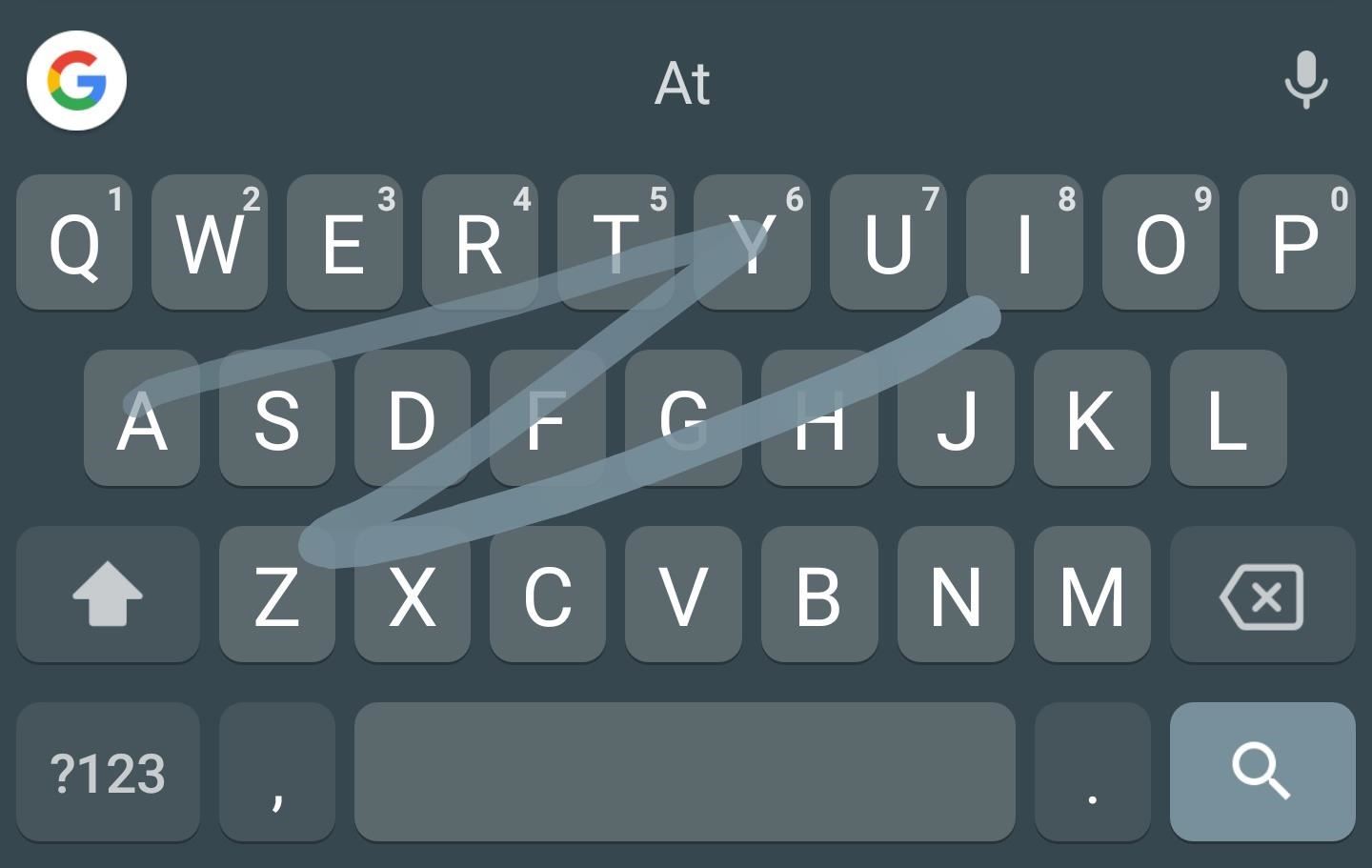
1: Glide to 'Type' FasterGboard isn't just a hunt-and-peck keyboard — you can swipe from one letter to the next without ever picking up your thumb. It takes a while to get used to "glide typing," but it's something every Gboard user should learn. Say you're typing the word "Gadget" — start out on the letter G, then glide over to the A, on to the D, G, E, and finally T. When you're done swiping out the word, just lift your finger off the screen and start swiping out the next word.
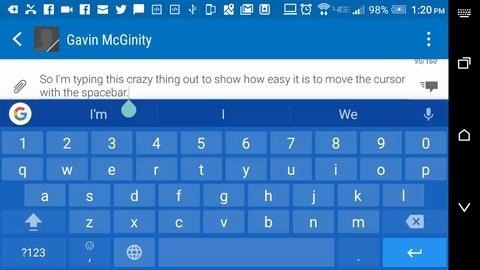
2: Use the Spacebar as a TrackpadGboard offers an incredibly easy way to move the cursor. Just drag your finger across the spacebar, and the location of the cursor will change based on the length of the swipe. This is particularly useful if you've forgotten a letter or misspelled a word, because it makes it incredibly easy to go back.
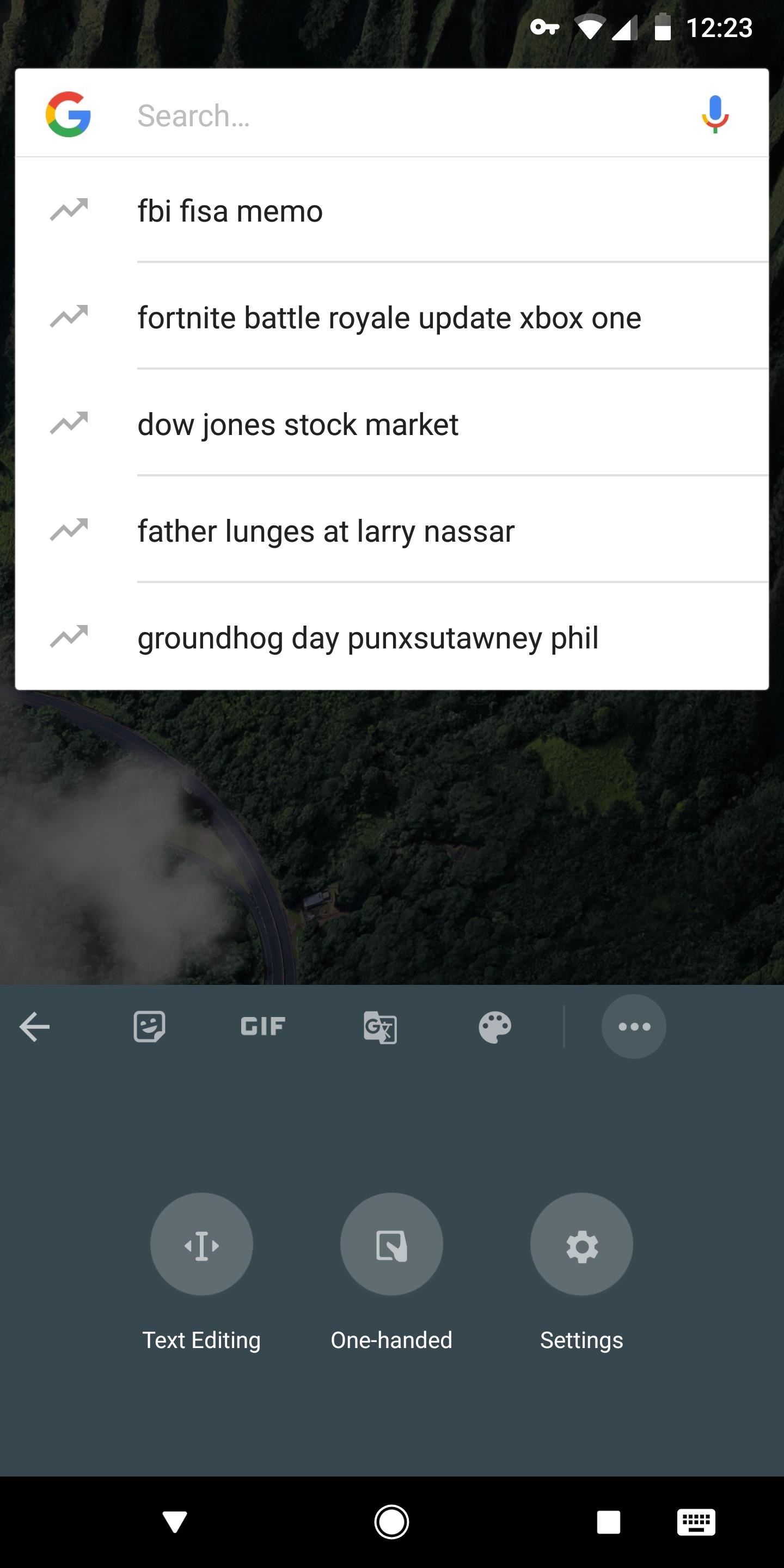
3. Use It One-HandedFor bigger phones, Gboard has a useful one-handed mode. Just tap the forward-facing arrow (or the Google logo) in the top-left corner of the keyboard, then press the ellipses button and choose "One-Handed." From there, the keyboard will shrink over to one side of your screen, and you can use the controls next to the keyboard to move it to the other side or make it fill out the full width of the screen again.
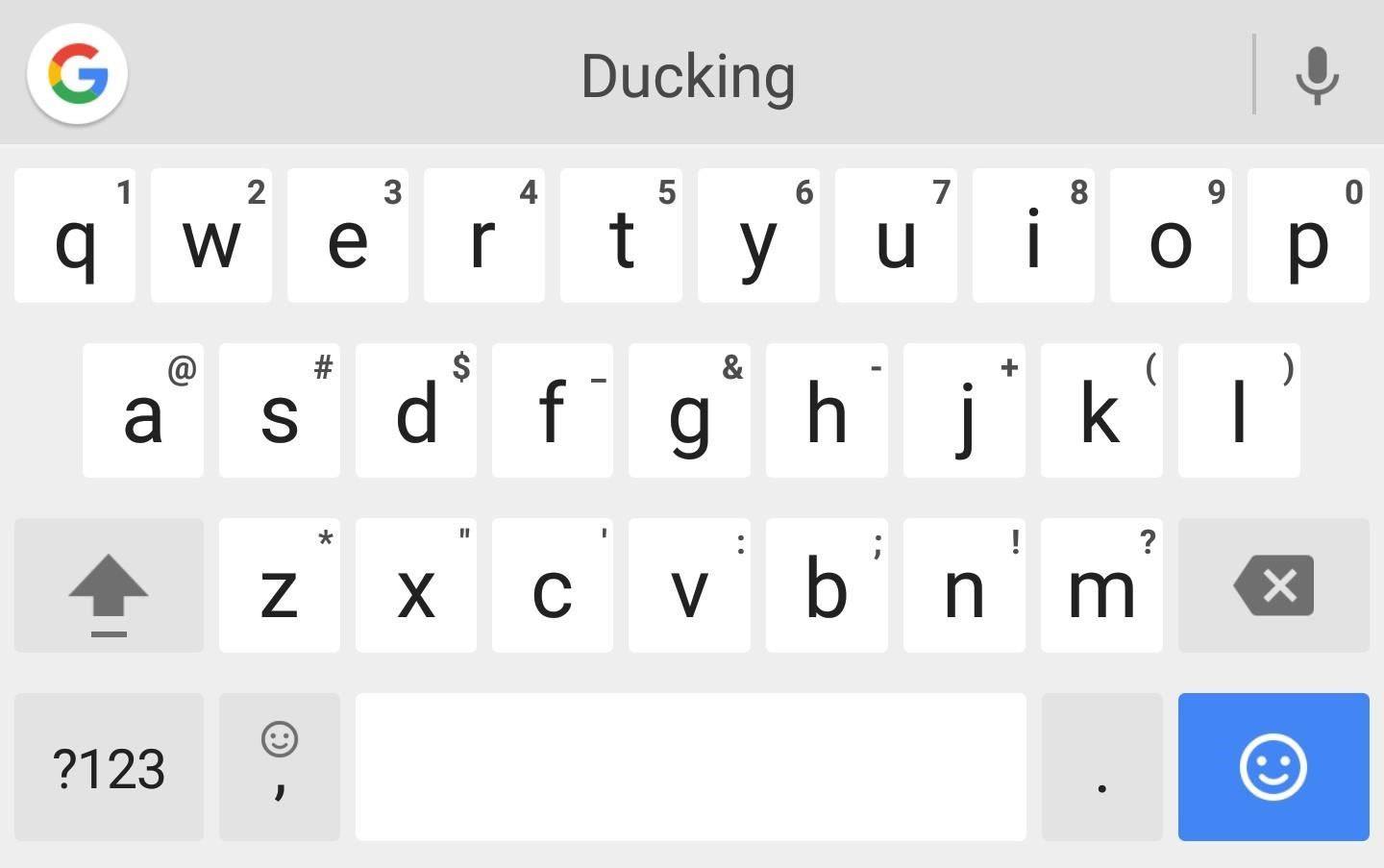
4. Un-Block Offensive WordsSome may like the fact that Gboard blocks offensive words by default, but others may want to deactivate this option and disable the censorship. To do that, head to the "Text correction" section in Gboard's main menu, then disable "Block offensive words." If you don't disable this option, it will keep the first letter of swear words and fill in the rest with asterisks.
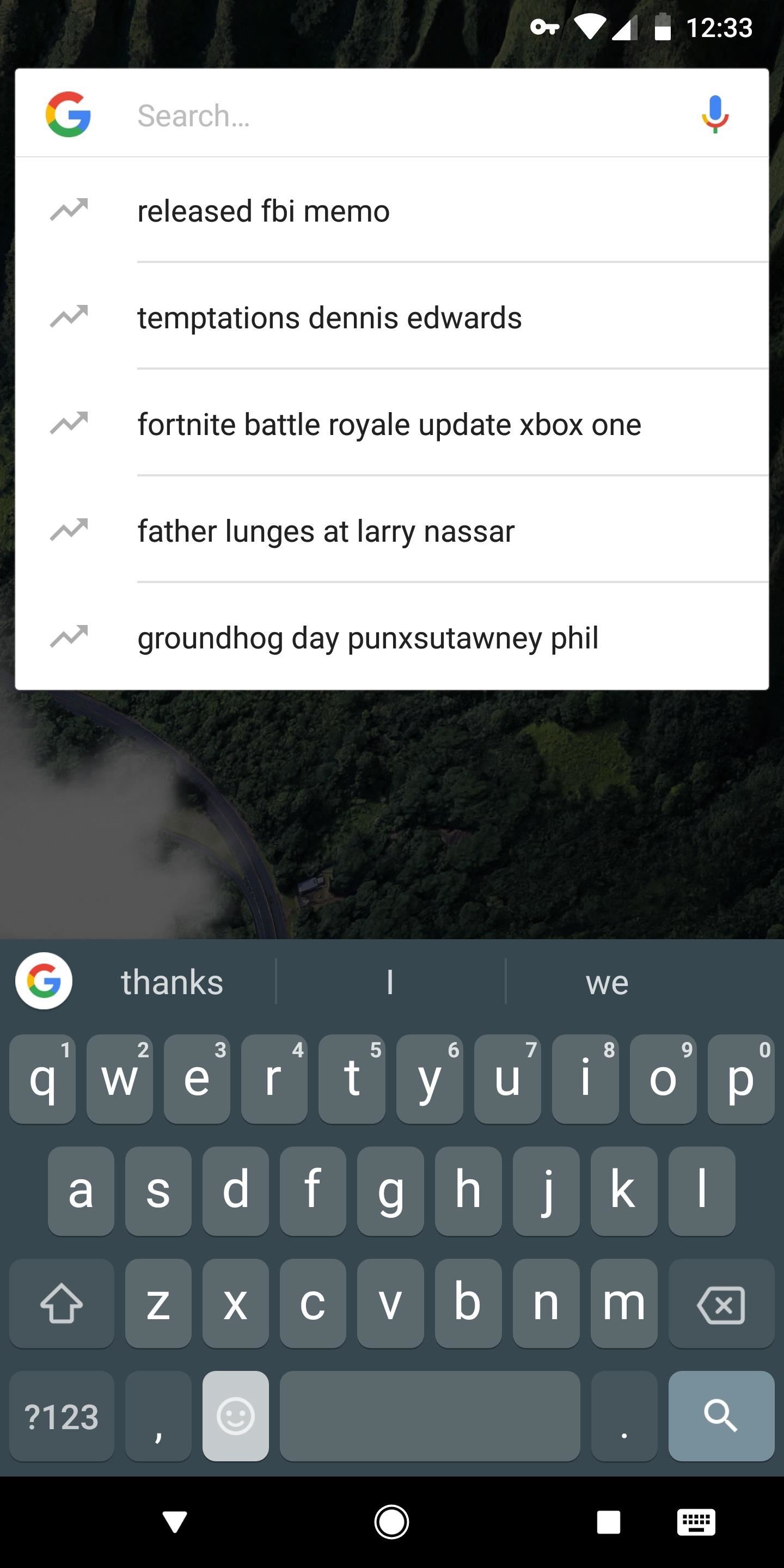
5. Search by Emoji NameWhen you need to find the perfect emoji, just tap the smiley key to the left of Gboard's spacebar. From there, instead of scrolling through all of the emoji, just tap the search field at the top of the keyboard and type in the name of the emoji you're looking for. At that point, it's just a matter of tapping the emoji you want to send — much easier than sifting through the whole list.
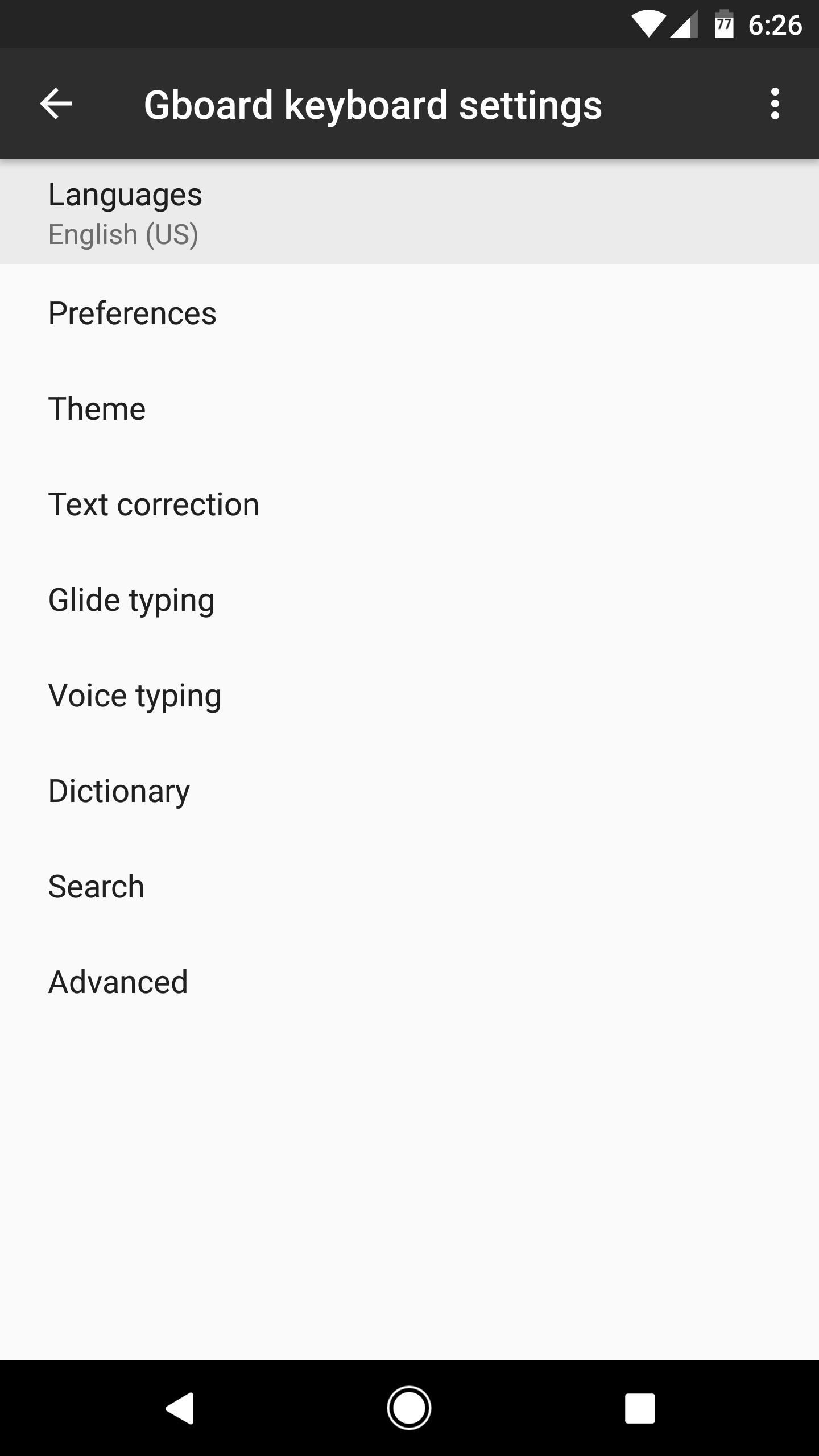
6. Switch Languages QuicklyIf you're multi-lingual and message people that speak different languages, you'll be happy to know you can use more than one language in Gboard. From the keyboard's main settings menu, tap "Languages," then select any additional languages from the list to begin. When you're done there, head back to the main menu and tap the "Dictionary" link, then choose "Add-on dictionaries," and select the other language again. When you're finished there, you'll be able to type in both languages simultaneously, and next-word suggestions will be bilingual as well. Next, head to Preferences in Gboard's main menu, then make sure the "Show emoji switch key" option is turned off. When you're done there, you can now long-press the globe icon to the left of Gboard's spacebar to quickly switch to a different keyboard.
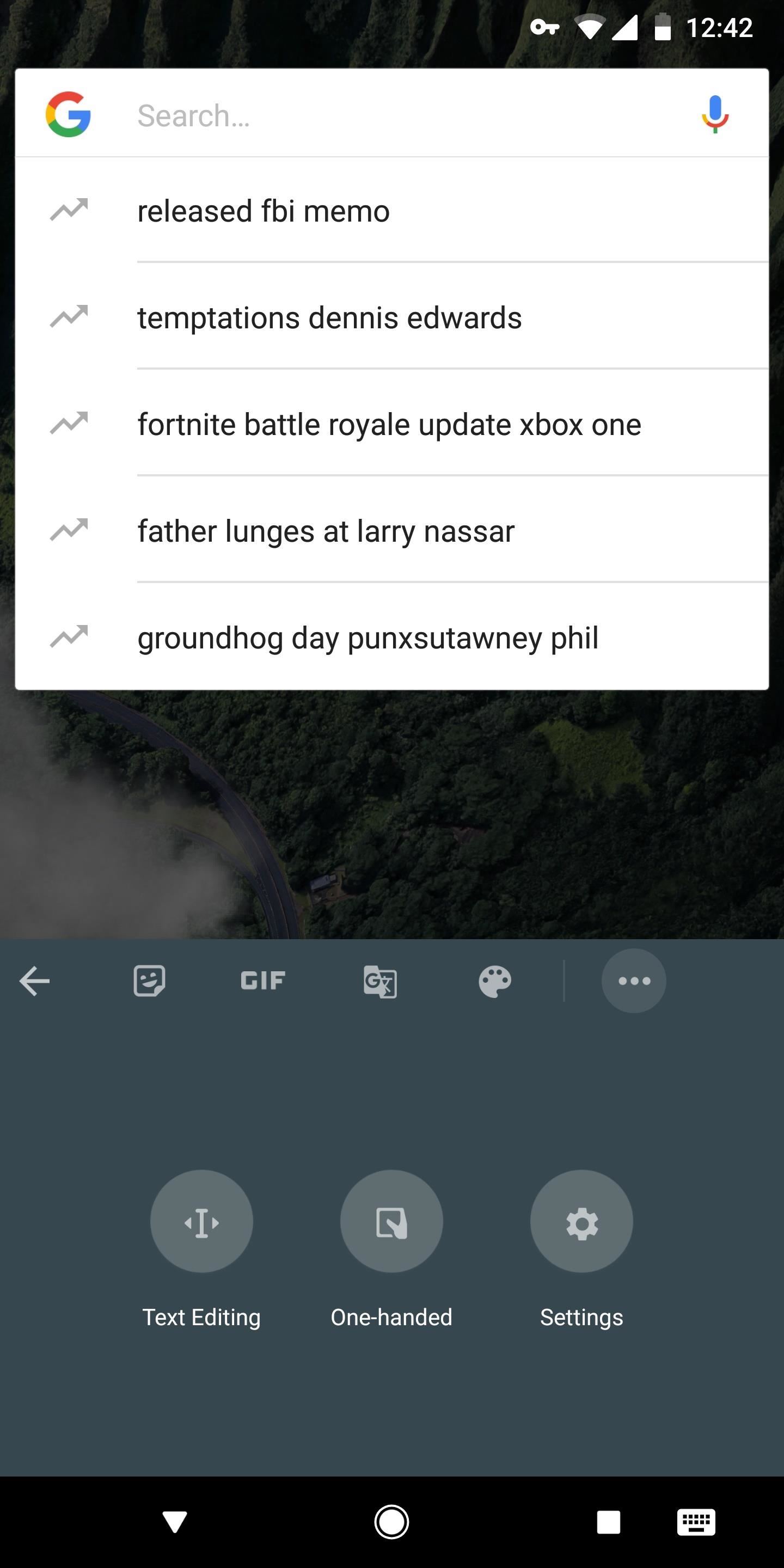
7. Change Your Default ThemeGboard offers several themes on Android, so you don't have to stick with that boring white default look. To test the waters, tap the forward-facing arrow (or the Google logo) at the top of your keyboard, then tap the ellipses (...) button and choose "Settings." From there, head to Themes, then you'll find dozens of colors and even beautiful backgrounds to choose from. Select one, then press "Apply" to try it out. You can even tap the "+" entry in the top-left corner of the themes list to add your own image as a custom theme.
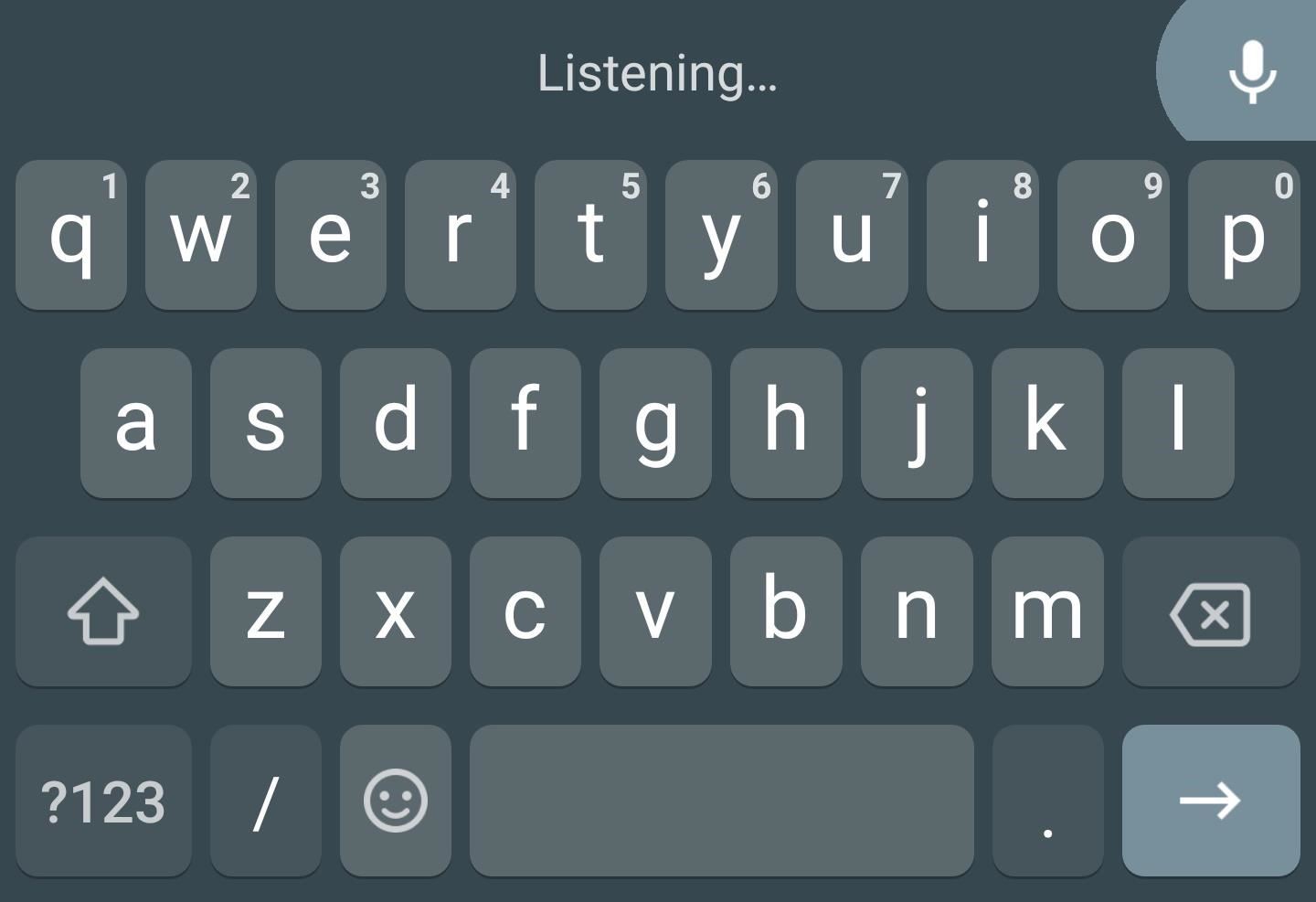
8. Say What You Want to TypeEven if you don't feel like typing, Gboard still has you covered. Just tap the microphone icon in the top-right corner of the keyboard itself, then dictate what you want to type. It's an intuitive process, and thanks to Google's top-notch voice recognition software, it's amazingly accurate too.
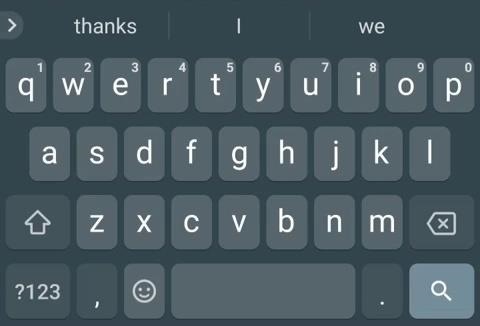
9. Access Punctuation EasilyWhen you need to use some form of punctuation other than a period or a comma, you could go to the special characters menu by tapping the "?123" button, but there's a faster way. Just long-press the period, then a menu will pop up. From there, slide your finger over the punctuation mark you want to use, then let go to add it.
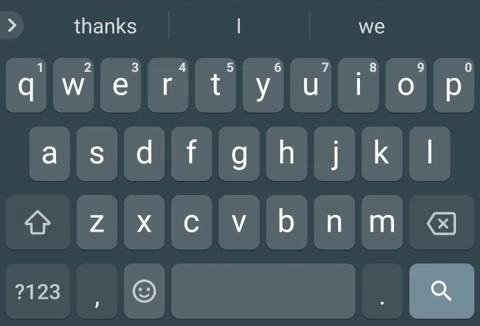
10. Capitalize Words FasterHere's another usability tip. Instead of tapping the caps key, then tapping a letter to capitalize it, simply swipe from the caps key to the letter you're trying to capitalize. It's pretty intuitive, but mostly useful for typing out capitalized abbreviations that aren't already in your dictionary.
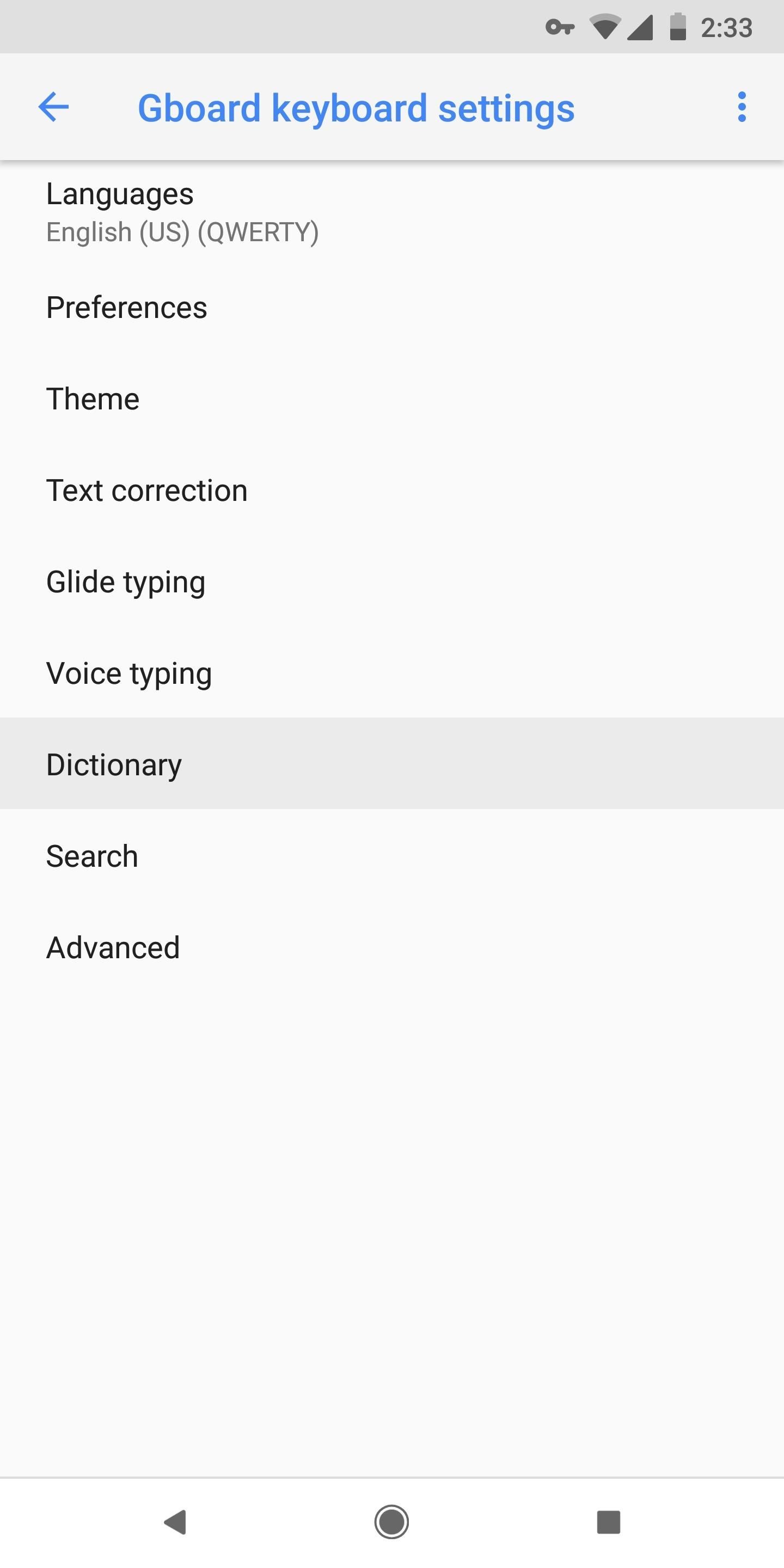
11. Create Keyboard ShortcutsGboard's keyboard shortcut feature can make it a lot easier to type common words and phrases, but the settings for this tip are buried pretty deep. To start, tap the Google logo or the forward-facing arrow in the top-left corner of your keyboard, then hit the ellipses (...) icon and choose "Settings." From there, head to "Dictionary," then tap "Personal dictionary" and choose your primary language on the following screen. Next, tap the + button in the top-right corner to add a new word or phrase. From there, type out the word or phrase in the top field, then assign a keyboard shortcut for it in the bottom field (this can be anything, but a simple two- or three-letter combination is fastest). From now on, whenever you type your shortcut, it will automatically expand into the full word or phrase.
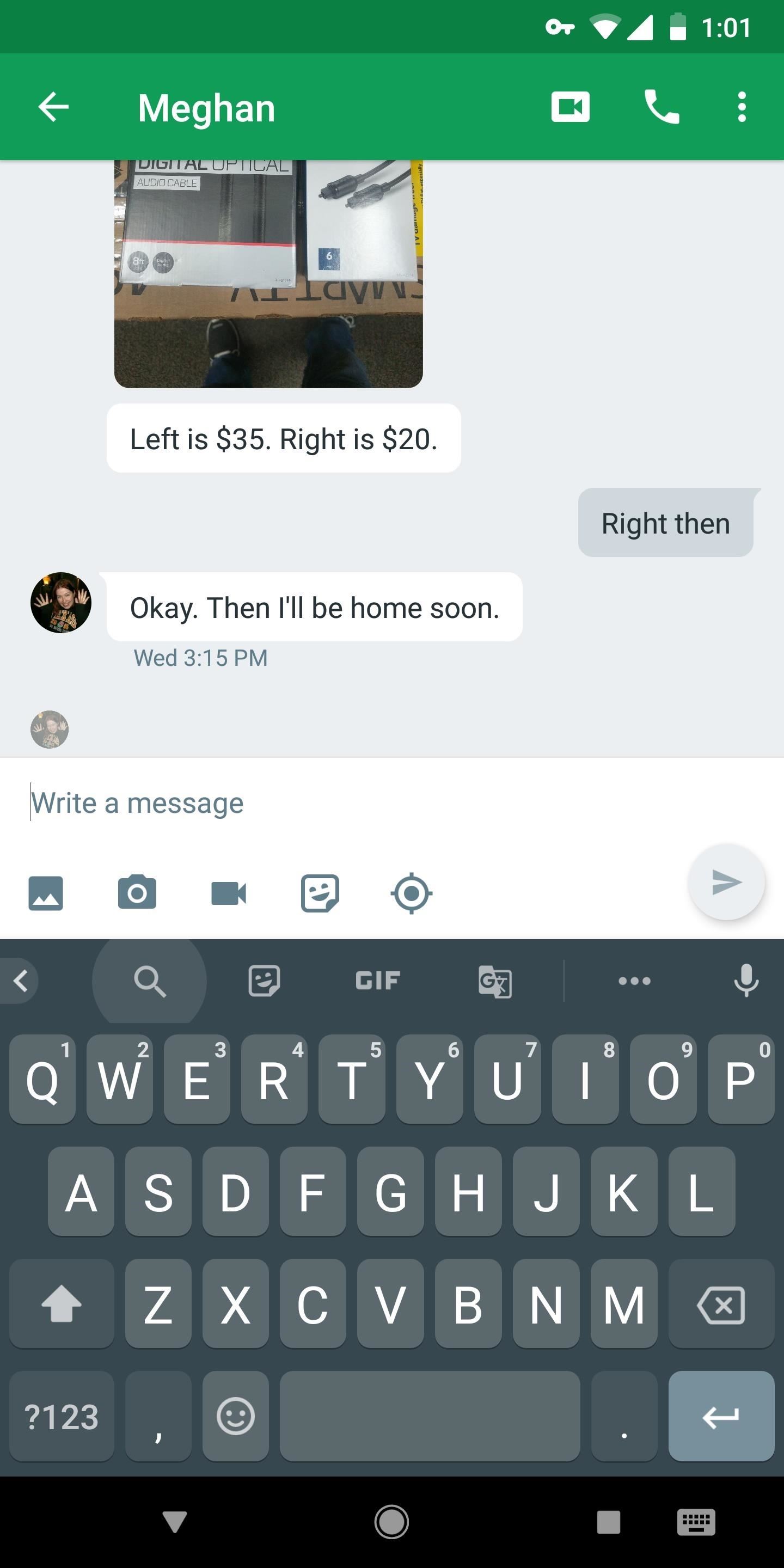
12. Use Google SearchOne of Gboard's coolest features is the fact that it has the power of Google search built-in. To try it out, either tap the Google logo (depending on your settings), or hit the forward-facing arrow in the top-left corner of Gboard, then tap the search icon. From there, you can search for virtually anything and the answer will be presented within Gboard as a Knowledge Graph card. Just select the card to share it!
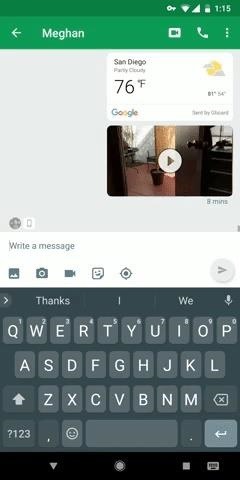
13. Find & Share GIFsHonestly, I think the main reason why Gboard has become so popular recently is its GIF functionality. There are two ways to find and share GIFs from right in your keyboard.The first method is simple — just tap the Google logo or the forward-facing arrow, then select "GIF." From there, search for a term and you'll see a list of related GIFs. The second method is similar — tap the Google logo or the forward-facing arrow, then tap the search icon and type in a subject (like Tip 9), but this time hit the "GIF" button underneath the search results. From there, either way you went, just tap a GIF to share it in any compatible app.
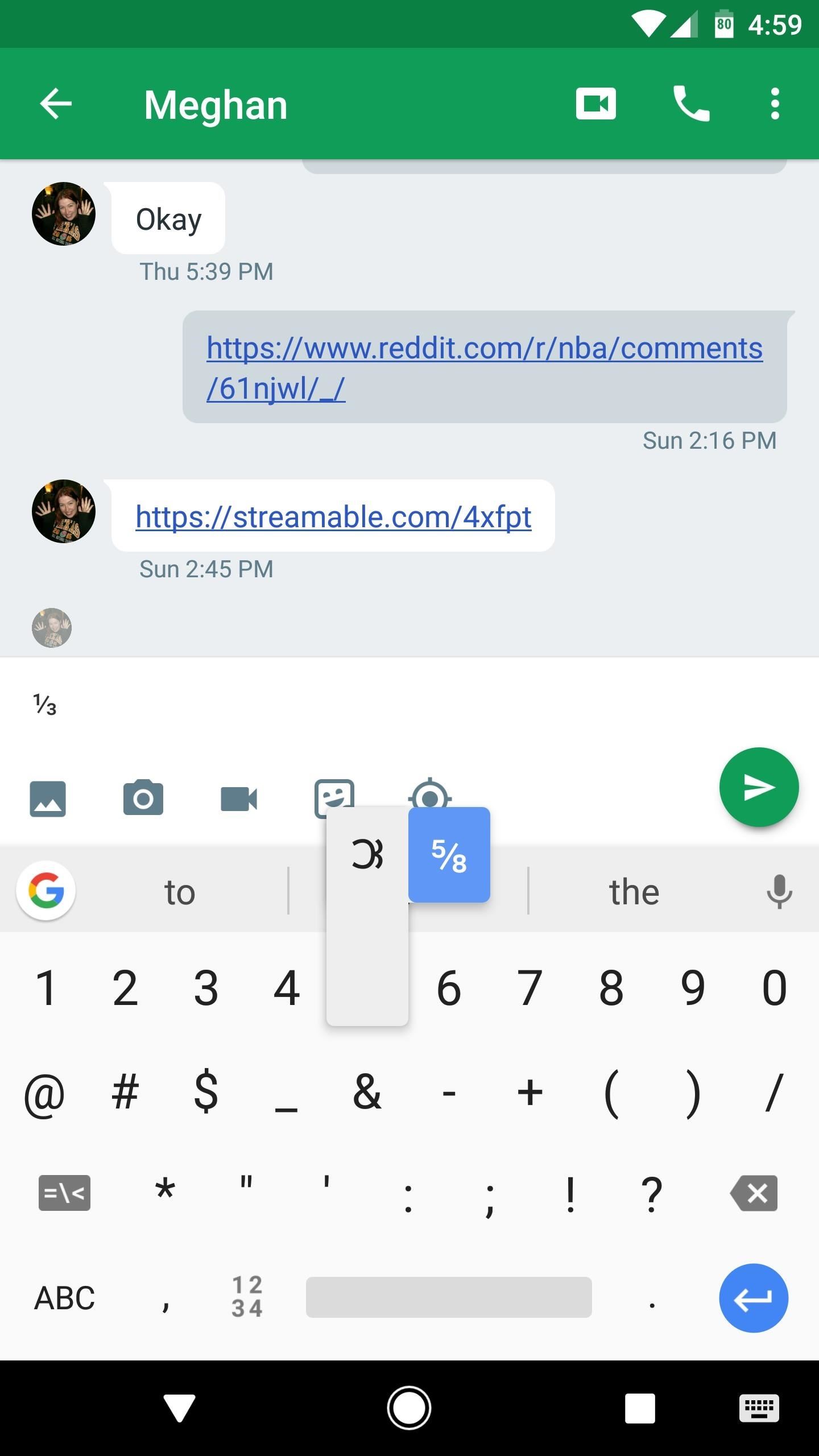
14. Type FractionsIf you ever need to type a fraction, just long-press any number in Gboard. The pop-up menu will show you a list of common fractions that use the long-pressed number as a numerator, so for example, long-pressing the number 1 will display options like ½ and ¼. The fractions will be entered into any text input field as the actual unicode symbol for that value.
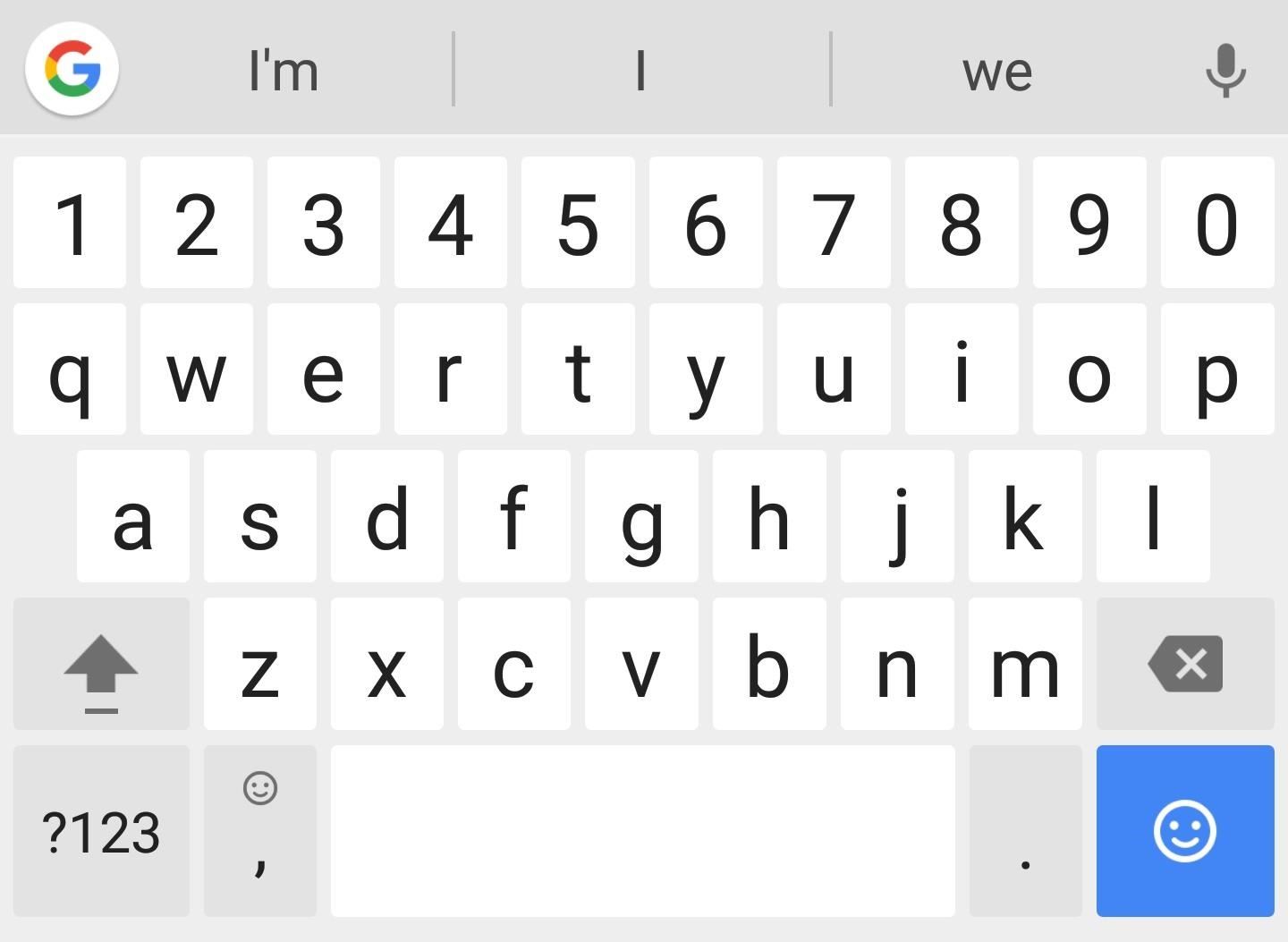
15. Enable the Number RowInstead of switching between keyboard layouts when you want to type a number, you can add a row of numbers above the regular QWERTY keys, just like a physical keyboard. To quickly toggle the number row on or off, tap the Google symbol, then press the cog icon to open Gboard's settings. From there, tap the "Preferences" link, where you'll see a slider to activate or deactivate the number row.Don't Miss: How to Add a Number Row to Google's Gboard Keyboard
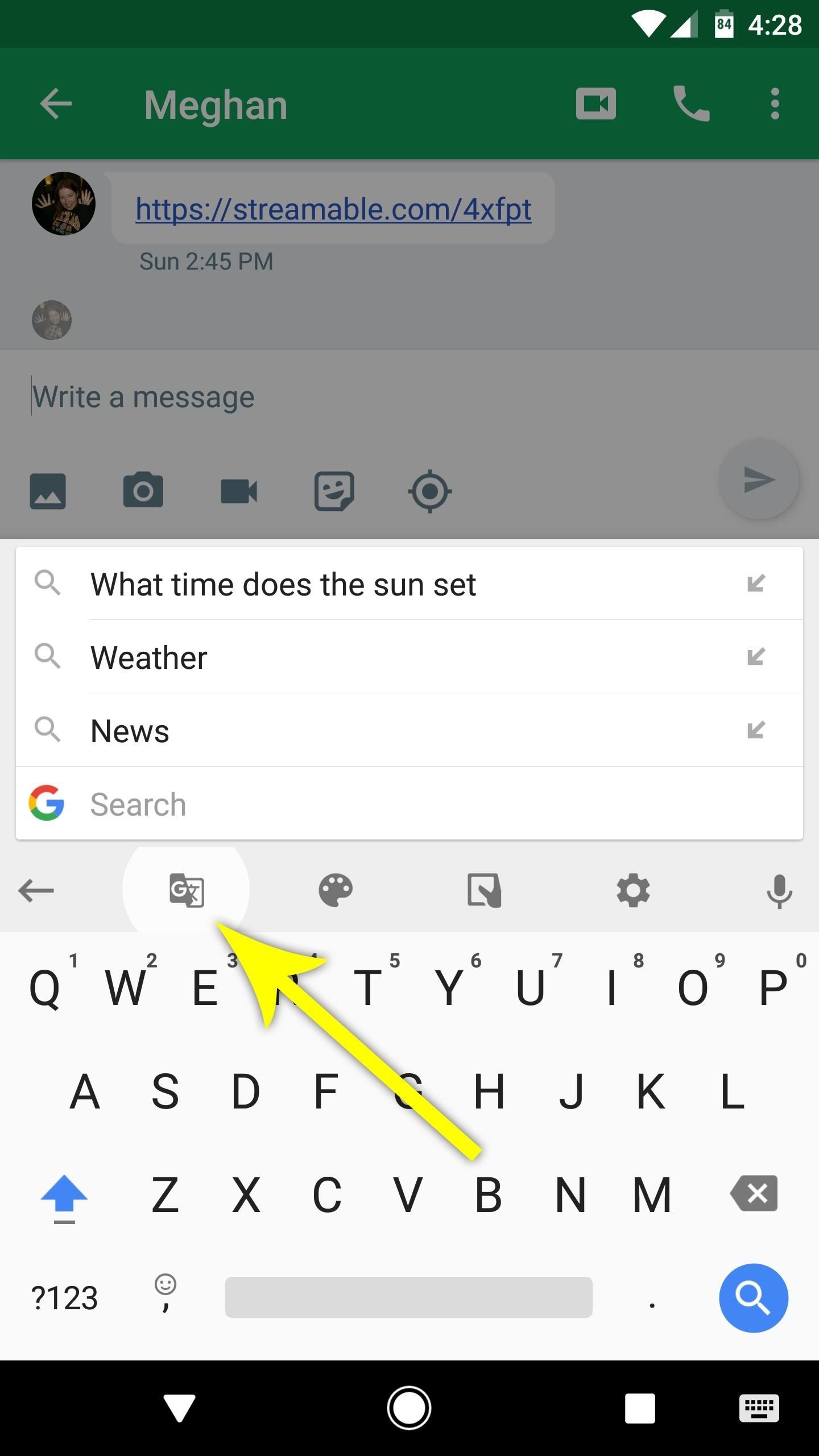
16. Translate Text on the FlyIf you're learning another language or would just like to send someone a message in their native tongue, Gboard now has the power of Google Translate baked in. To try it out, tap the Google logo, then select the leftmost icon. From there, choose the input and output languages, then anything you type will automatically be translated.
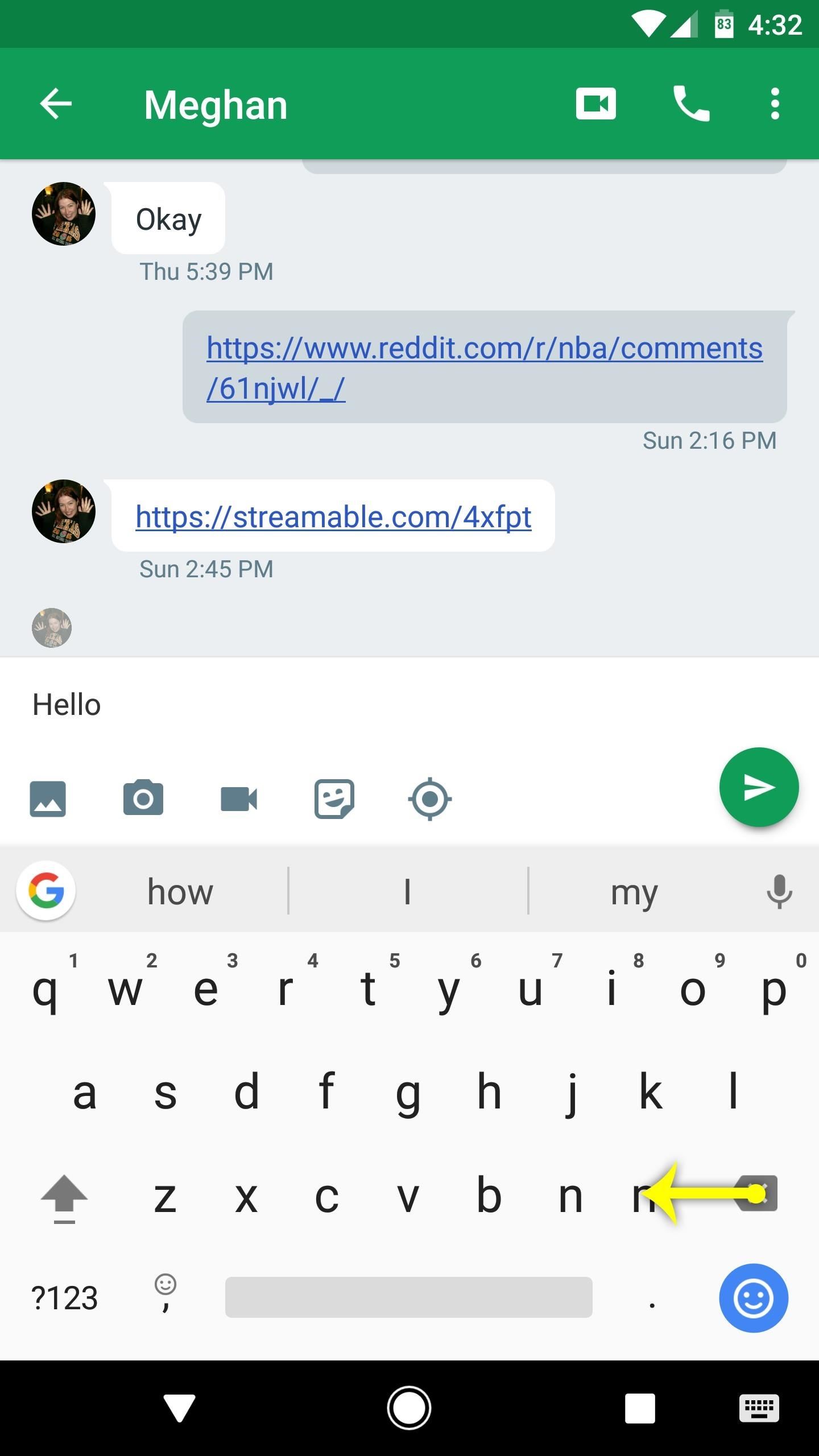
17. Delete a Word with One SwipeAnother great convenience feature with Gboard is the ability to quickly delete a word by swiping left from the backspace button. A quick, short swipe will delete the last word you typed.
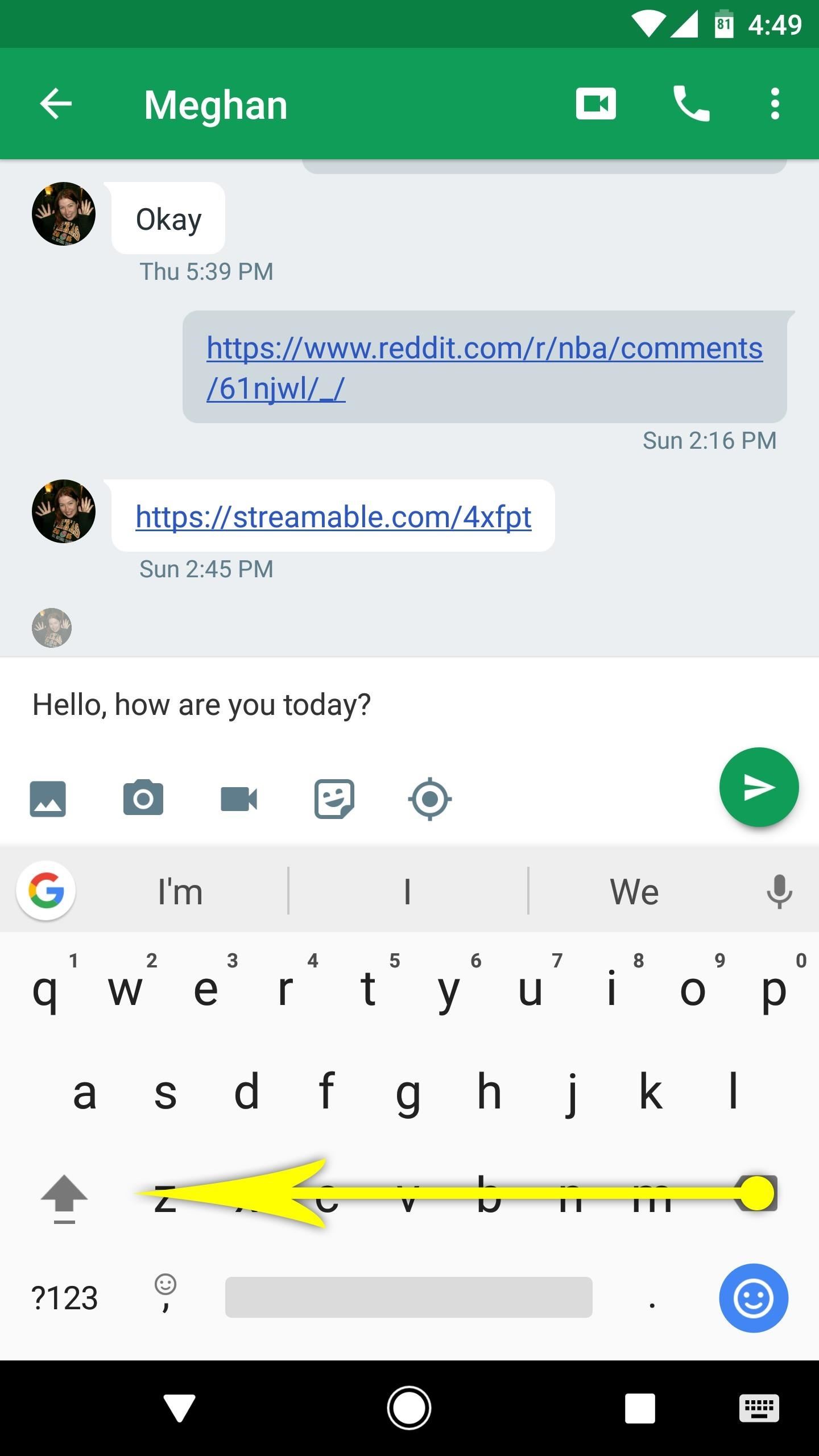
18. Delete Sentences with One SwipeThe swipe-to-delete feature can be used to erase more than a single word at a time. By dragging your finger a greater distance from the backspace key, you can delete entire sentences with a single swipe.
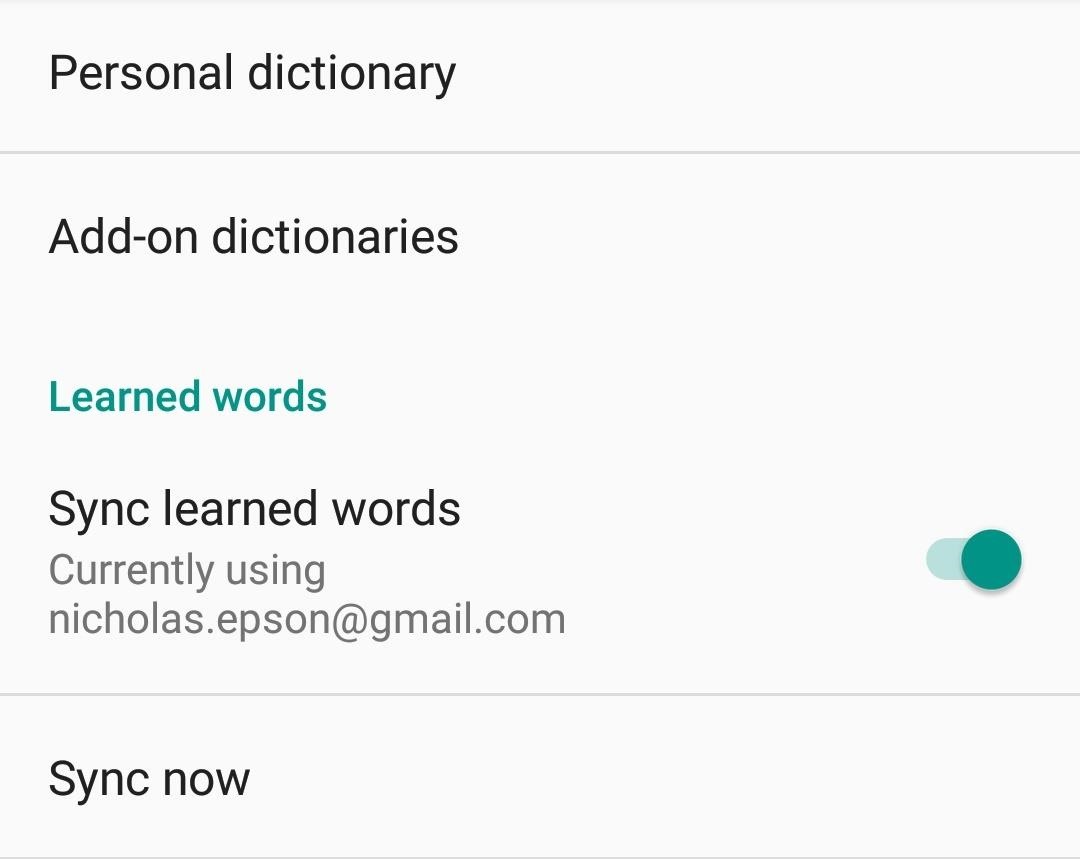
19. Sync Your DictionaryChances are, you have more than one Android device — perhaps a phone and a tablet. But when you add new words to Gboard's dictionary, you probably don't want to have to repeat this process for every device you own.So to make your personal dictionary carry over to your other devices, head to Gboard's settings menu, then choose "Dictionary," and make sure the "Sync learned words" option is enabled. Note that this will only work if you're logged into the same Google account on all of your devices.
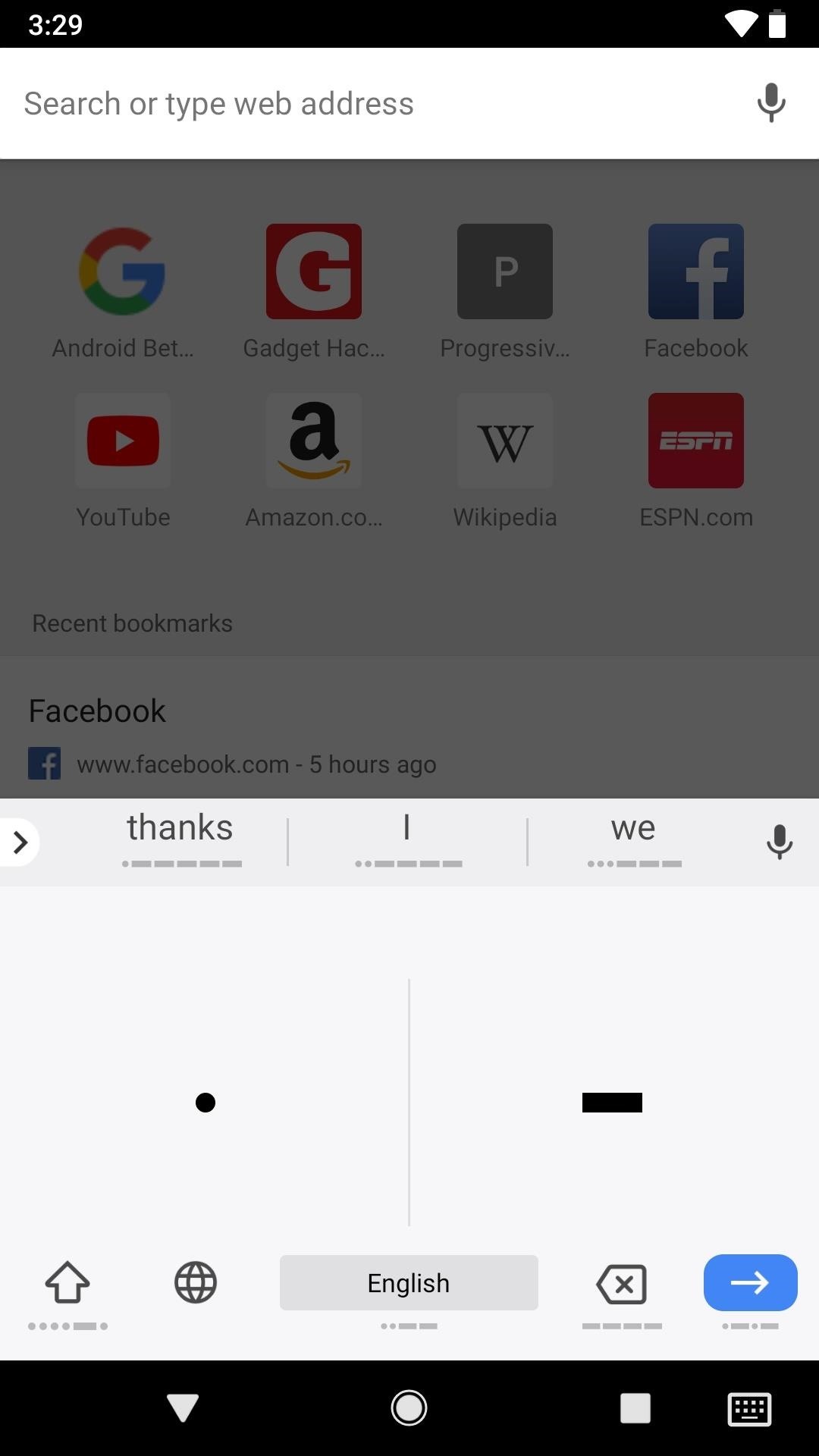
20. Use Morse CodeIf you want to check out new features in Gboard before everyone else gets them, you can join the Gboard beta for Android. Once you do, you'll be able to unlock the Morse code keyboard, which lets you type out words with dots and dashes. If you already know Morse code, it's a great new way to type, and if you don't, it's a great new way to learn how people used to communicate via telegraph.More Info: How to Unlock & Use the Morse Code Keyboard in Gboard Images by Justin Meyers/Gadget Hacks In my opinion, Gboard is currently the best keyboard available for Android. Beyond the features mentioned above, other options, such as a calculator-formatted number screen and easy access to special characters make it a joy to use. To put it simply, if you want a keyboard that does it all, you've definitely found it in Gboard.Don't Miss: 20 Tips to Help You Master Gboard for iPhoneFollow Gadget Hacks on Facebook, Twitter, YouTube, and Flipboard Follow WonderHowTo on Facebook, Twitter, Pinterest, and Flipboard
Cover image, screenshots, and GIFs by Dallas Thomas/Gadget Hacks (unless otherwise noted)


Are you tired of all of those applications bombarding you on Facebook?Spamming you all the time, never stopping? Are they just annoying? Well, this video tutorial will show you how to remove unwanted, spammy, or otherwise annoying apps on Facebook.
3 Ways to Remove Unwanted Apps that Won't Delete on Mac


today's video I'm going to show you how to Get the entire google experience with one simple step. so if you want to pixel experience on your device then watch this video till the end. so first of
Get Google Pixel Experience with One Simple Mod - DroidRax


What is Internet Download Manager (IDM)? Internet Download Manager is a tool developed by Tonec which increase the download speed of your data 5 times faster. According to the developer of IDM because of this downloader download files in different parts.
How to Increase IDM Downloading Speeds By 10x | Real Trick


Want to hard reset your iPhone XS, iPhone XS Max, or iPhone XR and don't know how to do it? Fret not, you have come to the right place. If iPhone is acting up or its screen freezes, the first thing that comes to mind is to hard reset it. While the ideas of forcefully rebooting iPhone seem bizarre
How to Hard Reset iPhone XS, XS Max and XR - iDrop News


The Barnes and Noble Nook Simple Touch with Glowlight is the second iteration of their Simple Touch e-reader line. With the advent of any new device the previous generation often goes down in price.


How to set up Hotmail on a Mac. Configure your Hotmail account in Mac Mail using and how to import emails and contact info from other email services. You can link Outlook.com to most email
Add an email account to Outlook - Office Support


How To: Facebook Undo Gives You 5 Seconds to Think About What You're Actually Posting How To: Delete a friend on Facebook How To: Find Out When One of Your So-Called "Friends" Unfriends You on Facebook How To: Easily Remove Unwanted Objects from Photos on Your Windows Phone
Disable/ Remove timestamp on Facebook in 60 seconds - YouTube


In this clip, learn how to use PDA Net to tether your rooted Droid 3G smartphone to a WiFi network. By tethering your device, you will be able to use it as a portable, wireless modem for anything from other phones to computers to hand held gaming systems. Anything that is WiFi enabled can be
How to Get Free Wifi Tether/Mobile Hotspot on Rooted Droid


Instagram wants to bridge the gap between advertising and shopping for a more central buying experience. The app has long been a platform for advertisements, with both companies and creators using it as an outlet to link to products, and now that's going a step further with the ability to buy content featured in posts […]
Make Buying Stuff Easier on Instagram with the New Checkout


You can interact with them individually within the group or operate the whole group at once. We are sure that all the above discussed new iOS 12 features will help you all a lot in operating the Apple products - iPad, iPhone, and iPod easily and in a better way.
91 Cool New iOS 11 Features You Didn't Know About | Tech
techonline.news/91-cool-new-ios-11-features-you-didnt-know-about/
Apple's iOS 11 is finally here, and while they showed off several of the new features it brings to your iPhone, iPad, and iPod touch back at WWDC 2017, they've only just touched the surface of what iOS 11 has to offer.
30 Exciting New iOS 11 Features You Didn't Know About


Just swipe it! iPhone XS and iPhone XR Tricks: 16 ways to do more faster! How do you go Home, switch apps, multitask, invoke Reachability, Siri, Apple Pay, and Accessibility, screenshot, shut down, and reboot on iPhone XS, XS Max, and XR?
How to Remove/Bypass Swipe Screen to Unlock Android Devices


Build a Laser Microphone to Eavesdrop on Conversations Across the Street. You can build a basic laser microphone using a laser pointer, an NPN PhotoTransistor, a headphone amp, and a handful
4 Ways to Hear Through Walls - wikiHow


For detailed instructions, and to get started pairing your own cell phone with Bluetooth-enabled devices, take a look. This clip presents an overview of the general technique required for pairing a mobile phone with a headset via the Bluetooth wireless protocol.
How to Pair a Cell Phone to a Bluetooth Headset: 10 Steps


How To: Enable the Hidden Debug Options for Select Google Apps on Your Nexus 5 News: Face Unlock May Be Faster on Lollipop, But It's Still Not Secure How To: Nexus 5 Keeps Restarting or Shutting Off? Here's the Fix How To: Root Your Nexus 5—An Easy Guide for First-Timers
Xposed 101: How to Install Alpha, Beta & Pre-Release Modules

Xposed 101: How to Install Alpha, Beta & Pre-Release Modules
The Xposed Framework lets you modify your phone's software like nothing else. But because of how powerful this tool can be, it seems like things are always in development. This is certainly the case with many Xposed modules, to the point where some have several alpha and beta releases before they go mainstream.For instance, when an app gets updated, it may break an Xposed module that you previously used to add functionality or change the app's UI. While the module's developer works on getting things back up and running, they'll typically release a series of test versions. If you don't want to wait for the final product, installing one of these pre-release versions is the only way to get the module's functionality back.The only trouble is, Xposed doesn't let you download alpha, beta, and pre-release modules by default. Luckily, there are two ways around this issue, so I'll explain both of them below.Don't Miss: How to Install the Xposed Framework on Android Lollipop or Marshmallow

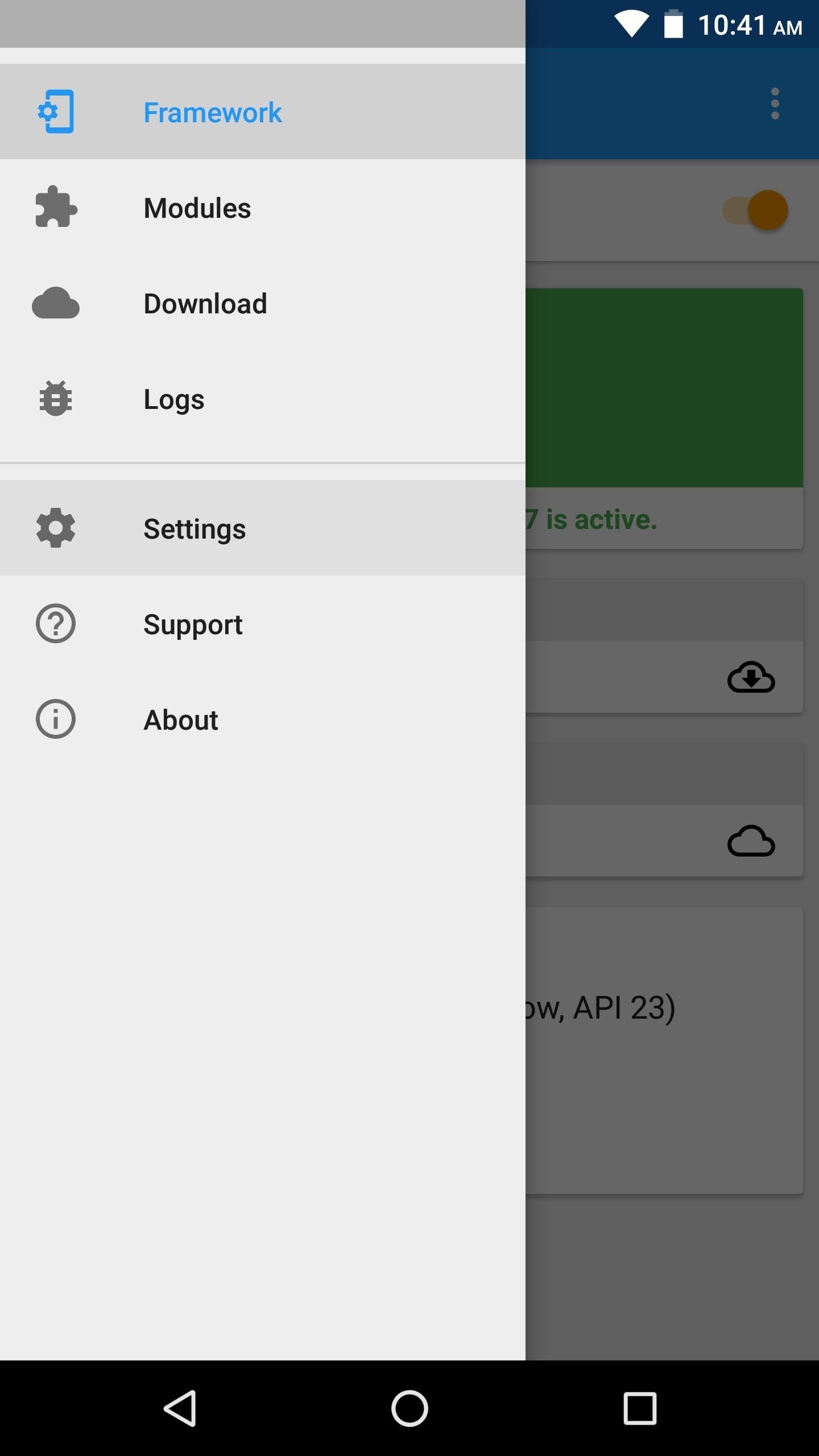
Method 1: Change the Global SettingThis first option is the easiest, but if you use this method, you'll have to take some care to ensure that you don't accidentally download pre-release modules when you didn't intend to. That's because once you enable this option, all modules in the Xposed repository will offer test versions when they're available.To use this method, start by opening the side navigation menu in your Xposed Installer app. From there, choose "Settings," then select the entry labeled "Versions to be shown." From here, if you want to see all available test versions for every module, choose "Experimental." Or, if you'd rather limit the test versions to a more stable release cycle, choose "Beta." From now on, you'll see pre-release versions for many of your favorite Xposed modules when you go to download or update them. These test versions will be marked as such on the Versions tab when downloading a module, so keep an eye out for a badge that says "Experimental" or "Beta."

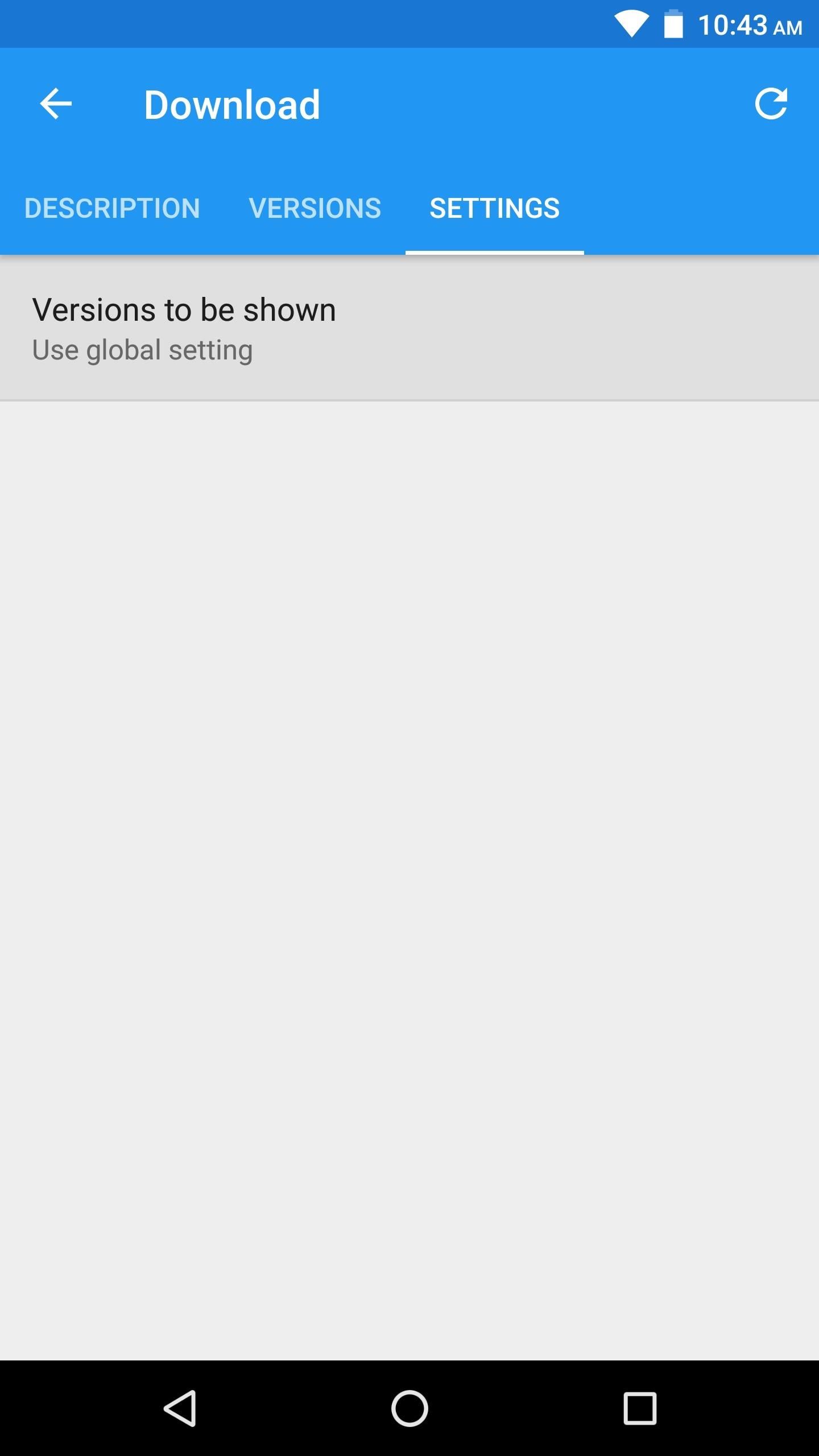
Method 2: Change the Per-Module SettingIf you don't want to enable pre-release downloads for all modules on the Xposed repository, you can do it on a per-module basis instead. To use this method, start by selecting any module from the Download section in your Xposed Installer app.Next, swipe over to the Settings tab, then choose "Versions to be shown." From here, you can select "Beta" if you only want to see extra download links for pre-release versions of this module that are close to being finished products. Alternatively, you can choose "Experimental" if you want to see all versions of this module, including even the earliest builds. Once you've done that, swipe back over to the Versions tab, and provided the module has any test builds available, you'll see pre-release versions that weren't previously available for download. Pre-release downloads will be marked as either "Experimental" or "Beta," and the newest version will always be at the top of this list. (1) Before, (2) After Which of the two methods did you choose? I'm a fan of the system-wide setting, but I'm also careful to not download test builds when I don't absolutely need them. How about you? Let us know in the comment section below.Don't Miss: Xposed 101 — How to Activate a Newly-Installed ModuleFollow Gadget Hacks on Facebook, Twitter, Google+, YouTube, and Instagram Follow WonderHowTo on Facebook, Twitter, Pinterest, and Google+
Cover image and screenshots by Dallas Thomas/Gadget Hacks

How to Remove Folder Labels (iOS 7) - No Jailbreak « iOS


Microsoft allows you to control your account your way with customizable privacy settings. Manage your Xbox, Windows, and other privacy settings on this page.
Fix "Site Is Using Outdated Security Settings" in Browser


Ok so my stupid friend let his brother use the storm with Cricket and they flashed the software so that the signal now picks up Cricket service. Now that his brother doesn't need it anymore, the phone is useless so he gave it to me since I'm with Verizon. So I tried to have Verizon "reflash" it back
Cricket Blackberry Sold Direct on eBay | Fantastic Prices on Cricket Blackberry
AD


Inspect Google form for action attribute. a. Copy the same action to your form. Inspect and find values for attributes name in the Google form. a. Give the same name values for your form items as well. The values look like entry.742532386. Check if your form gets the responses. Since it is a native
element, apply CSS however you want to

How to Use Gingerbreak to root Android Froyo 2.2.2


wikiHow is a "wiki," similar to Wikipedia, which means that many of our articles are co-written by multiple authors. To create this article, 42 people, some anonymous, worked to edit and improve it over time.

How to Check the Battery Status on My iPod Touch | Chron.com


Here is how to use the ring/silent switch to lock screen rotation on your iPhone in iOS 9. One of the hidden features has captured my attention recently, and hence, I am sharing this info with you.
iPhone Basic School : How to use ring/silent switch? - YouTube


Here's how to get free 4G LTE wifi tether/mobile hotspot on your rooted Droid Razr! See full instructions here:
FaceTime 101: How to Add or Remove Email Addresses to Be


This video is about how to get free ringtones for a Verizon wireless phone. First you need a Verizon wireless phone with Vcast. You can either have or not have a micro SD card. You need a phone with Bluetooth. First go to your email, then where it says to put vzwpix.com you don't need a subject on
How To Get Free Verizon Wireless Ringtones - Mobile Carriers US

Instagram 101: The Best Ways to Keep Your Instagram Stories Looking Clean & Clutter-Free

Instagram 101: The Best Ways to Keep Your Instagram Stories Looking Clean & Clutter-Free

If you've ever seen me glued to my iPhone, huddled on the corner of the 23rd St subway station fidgeting with my stupid hot pink nails trying to Instagram Story, then now you are about to find out exactly what I've been doing.I've been hiding those tags, stickers, and locations to the point where you can't even see them. Why? They can look pretty ugly. I recommend not cluttering up your face, your boomerang, or anything else. Sometimes, it's best to keep it simple.Okay, yeah, but how do I keep it simple and increase engagement at the same time? I'm going to show you how to do just that.As a very active Instagrammer, I don't want to Story every gym post or Gadget Hacks video with a multiple Aa text icon hashtags, #GETFITGETLIT tags or NEW YORK, NEW YORK location stickers. That's annoying.You should always use tags as often as you can in your IG Stories to increase engagement, but you don't have to always show them.Don't Miss: How Not to Get Caught After Double-Tapping on an Ex's Old Photo on InstagramSo how do we get around this?Open up Instagram and go to post a Story like you'd normally do. Once you've picked out your content. Tap on the Aa text icon to start typing out your hashtags. You can also tap on the stickers icon at the top of your screen and choose whichever stickers that you prefer. That's the one that looks like a half-smiling smiley.The stickers that I like to hide are the "#HASHTAG" one and the "Location" one.Don't Miss: How to Frame Your Instagram Stories with the Letter OHashtags don't have to be seen, they just have to be used so people can find out about you.So, to maximize Story engagement, type in whatever hashtags you want (you can type a max of 10) in your Story by using the Aa text button. Then, tap "Done." Then, with your thumb and index finger, minimize the tag until it's impossible to see. Place it somewhere on your image or in your video where you can't see it. You can also push it out of frame or pin it onto something so that it doesn't move around. This works because it does two great things at once. First, it gives you a chance to be featured on the Explore Page's Stories where Stories are categorized into locations, common hashtags, stickers, emojis, and days. It also lets other people searching for #GETFITGETLIT or your location know that you are around.Second, it hides those tags so they don't take up valuable real estate on your content. Sometimes, a selfie of just your dog, does not need a supersized #DOG tag on its beautiful face, if you all know what I mean.
Now, whenever you Story, create tags until you can't anymore. Minimize, and hide them till you can't make them any smaller, and increase your Instagram engagement.Don't Miss: How to Change the IG Story Summer Ice Cream Sticker to a Magnum BarFollow me on Instagram @b3t.tina to see how I'm currently using these tips and tricks on my own profile page!Follow Gadget Hacks on Facebook, Twitter, Google+, YouTube, and Instagram Follow WonderHowTo on Facebook, Twitter, Pinterest, and Google+
Cover image, screenshots, and .gifs by Bettina Mangiaracina/Gadget Hacks


To embed videos on your WordPress blog or website with Freemake Slider, simply install it from here. Then go to the plugin settings and choose to create a new slider. Select Add YouTube option. You can also add YouTube playlist, offline videos from your PC, and Vimeo videos. Upload your offline videos or insert your YouTube/Vimeo video links.


Hi, I have a shure sm57 mic and scarlett 2i4 audio interface. I want to be able to connect it to my sony cx330 but I can't figure it out. Help please.
Need Help Choosing Camcorder With XLR Inputs Or Without

Google's Best Hidden Games and "Easter Eggs" - How-To Geek


Now, tap on "Draw over other apps" or "Apps that can appear on top," then tap on any suspicious apps. Depending on your device, you may be taken to another page to access the app's permission toggle, or the toggle will already be present and located to the right of the app within the "Draw over other apps" page.


Quit all web browsers before you begin installing. If you're using adblocking software, turn it off or make sure that Facebook is included as an exception. Try uploading the original photo instead of an edited version. Editing photos (example: with iPhoto or Photoshop) before uploading them may cause the upload to fail. Check the photo format.
What Causes Problems With Uploading a Photo to Facebook?


Download Mozilla Firefox, a free Web browser. Firefox is created by a global non-profit dedicated to putting individuals in control online. Get Firefox for Windows, macOS, Linux, Android and iOS today!


If Adobe Digital Editions doesn't open If Adobe Digital Editions (ADE) doesn't open after you download and try to open an eBook from your library, make sure your computer is set up to automatically open ACSM (eBook) files in ADE. If Adobe Digital Editions opens, but doesn't prop
Adobe Digital Editions | Download


How to Change Where Downloaded Files Are Saved in Firefox. By default, Mozilla Firefox saves downloaded files to the Downloads folder on your computer. However, many people prefer to have their files downloaded to the desktop or documents
How to Find & change location of the Firefox Download Folder

How to Embed a YouTube Video: 13 Steps (with Pictures


Star Trek The Original Series A 1960's sci-fi action adventure series set in the 23rd century based around the crew of the USS Enterprise, representing the United Federation of Planets (including earth) on a five-year mission in outer space to explore new worlds, seek new life and new civilizations, and to boldly go where no one has gone before.
Watch Star Trek - Original Series Episodes Online | SideReel


How To: Your Android Device Can Help Save Lives While You Sleep: Here's How to Help Out How To: Improve Battery Life on Your Nexus with the Hells-Core Kernel How To: Increase Battery Life on Your Samsung Galaxy S5 for More Power Every Day How To: Make a DIY Battery-Powered USB Charger
Can't Sleep? This App by US Navy Veteran Can Help « Gadget Hacks


These are instructions on how to put your iPhone, iPad, or iPod touch into DFU mode with a broken home or power button. Step One Create a new folder on your desktop called Pwnage.


The Pixel's Ambient Display feature will wake the phone when you receive a notification, and you can choose to turn it on or off from within the Settings. Fu
Pixel: Ambient Display | Android Explained